This user guide provides a comprehensive overview of the Karnak web interface, covering configuration, management, and operational features. Most of the sections below correspond to specific functionalities accessible from the left-hand menu in the main Karnak interface.
Configure a forward node — the DICOM application entity that receives instances — and route what it arrives to destinations, each with its own profile.
A project links a de-identification profile to the secret used to derive pseudonyms and UIDs. Create and manage projects, and what the secret controls.
Follow transfers in progress and recent history: filters, transfer statuses, the study hierarchy tree with a detail panel, the dashboard and CSV export.
Test connectivity and query endpoints from Karnak: C-ECHO, DICOM worklist, QIDO-RS, WADO and STOW-RS checks, plus the reusable DICOM node configurations.
Validate every study sent to a destination against the DICOM standard and get an HTML report by email: what is checked, how to enable it, how to read it.
The Help page gathers links to this documentation and reports the running version and runtime details — the information to quote when reporting an issue.
The portable distribution runs the gateway on a single machine with no installation: what it contains, how to start it, and what it is and is not suited for.
Subsections of User guide
Forward Nodes: DICOM Gateway Configuration
The Gateway page allows you to configure Forward Nodes in Karnak. A Forward Node represents a DICOM Application Entity (AE) that receives DICOM instances and routes them to one or more destinations. See How Karnak works for the deployment workflow and the pipeline each instance goes through.
Forward Node
This page lists all the forward nodes configured in Karnak and allows you to create, edit, and delete them.
1. Create a Forward Node
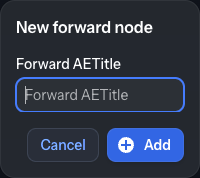
Click the New forward node button. A popup will appear:
Enter a unique value in the Forward AETitle field. AE Titles must not exceed 16 characters and cannot contain control characters or a backslash.
Click the Add button
The new forward node appears in the list and is automatically selected. Optionally, add a description and save your changes.
Info
The Forward AETitle must be unique across all forward nodes in the Karnak instance.
2. Create a group
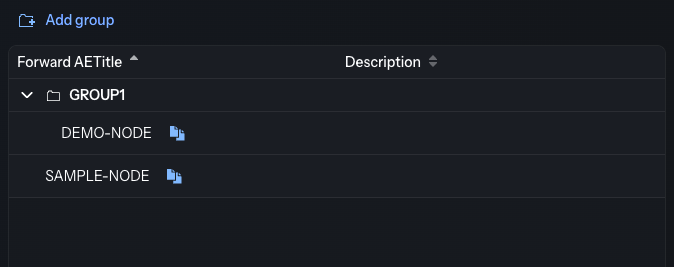
When the list grows, you can organize forward nodes into groups (a single level of
folders) to keep related nodes together:
Click Add group to create a new group and give it a name.
Drag a forward node onto a group to assign it to that group.
Right-click a group to Rename group or Delete group; deleting a group only
removes the folder — the nodes it contained move back out, they are not deleted.
Right-click a node and choose Remove from group to take it out of its group.
Groups are purely organizational; they do not change how forward nodes behave. The same
grouping is available for Projects and Profiles.
3. Forward Node List
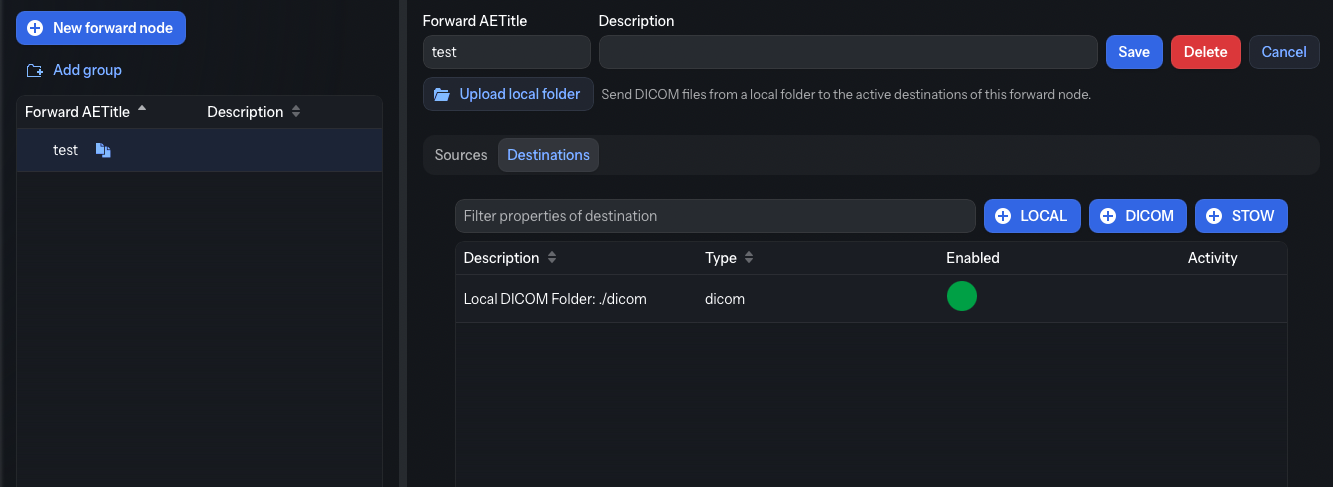
All configured forward nodes and groups are displayed in the left panel.
Select a forward node from the list to view and manage its configuration in the right panel.
Info
The copy icon
next to each forward node allows you to quickly copy its DICOM configuration (AE Title, host and the listener port — DICOM_LISTENER_PORT, 11119 by default, see the installation page) to the clipboard for use in DICOM clients. Adapt the host if the sending node reaches Karnak through another address.
4. Forward Node Parameters
In the details view, you can modify:
Forward AETitle: The Application Entity Title of the forward node
Description: An optional description to help identify the node’s purpose
Click the Save button to apply your changes.
5. Sources and Destinations
Each forward node can be configured with:
Sources: Control which DICOM nodes are authorized to send data to this forward node
Destinations: Define where received DICOM instances should be forwarded
5.1 Navigation
Use the tabs to switch between the Destinations and Sources views for the selected forward node.
5.2 Filtering
Destinations tab: a free-text filter matching a destination’s description, AE Title, hostname, port, URL, headers and notification settings.
Sources tab: a free-text filter matching a source’s description, AE Title and hostname.
5.3 List
All destinations or sources associated with the forward node are displayed here.
Click any item in the list (or a New button) to open its configuration form. The form
replaces the list panel in place; click Cancel to return to the list.
5.4 Actions
The available action buttons depend on the active tab.
Destinations tab:
Create a new destination using either the DICOM or DICOM WEB (STOW) protocol. See the Destinations page for detailed configuration instructions. The portable distribution shows an additional LOCAL button that creates a destination storing the instances in its local DICOM folder.
Sources tab:
Create a new source to control which DICOM nodes can send data to this forward node. See the Sources page for detailed configuration instructions.
6. Forward Node Actions
Three action buttons are available:
Action
Description
Save
Saves changes made to the forward node parameters
Delete
Deletes the selected forward node and all associated configurations
Cancel
Reverts unsaved changes to the forward node parameters
Info
While a transfer is running through the forward node, Save and Delete are disabled and read Transfer in progress; they become available again once the transfer is complete.
Warning
Deleting a forward node will also remove all associated sources and destinations, as well as the related entries in the Monitoring view. This action cannot be undone.
Subsections of Gateway
DICOM and DICOMweb Destinations
This page allows you to configure destinations for your forward nodes. Destinations define where DICOM instances are sent and how they are processed during transfer.
Info
To access this page, first select a forward node from the Gateway page, then open the Destinations tab (it is selected by default).
Depending on the protocol used, two types of destinations can be created:
A DICOM Destination uses the traditional DICOM protocol to forward instances to another DICOM node.
Creating a DICOM Destination
AETitle, Hostname and Port are mandatory when creating a DICOM Destination.
Configuration Options
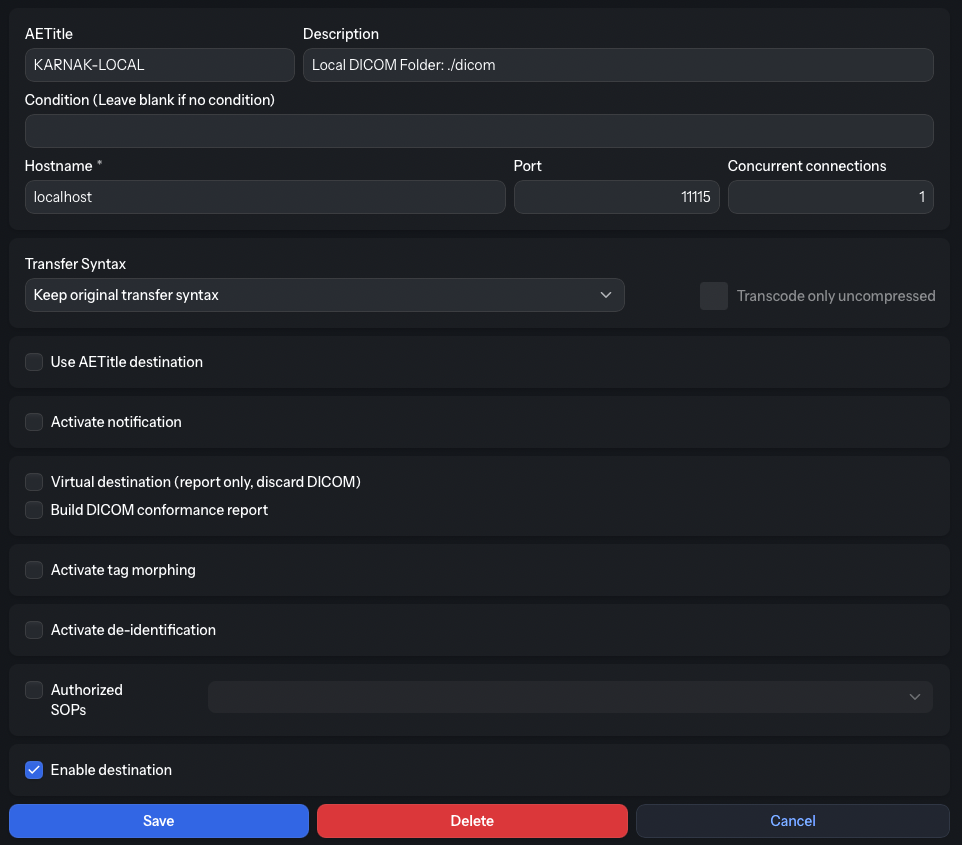
1. Destination Parameters
These fields define where Karnak should send the DICOM instances.
AETitle: The Application Entity Title that identifies the destination DICOM node (16 characters max, no whitespace).
Description: An optional label shown in the destination list.
Hostname: The IP address or hostname of the destination server.
Port: The network port used by the destination DICOM service (must be between 1 and 65535).
Concurrent connections: The number of parallel DICOM associations Karnak opens to this destination (between 1 and 50; 1 means a single connection). Increasing this value improves throughput when forwarding large studies, but must stay within the destination PACS’s concurrent-association limit.
Condition (labeled Condition (Leave blank if no condition)): An optional field that can contain an expression. If the condition is met, the destination will be activated. See Conditions for more details.
2. Transfer Syntax
This field defines the transfer syntax used when sending DICOM instances to this destination. The transfer syntax determines the encoding and compression format of the DICOM data.
It is recommended to choose “Keep original transfer syntax” unless you have specific requirements for compression or compatibility with the destination system.
When selecting a specific transfer syntax, ensure that the destination system supports it to avoid decompression or compatibility issues. When you select a compressed transfer syntax, the Transcode only uncompressed checkbox becomes available and is checked automatically so that instances that are already compressed are not re-encoded; uncheck it only if every instance must be transcoded. The checkbox is disabled for Keep original transfer syntax and Explicit VR - Little Endian.
Info
Transcoding may increase processing time and resource usage, especially for large datasets. Use it judiciously based on your workflow needs.
3. Use AETitle Destination
When this option is checked, use the destination AETitle as the calling AETitle instead of the Forward Node AETitle during the DICOM association.
4. Notifications
Check Activate notification to receive automatic email summaries of forwarded
instances, including success and error reports.
Configuration fields (on screen each label is prefixed with Notif.: and shows its
default inline, e.g. Notif.: error subject prefix (Default: **ERROR**)):
Field
Description
Default Value
List of emails
Comma-separated list of recipient email addresses (required when notifications are active)
None
Error subject prefix
Prefix added to email subjects when an error occurs
**ERROR**
Rejection subject prefix
Prefix added when an instance is rejected due to filters or criteria
DICOM attributes to inject into the subject pattern (PatientID, StudyDescription, StudyDate, StudyInstanceUID)
PatientID,StudyDescription
Interval
Time in seconds to wait before sending notification (aggregates multiple instances)
45
Info
The interval setting helps reduce email volume by aggregating notifications. All instances received within the specified interval are summarized in a single email.
Info
Each email reports only what is new since the previous notification for a given
series (the delta), so outcomes that were already reported are not counted again when
the series is touched by a later transfer. A series touched only by retries or duplicate
re-sends has nothing new to report and therefore does not trigger a notification.
5. Virtual Destination
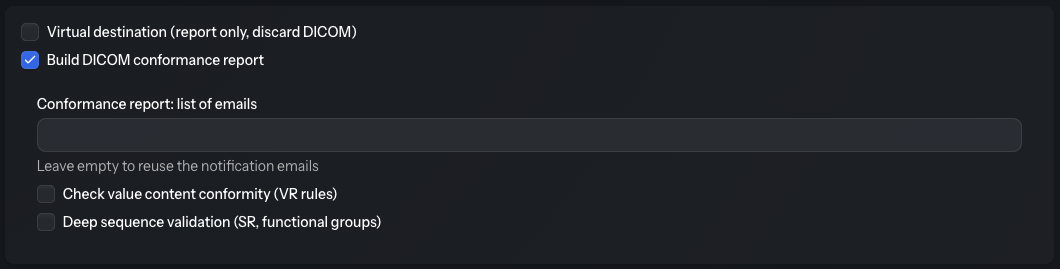
When Virtual destination (report only, discard DICOM) is checked, the destination
does not forward anything to a real node. Each study is still received and validated,
but the only output is the DICOM conformance report, which
is emailed. Delivery settings (transfer syntax, notifications, etc.) do not apply, and the
conformance report is mandatory and cannot be turned off while the destination is virtual.
This is useful to validate DICOM conformance — for testing, validation-only deployments,
or audit purposes — without sending any data.
Info
On screen, the Virtual destination and Build DICOM conformance report options
share a single box, displayed right after Notifications and before Tag Morphing
and De-identification.
6. DICOM Conformance Report
Enable Build DICOM conformance report to validate every study sent to this
destination against the DICOM standard and email an HTML report. When enabled, options
appear to set the report’s recipient emails, to also check value content conformity
(VR rules), to perform deep sequence validation, and to check for identifying data
burned into the image (this last option runs OCR through the external de-identification
image service, which must be reachable at OCR_URL, http://localhost:8000 by default).
See the dedicated Conformance Report page for what each option
does, when the report is sent, and what it contains.
7. Tag Morphing
Tag morphing allows you to modify specific DICOM tag values defined in a profile. With this mode, it is not mandatory to de-identify patient information like in De-identification mode.
The applied profile and its version are displayed below the selection
If no project exists yet, the same no-project popup shown for
de-identification appears, letting you create one or cancel.
Info
Activate tag morphing and Activate de-identification are mutually exclusive options. Only one can be active at a time.
8. De-identification
De-identification removes or replaces patient-identifying information in DICOM instances according to configurable rules and profiles. It is not possible to preserve the patient identity in the profile when this option is activated.
Info
Activate de-identification and Activate tag morphing are mutually exclusive options. Only one can be active at a time.
A popup will appear with two options, either create a project or continue without activating de-identification.
If a project exists:
Configure de-identification as shown below:
Project Selection
Select the project that defines the de-identification profile to apply. The profile name and version are displayed below the selection.
Each project is associated with:
A de-identification profile
A secret key used for pseudonymization and UID generation
See the Projects page for more information about project configuration.
Pseudonym Type
Pseudonyms replace patient identifiers while maintaining the ability to link de-identified data back to the original patient (when necessary and authorized).
Choose how Karnak should retrieve or generate pseudonyms:
This field (labeled Issuer of Patient ID by default) provides a default value for the Issuer of Patient ID when it’s not present in the DICOM instance. It is only shown when the pseudonym type is Pseudonym is already stored in KARNAK.
Usage:
This value is used when retrieving the pseudonym using the External Pseudonym cache. The pseudonym is queried based on:
Patient ID (from DICOM tag 0010,0020)
Issuer of Patient ID (from DICOM tag 0010,0021 or this default value)
The combination of Patient ID and Issuer ensures unique patient identification across different healthcare systems.
Ignore the Issuer of Patient ID (cache lookup)
This option is only available when the pseudonym type is Pseudonym is already stored
in KARNAK. On screen it is the Ignore Issuer of Patient ID checkbox. When checked,
the Issuer of Patient ID of the incoming image is ignored when building the key used
to look up the pseudonym in the cache.
It is enabled by default, so the same Patient ID is matched even when it is registered
under a different (or missing) issuer in the External Pseudonym cache
than in the images you receive. Uncheck it if you need the issuer to be part of the lookup
key. When this option is checked, the Issuer of Patient ID by default field is cleared
and disabled, since it no longer takes part in the lookup.
9. Authorized SOPs
Filter which DICOM instance types (SOP Classes) are forwarded to this destination.
Configuration:
Enabled: Only instances matching the specified SOP Classes are transferred. At least one SOP Class must be selected, otherwise the destination cannot be saved.
Disabled: All SOP Classes are transferred without restriction
10. Enable the Destination
The Enable destination checkbox allows you to temporarily disable a destination without deleting it. The state is also visible in the destination list with a green (enabled) or red (disabled) indicator.
Use this feature to:
Temporarily pause forwarding during maintenance
Test configurations without affecting production destinations
Keep backup destination configurations ready but inactive
11. Action Buttons
Three actions are available to manage the destination:
Button
Description
Save
Saves all changes made to the destination configuration
Delete
Permanently deletes the selected destination
Cancel
Reverts all unsaved changes to the last saved state
Info
While a transfer is running through the forward node, Save and Delete are disabled and read Transfer in progress; the Activity column of the destination list shows a spinner during that time.
Warning
Deleting a destination cannot be undone. All configuration settings will be permanently removed.
STOW Destination
A STOW Destination forwards instances over DICOMweb (STOW-RS) to a web server such as a DICOMweb-enabled PACS or a Kheops instance.
Creating a STOW Destination
The URL is required for STOW Destination creation. Most configuration options are identical to DICOM Destinations. Only the differences are detailed below.
Configuration Differences
1. Destination Parameters
URL: The DICOMweb STOW-RS endpoint where DICOM instances will be sent (e.g., https://pacs.example.com/dicomweb/studies).
Condition: An optional expression that activates the destination when met. See Conditions for more details.
Use HTTP/2
When Use HTTP/2 is checked, STOW-RS uploads use HTTP/2 instead of HTTP/1.1.
Warning
Leave this unchecked (HTTP/1.1) when the archive sits behind a reverse proxy that
caps the number of HTTP/2 requests per connection (e.g. KHEOPS / nginx
http2_max_requests=1000), which can silently drop instances beyond the limit.
HTTP Headers
The Headers field contains HTTP headers added to each STOW-RS request.
Format: Headers are defined using XML-style key-value tags as shown below:
Click the Generate Authorization Header button to automatically generate properly formatted authentication headers.
Warning
If a header with <key>Authorization</key> already exists, an error will be displayed. The generator will append to existing headers if they don’t conflict.
Supported Authorization Types: the dialog has an Authorization Type selector
(Basic Auth or OAuth 2) and a Generate Headers button that appends the
generated header.
If the destination is a Kheops endpoint, it is possible to configure multiple albums by selecting the option “Switching in different KHEOPS albums”.
Explanations for configuring Kheops-related parameters can be found in the Kheops section.
Restrict Which DICOM Sources May Send
The Sources tab displays all configured sources for the selected forward node.
A source is used to control which entities can send DICOM data to the forward node. It validates that received DICOM instances come from a known Application Entity Title (AET).
Info
If no sources are defined, the forward node will accept DICOM instances from any AET without restrictions.
Create a source
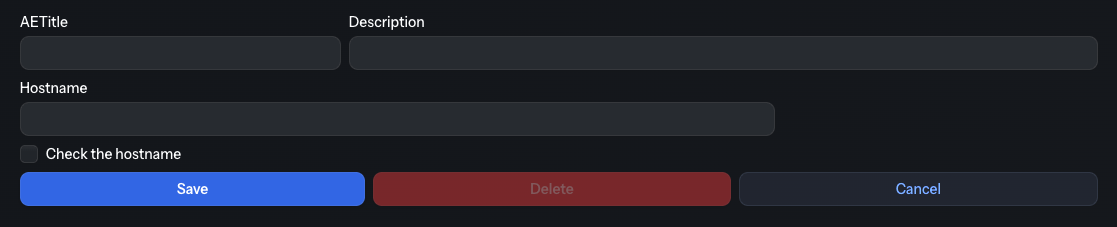
To create a new source, click the Source button and configure the following fields:
Field
Description
Required
AETitle
Application Entity Title of the source DICOM node (16 characters max)
Yes
Description
Optional description to identify the source
No
Hostname
Hostname or IP address of the source DICOM node
No*
*Fill in the Hostname when you enable the “Check the hostname” option. When enabled, Karnak validates both the AET and the hostname (or IP address) of the calling node during the DICOM association, and refuses the connection when the hostname does not match.
Source validation behavior
When a DICOM instance is received by the forward node:
With sources configured: Only instances from registered AETs (and hostnames, if enabled) are accepted. Instances from any other node are refused with the DICOM status Not Authorized (0124H) and are listed in the Monitoring view as not transferred, with the reason Source not authorized: .
Without sources configured: All instances are accepted.
This provides flexible security control for your DICOM workflow.
Manage De-identification Profiles in Karnak
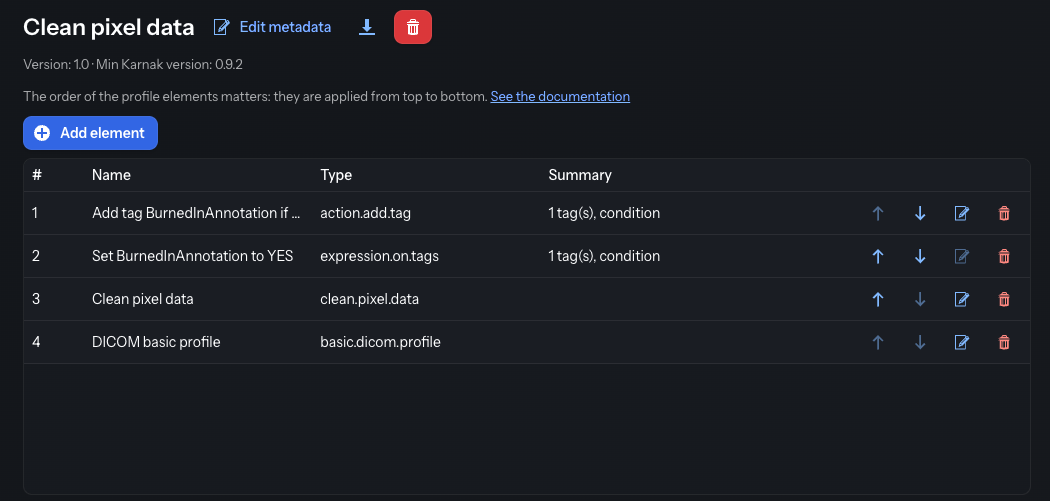
This page lists all profiles configured in Karnak and lets you create, import, edit and
delete them. A profile defines the actions to apply to a DICOM instance before it is sent.
The Dicom Basic Profile is available by default and cannot be edited or deleted. It is
the reference de-identification profile based on the DICOM standard.
For more details, see De-identification Process
The page has two areas:
a left panel that lists the profiles, with the buttons to create, import
and group them;
a right panel that opens when you select a profile, with two editing tabs —
Profile elements (a visual editor for the most common actions) and YAML editor
(the full profile as YAML).
Info
The Profile elements tab is a convenience editor that covers the major element
types only — it does not expose every configuration option. For the full
capabilities (for example pixel-data masks, API-based
replacement, or any option the visual editor does not show), use the YAML editor or
import a YAML file. Both tabs describe the same profile; the complete structure is in the
Profiles reference.
Left panel: create, import and group profiles
New profile
Click New profile to open a popup. Provide a Name, a Version and the
Min Karnak version (optional), then click Create. An empty, editable profile is
created and opened so you can add its elements.
Import a profile
To reuse an existing profile, use the upload area below the buttons: click
Upload File… or drag a YAML file onto Drag and drop your profile here. The file is
loaded and analyzed; if it is valid, a new profile is created from it and added to the
list. If it contains errors, the profile is not added and the errors are shown in the
right panel (see Import errors).
Info
For how to write a valid profile YAML file, see the
Profile Structure documentation.
Profile list and groups
All profiles are listed in the left panel. A profile can evolve over time and appear
several times under the same name with different versions. Selecting a profile shows its
details on the right.
Click Add group to organize the list into a single level of groups: create a
group, drag a profile onto it to assign it, and right-click a group or a profile to
Rename group, Delete group or Remove from group. Grouping is purely
organizational and is described in more detail on the Gateway page.
Right panel: editing a profile
When you select a profile, the right panel shows its name in a header with the
Edit metadata, download and delete actions, above the two tabs Profile
elements and YAML editor.
Profile metadata
The header shows the profile name, with a secondary line recalling its Version and
Min Karnak version. Click Edit metadata (edit icon) to change them: a popup titled
Edit profile opens with the Name, Version and Min Karnak version fields; edit the
values and click Save.
Download and delete
Two buttons next to the profile name apply to the whole profile and are available from
either tab:
the download button exports the profile as a YAML file (for backup or to share with
another Karnak instance);
the delete (trash) button removes the profile. If the profile is used by one or more
projects, a warning is shown to prevent accidental deletion.
Profile elements tab
The Profile elements tab is a visual editor for the most common actions. It lists
the elements that make up the profile, in the order they are applied. Each row shows its
position (#), Name, Type (the element’s codename, e.g.
action.on.specific.tags) and a short Summary, with per-row up / down / edit /
delete actions.
Info
The order of the elements matters: they are applied from top to bottom. Use the up/down
arrows on each row to reorder them.
A profile should normally include the Basic DICOM confidentiality profile element; if
it is missing, a warning is shown. This element is always applied last — it is pinned
to the end of the list and cannot be reordered.
Info
This visual editor covers the major element types listed below. An element whose type it
does not support (for example pixel-data masks or API-based
replacement) still appears in the list and can be reordered or deleted, but its edit
action is disabled — configure it from the YAML editor instead.
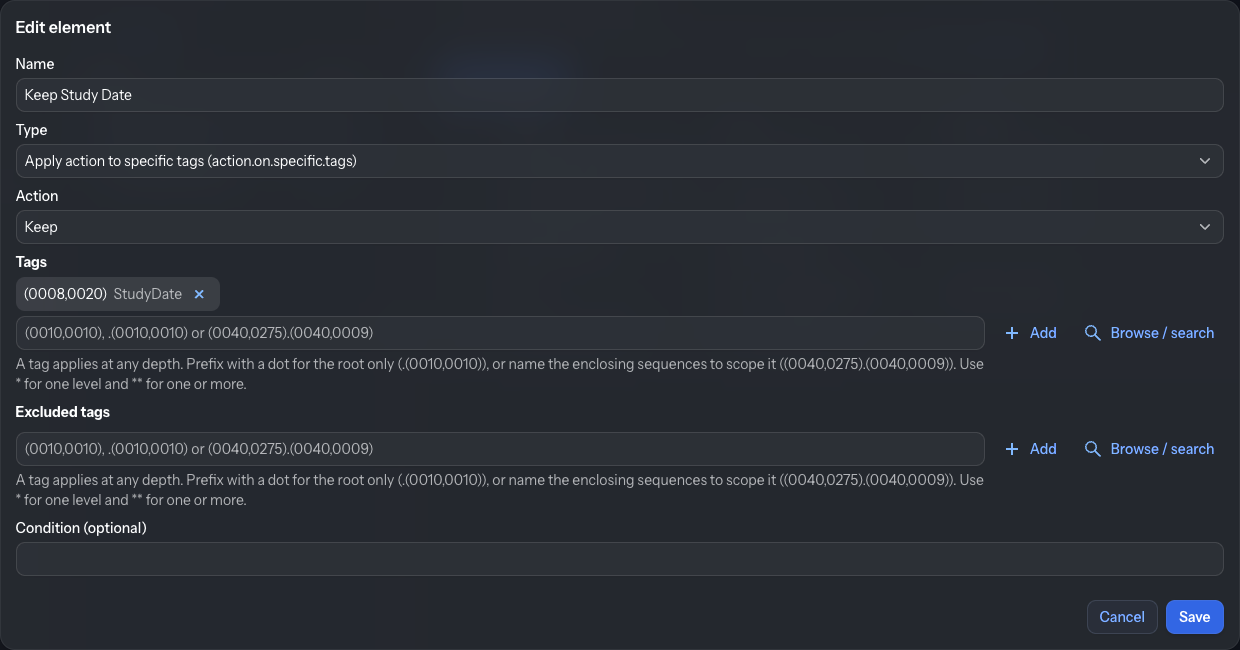
Adding and editing an element
Click Add element (or the edit action on a row) to open the Add element /
Edit element dialog. Fill in:
Name — a label for the element.
Type — the kind of action to perform (the dropdown shows each type followed by its
codename in parentheses). The types are offered in this order:
Apply action to specific tags
Shift / format dates
Replace UIDs
Basic DICOM confidentiality profile
Clean pixel data
Defacing (clean recognizable visual features)
Add a tag
Apply action to private tags
The types that may appear only once in a profile (Basic DICOM confidentiality
profile, Clean pixel data and Defacing) are no longer offered once the profile
contains them.
Type-specific fields — the middle of the dialog adapts to the selected type:
Apply action to specific tags / Apply action to private tags: an Action
(see the table below), a Tags picker and an Excluded tags picker.
Replace UIDs: an Action (Generate a new UID, Remove or Replace with null)
and a Tags picker.
Shift / format dates: an Option (shift, shift_range, shift_by_tag or
date_format) that reveals its own fields, plus an optional Tags picker.
Add a tag: a Tag picker and a Value.
Basic DICOM confidentiality profile, Clean pixel data and Defacing need no
extra fields. (To define the mask regions of Clean pixel data, use the YAML editor —
see pixel-data masks.)
Condition (optional) — an expression that limits when the element is applied; see
Conditions.
The Action (for the tag-based types) decides what to do with the matched tags:
Action
Code
Meaning
Keep
K
Keep the value unchanged
Remove
X
Remove the tag
Replace with null
Z
Replace with an empty value
Replace with a dummy value
D
Replace with a dummy value consistent with the tag’s VR (see default values by VR)
Generate a new UID
U
Generate a new, deterministic UID
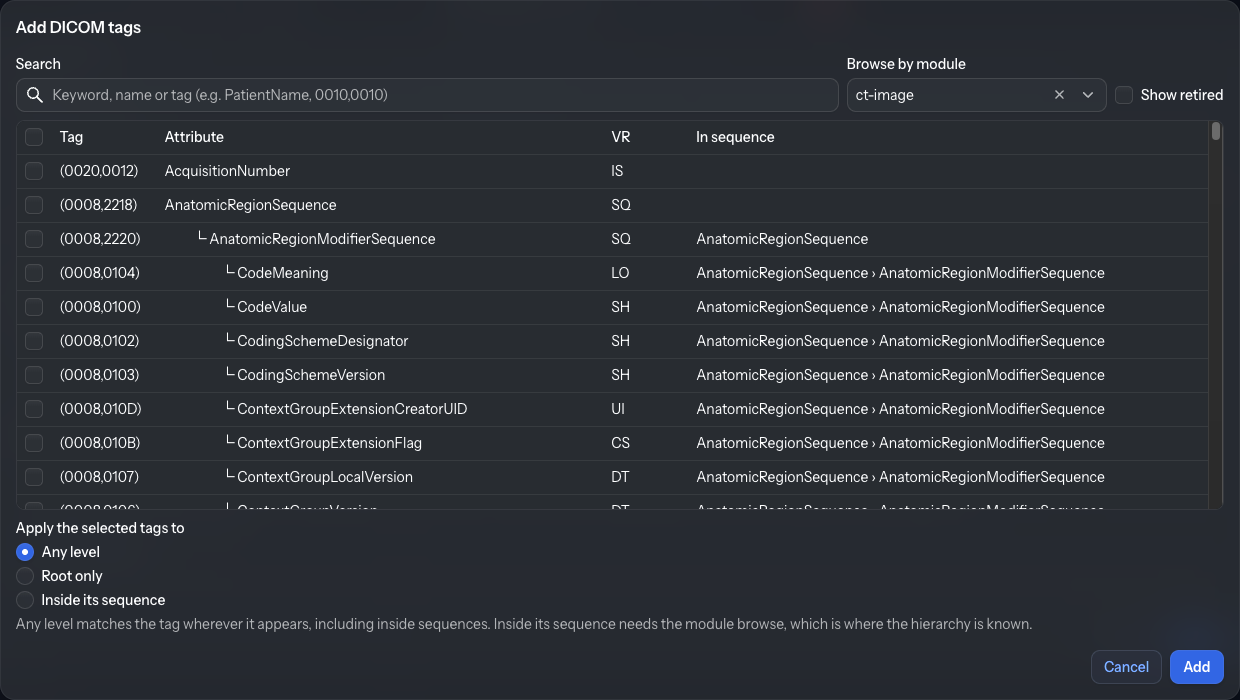
The tag fields use a tag picker that lets you search or browse the DICOM
dictionary instead of typing tag numbers.
Click Save to validate and add the element, or Cancel to discard. The reference
for every type, action and option — and the equivalent YAML — is in the
Profiles reference section.
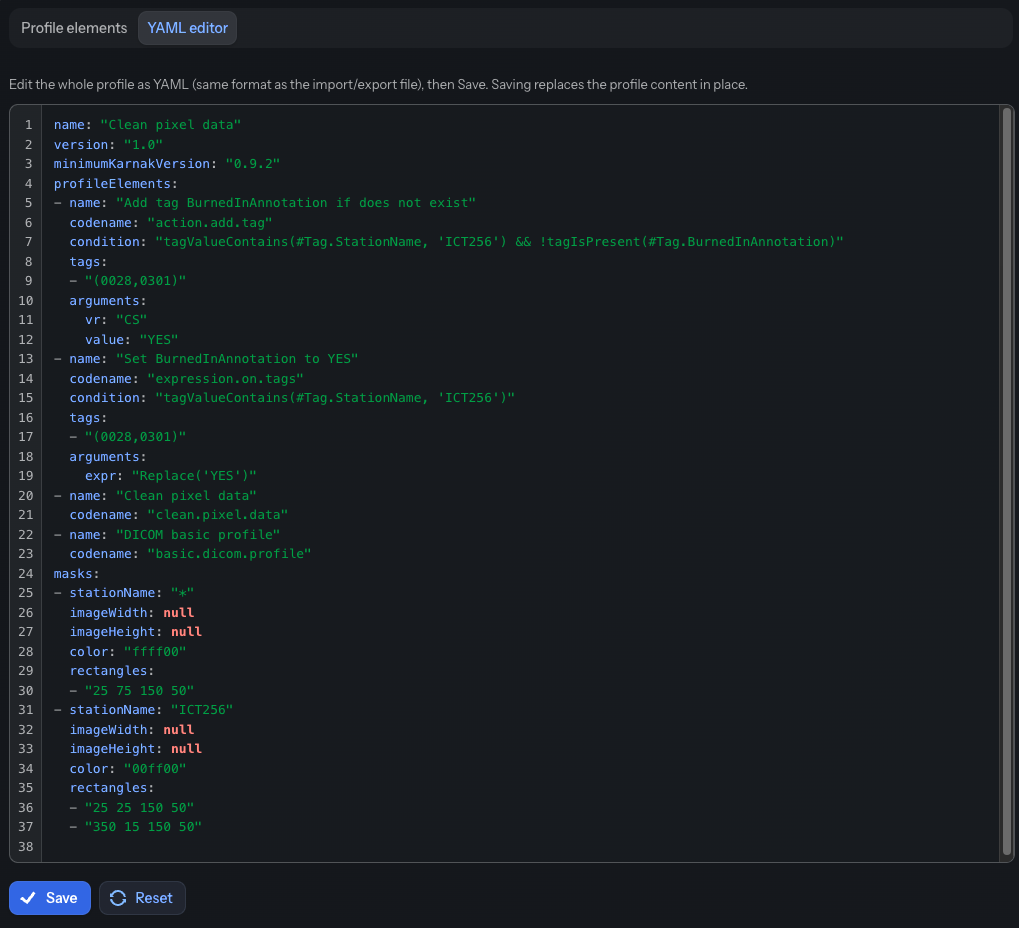
YAML editor tab
The YAML editor tab edits the entire profile as YAML — the same format as the import
and export files. It gives access to the full set of profile capabilities, including
options the visual editor does not expose, such as pixel-data masks
and API-based replacement. It provides syntax highlighting and a
line-number gutter, and adapts to the light or dark theme.
Save parses and validates the YAML and applies it in place, keeping the profile so
the projects that reference it are preserved. On success a Profile saved notification
appears; if the YAML is invalid, the errors are listed in a red box and nothing changes.
Reset discards your edits and reloads the last saved YAML.
The built-in Dicom Basic Profile is shown read-only and cannot be edited here.
Import errors
When a YAML file is imported successfully, the right panel shows the details of the newly
created profile.
If errors occur during import, the profile is not added to the list. The errors are shown
in the right panel with details about their cause, as illustrated below.
Projects and De-identification Secrets
This page lists all projects configured in Karnak and lets you create, edit, and delete them. A project is linked to a profile and contains a secret used for de-identification.
1. Create a project
To create a new project:
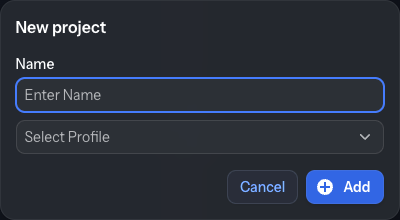
Click the New project button to open the creation popup.
Enter a name.
Select a profile.
Click Add.
The project is added to the list and its details appear in the right panel.
2. Create a group
When the list grows, you can organize projects into groups (a single level of folders).
Click Add group to create one, drag a project onto a group to assign it, and right-click a group or project
to rename, delete or remove it from its group. Grouping is purely organizational and is
described in more detail on the Gateway page.
3. Project list
All available projects are listed in the left panel.
Selecting a project displays its details on the right.
4. Project details
In the details view you can:
Change the project name.
Change the de-identification profile.
Click Update to save your changes.
5. Project secret
The project secret is central to Karnak’s de-identification process.
It is a 16-byte value written as 32 hexadecimal characters.
A secret is automatically generated when the project is created.
In the details view, the secret is shown along with its creation date and time.
You can generate a new secret by clicking Generate Secret, or type/paste your own
32-character hexadecimal value into the secret field. When you do this:
Previous secrets are kept in the database.
You can select any previous secret to use again.
Warning
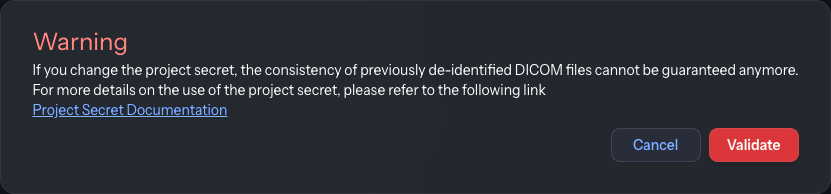
Changing the project secret can cause data consistency issues between old and new de-identified DICOM instances. Use this feature with caution and only when necessary.
Since this modification can break the de-identification process, a warning is displayed to confirm this change.
A destination is associated with a project for de-identification, as described in the Destination configuration.
To generate new values like UIDs and pseudonymize some patient information, Karnak uses a hash function seeded with the project secret. This makes the generated values unique per project and deterministic as long as the secret does not change.
Implications of changing the secret:
If a DICOM instance is de-identified twice using the same project, secret, and profile, the resulting de-identified instances are identical.
If the secret changes, de-identifying the same DICOM instance again with the same project and profile but the new secret will produce different de-identified instances.
Details about the algorithm and UID generation using the project secret are available here.
6. Action buttons
Click Update to save any change made to a project. If the project is already used
by a destination, a confirmation is requested before the change is applied.
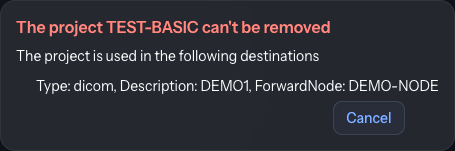
Click Delete to delete the selected project.
If the project is associated with a destination, deletion fails and an error message is displayed.
Import Pseudonyms from a CSV File
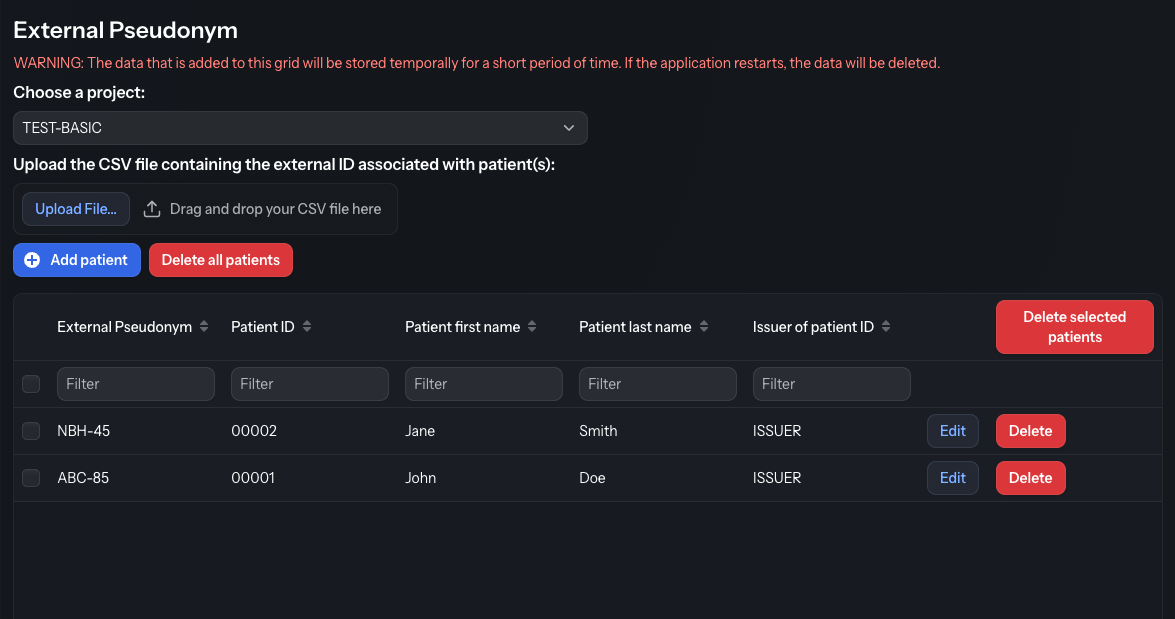
This page allows you to create or import pseudonyms that Karnak will use during de-identification. The de-identification process and how pseudonyms are used is detailed in the Pseudonym chapter.
Pseudonyms created or imported on this page are stored in a cache with a maximum lifetime of 7 days.
With the portable version of Karnak, the cache is persistent only the time the application is running. Restarting the application will clear the cache.
1. Choose a project
External pseudonyms are linked to a specific project. This allows Karnak to properly handle cases where:
A patient participates in multiple clinical studies with different pseudonyms
Potential pseudonym collisions occur between projects
2. Upload a CSV file
You can upload a CSV file containing external pseudonyms by:
Clicking the Upload File… button
Dragging and dropping a file onto the upload area
2.1 CSV separator configuration
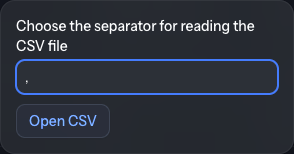
After selecting a file, a dialog appears asking for the CSV separator character. The default value is a comma (,).
Click Open CSV to proceed to the import configuration.
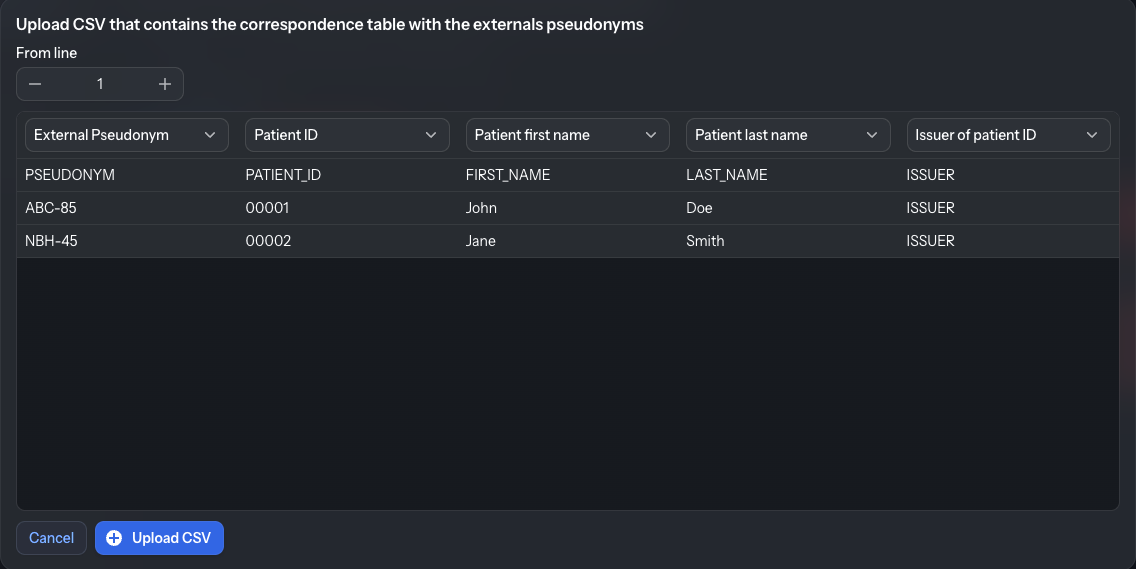
2.2 Preview and configuration
The CSV data is displayed in a grid for review and configuration.
1. From line: This field defines the starting row for the import. Use this to skip header rows or other non-data lines at the beginning of the file.
2. Column assignments: Map each CSV column to the corresponding attribute to ensure that the data is properly imported.
These fields are initially empty. This mechanism allows flexibility on the content of the CSV file being imported.
Only the Patient ID and External Pseudonym fields are required. Other fields are optional.
3. Data preview: The data that will be imported as pseudonyms is displayed in the table.
2.3 Import validation
Click Upload CSV to import the data. The External Pseudonym and Patient ID
columns must be assigned; otherwise an error lists the missing fields and nothing is imported.
Entries are identified by their Patient ID (and Issuer of patient ID) within the
selected project. A row whose patient already exists is skipped and listed in a
WARNING: Duplicate data dialog; the other rows are imported normally. The same check
applies when a patient is added manually.
3. Pseudonym Actions
3.1 Add a new pseudonym
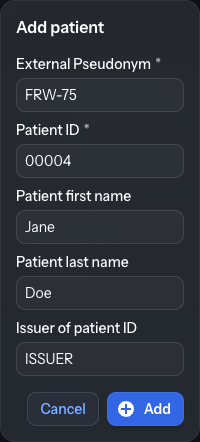
You can also add external pseudonyms manually. Click the Add patient button above the
table to open a popup containing the following fields:
External Pseudonym (required)
Patient ID (required)
Patient first name (optional)
Patient last name (optional)
Issuer of patient ID (optional)
Fill in the fields and click Add in the popup to add the entry to the external
pseudonyms table.
3.2 Delete all patients
The Delete all patients button removes, after confirmation, all external pseudonyms for the selected project only. Pseudonyms linked to other projects are not affected.
4. Pseudonym management
4.1 Edit or delete individual entries
A filter row under the column headers narrows the table to the matching entries.
Each pseudonym row has action buttons:
Edit: Modify the patient fields inline, then click Save or Cancel
Delete: Remove the pseudonym from the cache
4.2 Bulk operations
Select multiple rows using the checkboxes on the left side of each row. Click Delete selected patients to remove all selected entries and confirm the action in the dialog.
Monitor DICOM Transfers and Their Status
The Monitoring view tracks transfers in progress and the recent transfer history.
Instead of a flat, paginated log of individual instances, activity is aggregated as
a Destination → Study → Series hierarchy, so you can see at a glance how each study
was forwarded and drill down only where there are problems.
Info
What changed in version 2.0. The Monitoring module was redesigned. The earlier flat,
paginated log of individual instances is replaced by a tree down to the series level
(Destination → Study → Series), with one error line per failing series. Transfers are now
aggregated per series instead of stored one row per instance, which keeps the view compact
and makes problems easier to locate. As a result, retention is now time-based (a number
of days) rather than a fixed maximum number of transfers.
A shared filter bar at the top applies to two tabs:
Activity — the Destination / Study / Series tree, with the details of any
selected element shown on the right.
Dashboard — per-forward-node activity totals.
Info
By default, monitoring records are kept for 30 days; an automatic cleanup runs
every hour to remove older entries. Because entries are now aggregated at the series
level (rather than one row per instance), this history can span much longer than before
for the same storage. The retention period is configurable by the administrator with the
monitoring.max-history-days setting.
Filters
The filter bar is shared by both tabs:
Filter
Description
Range
A time range for the activity: Last 5 minutes, Last 15 minutes, Last hour, Last 24 hours, Today, Last 7 days, Last 15 days, All, or Custom (pick your own start/end). Last 24 hours is selected by default.
Status
The outcome to show: All, Sent, Not Sent, Excluded, or Error.
Study UID
Filter on a Study Instance UID (matches the original or de-identified value).
Series UID
Filter on a Series Instance UID (matches the original or de-identified value).
Transfer statuses
The status of each element is color-coded:
OK (green): the instances were successfully sent.
Excluded (orange): some instances were not sent because of configuration rules —
the SOP Class filter, destination conditions, or
ExcludeInstance() in the profile. The badge shows the number of excluded instances;
expand the series to see one line per reason.
Error (red): some instances were not sent because of an unexpected error. The
badge shows the number of errors; expand the series to see one line per error reason.
Activity tab
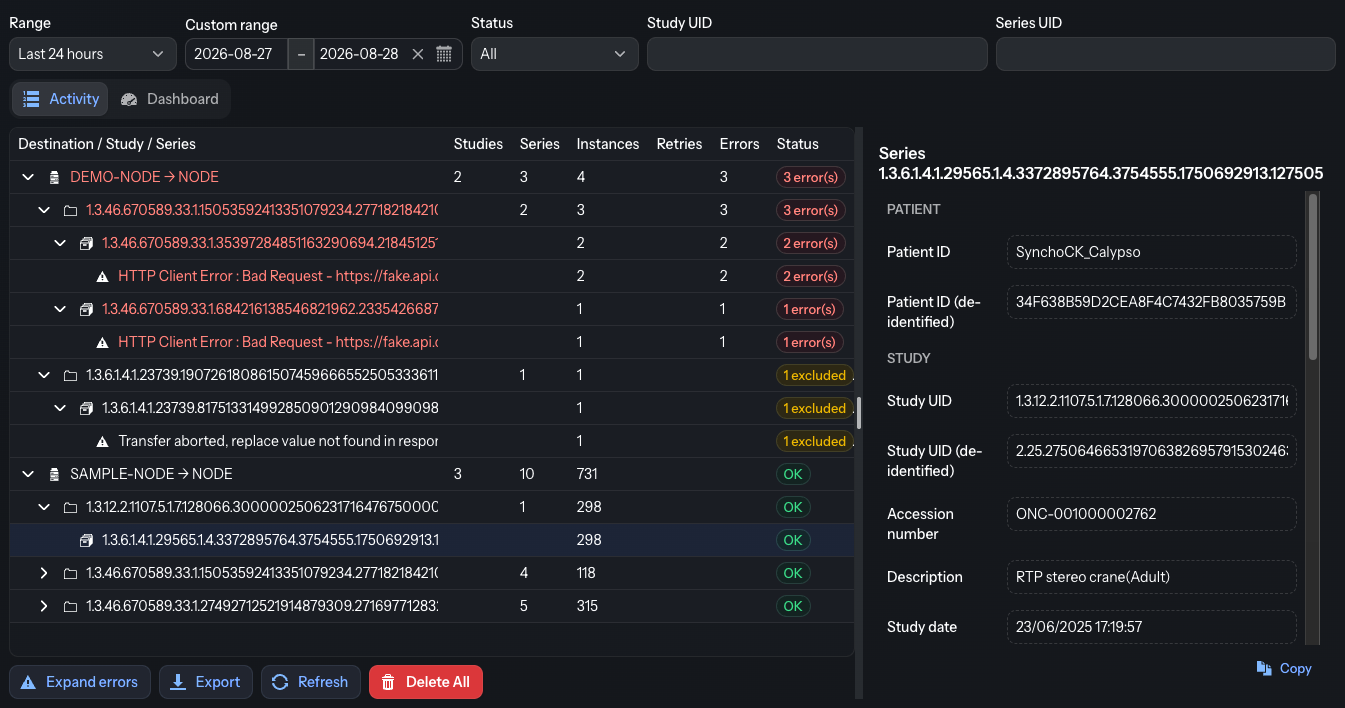
The Activity tab is split between the hierarchy tree (left) and the detail panel
(right).
Hierarchy tree
Each row in the tree shows the Destination / Study / Series name and the counts of
Studies, Series, Instances, Retries and Errors, plus an overall
Status badge. Expand a destination to see its studies, and a study to see its series;
failing series expose one line per error reason.
The outcomes are counted in separate buckets rather than a single error total:
Instances — the number of instances received for that element.
Retries — instances re-received after already being seen (duplicate re-sends);
they are counted here instead of as new work.
Errors — instances that could not be sent because of an unexpected error.
Instances excluded by configuration (filters or aborted transfers) are reflected in
the Status badge and reported as a separate Excluded count in the detail panel
and on the dashboard.
The toolbar below the tree provides, from left to right:
Expand errors — expand the tree down to every failing series so problems are
immediately visible (the button then becomes Collapse errors).
Delete All — permanently remove every monitoring entry (a confirmation is
required; this cannot be undone).
Info
Delete All also clears the per-series baseline used for notification
reporting, which is stored alongside the monitoring history. Email reporting simply
restarts from zero afterwards: no previously forwarded outcome is re-notified, but a new
transfer to a series that existed before the deletion is reported as new. The automatic
retention cleanup removes aged-out entries the same way.
Detail panel
Select any element in the tree to see its details on the right:
For a destination: the forward AE Title, the destination label, and the
Studies / Series / Instances / Retries / Sent / Errors / Excluded counts.
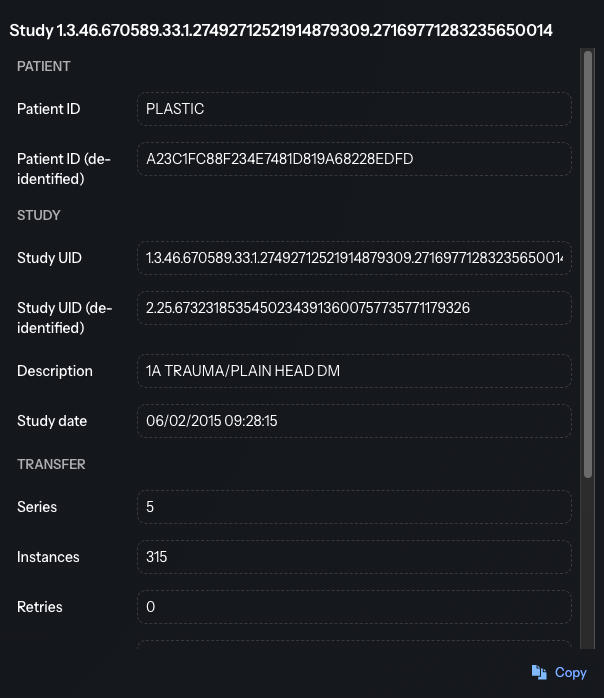
For a study: patient and study attributes shown as original vs sent
(de-identified) pairs — Patient ID, Study UID, Accession number, Description and
Study date — followed by the same Series / Instances / Retries / Sent / Errors /
Excluded counts.
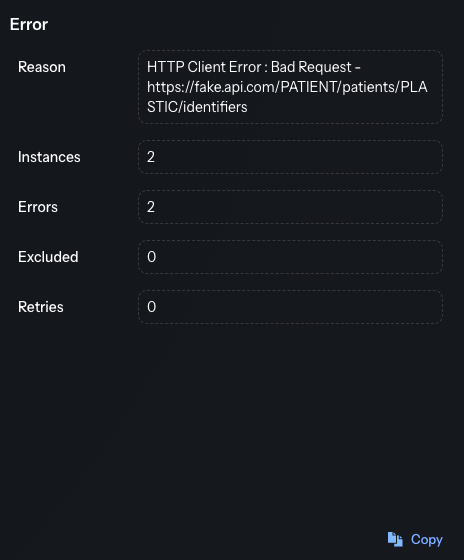
For a series or an error: the corresponding identifiers, the per-outcome counts
and the error reason.
A Copy button copies the whole detail block to the clipboard.
Below are two examples, the first one successfully de-identified and sent at the study level, and the second one, not sent because an error occurred.
Info
When a value was changed by de-identification, the panel shows the original value
and a second (de-identified) line with the value that was actually sent, so you can
compare the two.
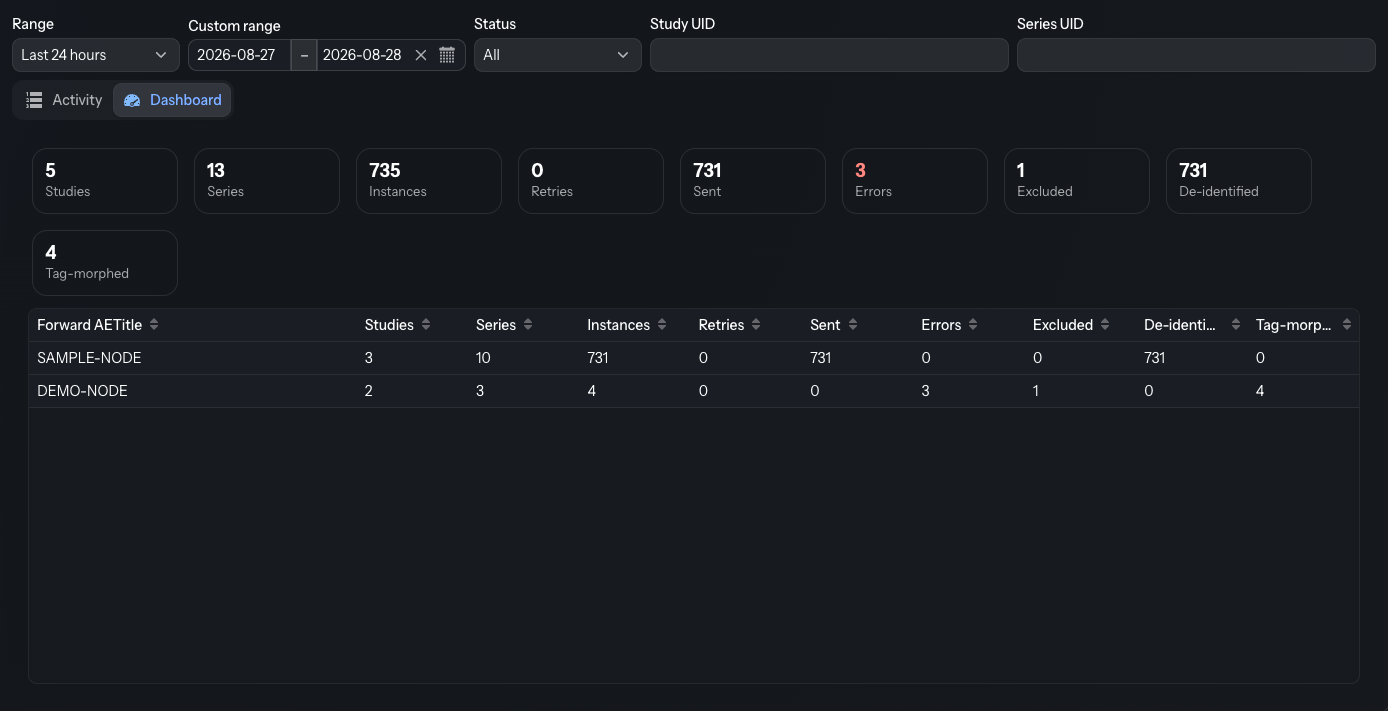
Dashboard tab
The Dashboard summarizes activity per forward node over the selected range. Summary
cards at the top total the Studies, Series, Instances, Retries, Sent,
Errors, Excluded, De-identified and Tag-morphed, and a grid breaks the
same figures down by Forward AETitle.
Export
You can export the activity to a CSV file. The export respects the currently active
filters, so only the matching transfers are included. One row is written per series, with
the original and de-identified identifiers, the Instances / Retries / Sent / Errors /
Excluded counts, the outcome reasons and the first/last-seen timestamps.
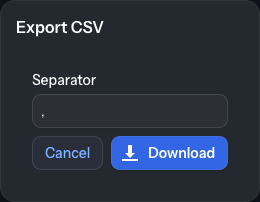
Click Export to open the Export CSV dialog. The only setting is:
Separator: the single character used to separate fields (a comma by default).
Then click Download to generate and download the CSV file.
DICOM and DICOMweb Test Tools
The DICOM Web Tools module groups the utilities used to test connectivity, query
servers, manage reusable endpoint configurations, and diagnose DICOM and DICOMweb
nodes. The modules are accessed through tabs at the top of the page:
DICOM Echo — test a single DICOM node and probe its capabilities
DICOM Worklist — query a Modality Worklist server and display the results
Manage DICOM Nodes — store, group and import/export DICOM node configurations
DICOMweb — test a single DICOMweb (STOW-RS / QIDO-RS / WADO-RS …) endpoint
Manage DICOMweb — store, group and import/export DICOMweb endpoints
Monitor — run health checks against a whole group of DICOM nodes or DICOMweb destinations at once
Info
DICOM nodes and DICOMweb endpoints are persisted in the database and managed
directly from the web interface (the Manage tabs). The active Gateway destinations
are also exposed read-only in these tools, so you can echo or probe them without
re-typing their connection details.
DICOM Echo
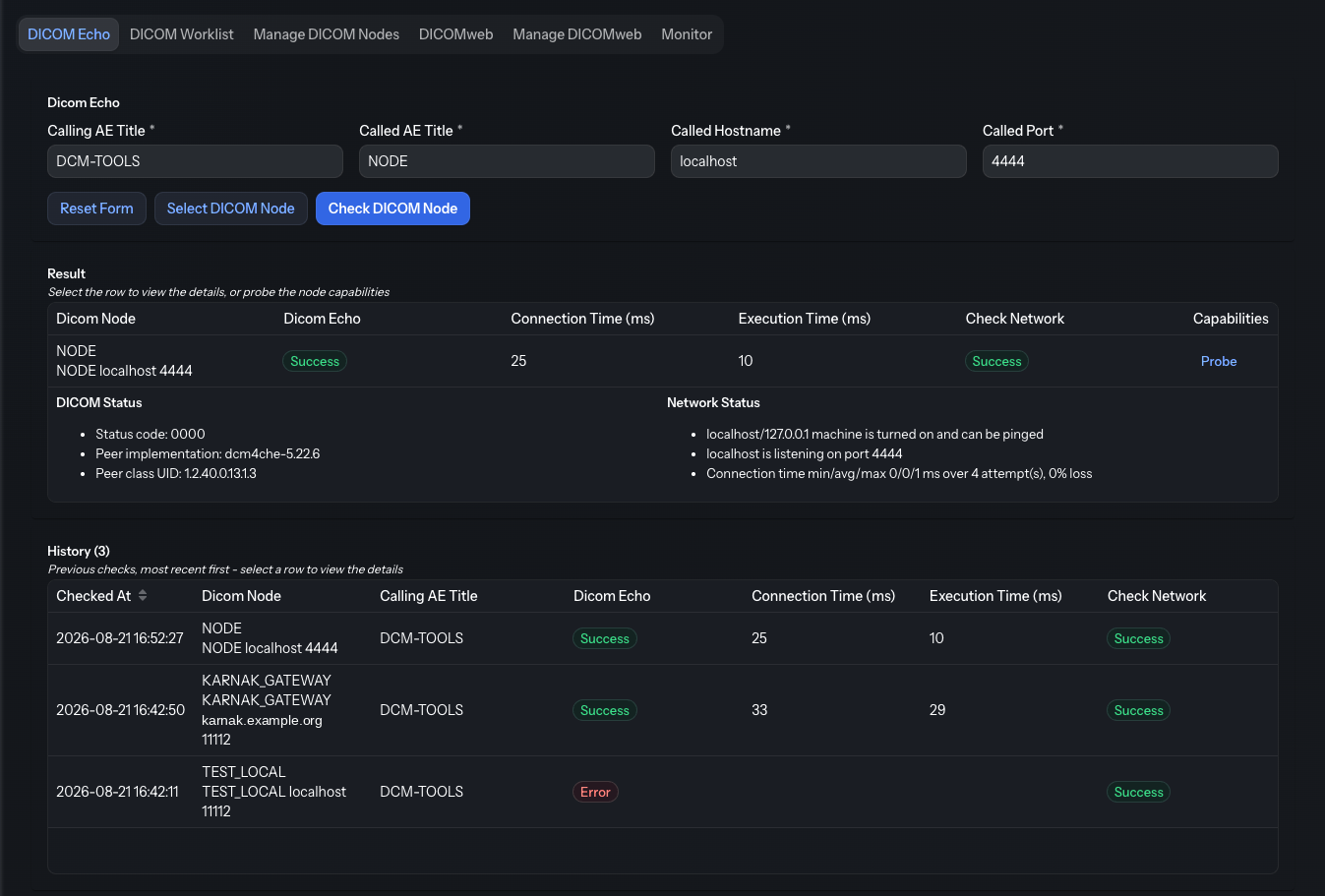
This tool tests DICOM communication with a single Application Entity (AE) and, on
the same screen, lets you probe what the node accepts.
Configuration fields
Field
Description
Required
Calling AE Title
Identity of the calling DICOM entity (Karnak)
Yes
Called AE Title
Identity of the DICOM entity to test
Yes
Called Hostname
Hostname or IP address of the DICOM node
Yes
Called Port
Port number of the DICOM node (1–65535)
Yes
The Check DICOM Node button stays disabled until all fields are valid.
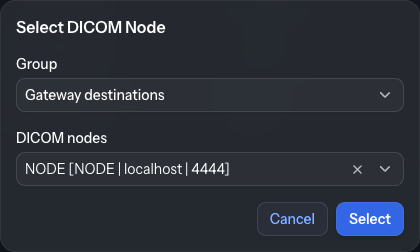
Use Select DICOM Node to pick from the stored DICOM nodes (and the gateway
destinations) instead of typing the values; the Called AE Title, Hostname and Port
fields are filled automatically.
First select a Group to filter the nodes. All the defined groups are displayed as well as
All Worklist nodes and All Workstation nodes, grouping the nodes by type.
The group Gateway destinations contains all the nodes configured in the Forward Nodes destinations.
Then select the node from the DICOM node dropdown.
Reset Form clears the form.
Running the test
Click Check DICOM Node to run the test. The result is shown in a grid; select the
row to view the details. Each result combines two checks:
DICOM Echo — the C-ECHO (verification) result, with the DICOM status, the
connection time and the execution time (in milliseconds). A rejected association or
a node that does not support verification is reported with the reason.
Check Network — a low-level reachability check run alongside the echo: hostname
(DNS) resolution, ping result, and whether the host is listening on the port.
Below the current result, a History panel lists the previous checks (most recent
first, with a count in its title). It is stored server-side in the database, so checks run
earlier — or in another session — remain visible after a page reload; select a row to view
that check’s details. Only the most recent checks are kept (200 by default, tunable by the
administrator with application.echo.history.limit).
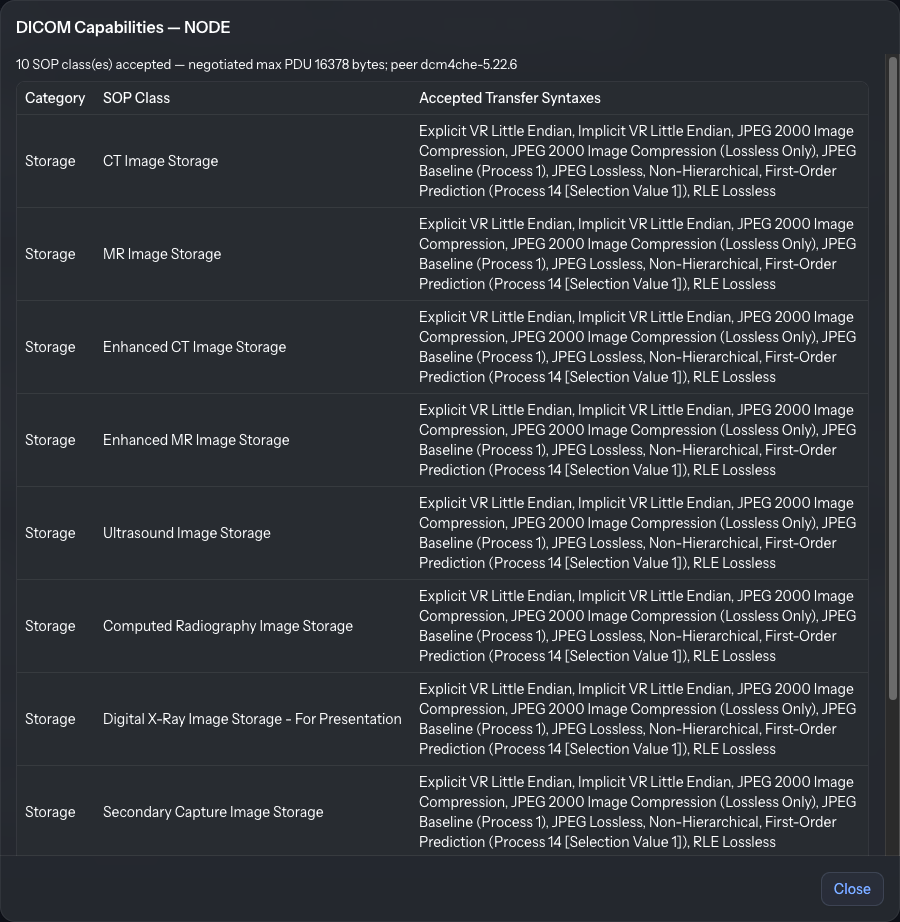
DICOM Capabilities
From the result grid, the Probe button (in the Capabilities column) runs a
non-invasive probe that asks the node which SOP Classes and transfer syntaxes it accepts — no image data
is exchanged. A dialog opens and lists the accepted SOP classes (grouped by category) with
the negotiated transfer syntaxes, along with the maximum PDU length and the remote
implementation (version name and class UID). This is useful to confirm a destination
will accept the modalities you intend to send before configuring a forwarding pipeline.
DICOM Worklist
This tool retrieves and displays the content of a Modality Worklist (MWL) server to
test connectivity and data retrieval.
Worklist configuration
Field
Description
Required
Calling AE Title
Identity of the calling DICOM entity
Yes
Worklist AE Title
Identity of the worklist server to query
Yes
Worklist Hostname
Hostname or IP address of the worklist server
Yes
Worklist Port
Port number of the worklist server
Yes
Optional filter fields narrow the returned entries; if no filter is specified, all
worklist entries are retrieved. Use Select Worklist Node to fill the connection
fields from a stored worklist node.
Click Run Query to execute the query. Results are displayed in a sortable
table — click a column header to sort by that column.
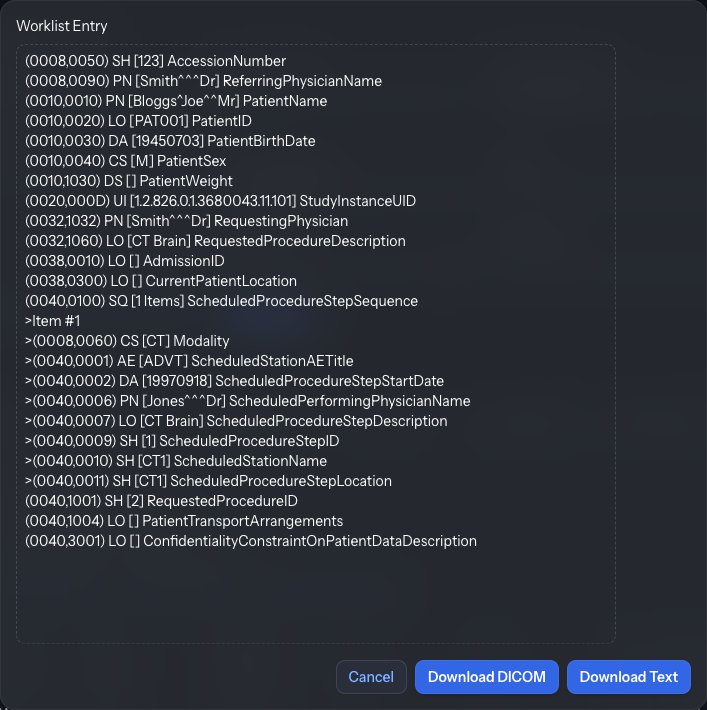
The details of a worklist entry can be displayed by clicking on that row.
The full DICOM attributes of the selected worklist entry can be displayed in a dialog by clicking the View DICOM Details button. It can also be downloaded as text (Download Text) or as a DICOM file (Download DICOM).
Manage DICOM Nodes
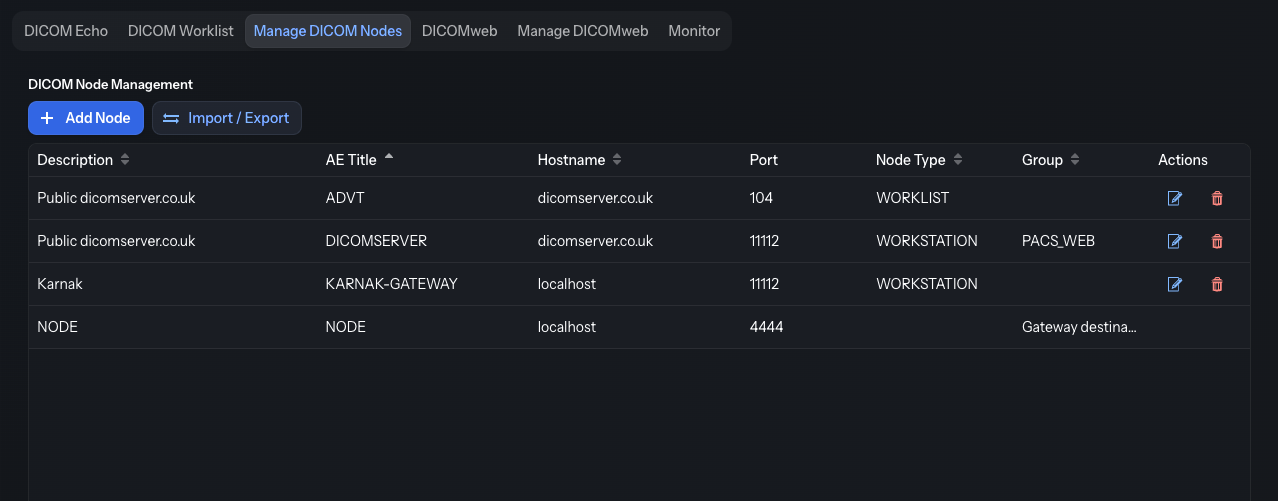
This tab is the central place to store the DICOM nodes you test or monitor regularly.
The grid lists each node with its Description, AE Title, Hostname,
Port, Node Type and Group, plus per-row Edit and Delete actions.
Info
The active Gateway destinations appear in this grid as read-only rows. They
reflect your forwarding configuration and cannot be edited, deleted, or replaced by
an import.
Adding and editing a node
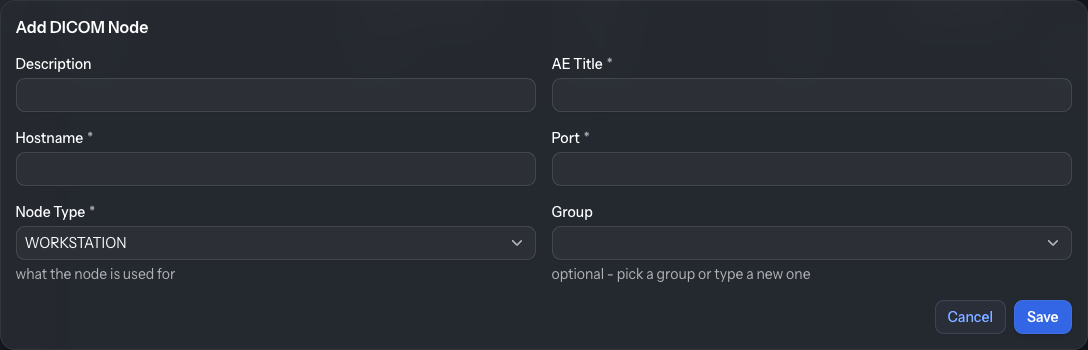
Click Add Node (or the edit action on a row) to open the editor:
Field
Description
Description
A human-readable name for the node
AE Title
The node’s Application Entity Title
Hostname
Hostname or IP address
Port
DICOM port
Node Type
What the node is used for (e.g. workstation)
Group
Optional — pick an existing group or type a new one
The Group is an organizational label: it lets you collect related nodes together
and check them all at once from the Monitor tab.
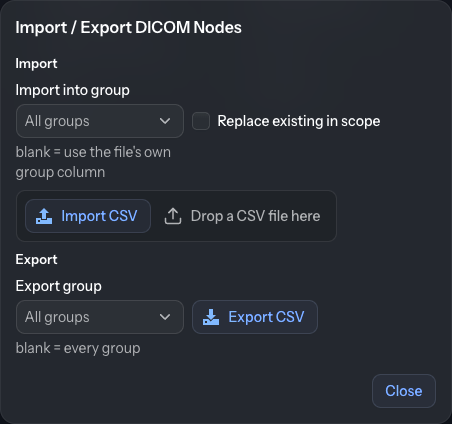
Import / Export
The Import / Export button opens a dialog to move node configurations in and out
of Karnak as CSV:
Import — upload a CSV file. Optionally choose an Import into group (leave
blank to use the group column from the file). Tick Replace existing in scope to
delete the nodes currently in the target group before importing. Replacing without
a target group deletes every node (worklist nodes included) and asks for an
explicit confirmation first. An import report summarizes how many nodes were imported
or removed and lists any skipped rows.
Export — download the current nodes as dicom-nodes.csv. Choose an Export
group to limit the file to one group, or leave it blank to export every group.
DICOMweb
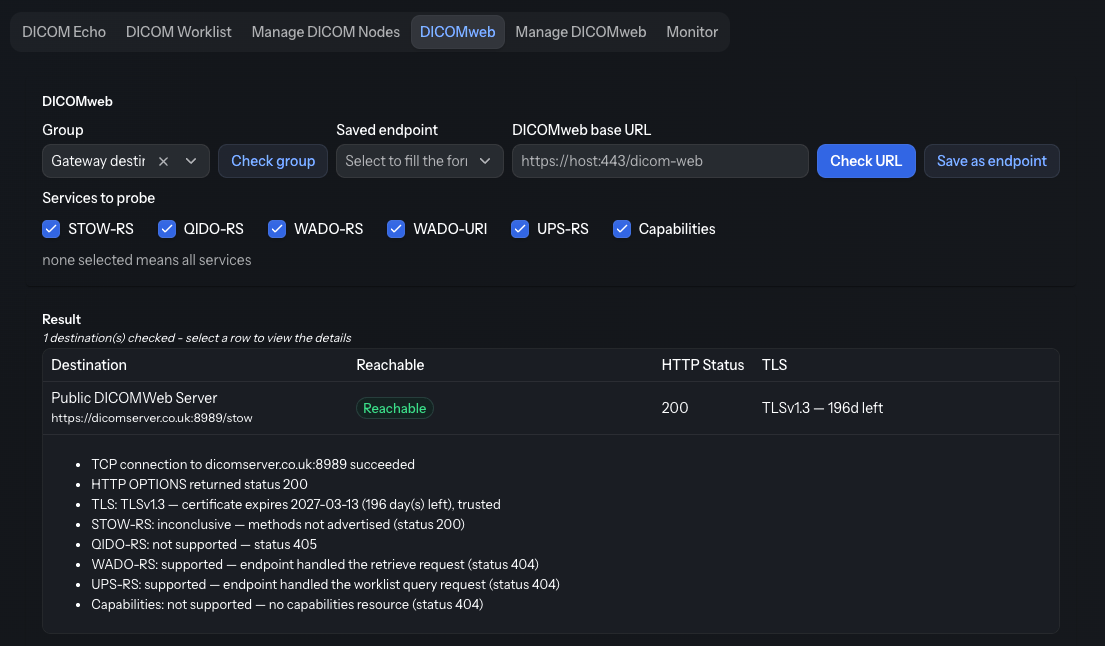
This tool tests a single DICOMweb endpoint and reports its reachability, TLS
certificate and per-service availability.
Configuration
Field
Description
DICOMweb base URL
The base URL of the service, e.g. https://host:443/dicom-web
Services to probe
Which DICOMweb services to check; leaving all unchecked means all services
Saved endpoint
Optional — pick a stored endpoint to fill the form
Group
Optional filter shown when more than one endpoint group exists
The probed services are the DICOMweb (PS3.18) RESTful services:
Service
Role
STOW-RS
Store
QIDO-RS
Query
WADO-RS
Retrieve
WADO-URI
Retrieve (legacy)
UPS-RS
Worklist
Capabilities
Discovery
Running the check
Click Check URL to probe the single endpoint, or Check group to probe a whole
group of managed endpoints (including the gateway STOW-RS destinations) at once.
An existing endpoint can be selected in the field Saved endpoint if a group (other than
Gateway destinations) is selected, to test a single endpoint rather than the entire group.
The result panel shows an overall Reachable / Unreachable badge followed by the details:
TCP — whether a TCP connection to the host and port succeeded.
HTTP — the status returned by the OPTIONS request, or a note if the endpoint
did not respond.
TLS (HTTPS only) — the negotiated protocol, the certificate subject/issuer, the
expiry date and the number of days until expiry, and whether the certificate is
trusted. An expired certificate makes the check fail.
Services — one line per probed service indicating whether it is supported.
Authentication — for endpoints with an authentication configuration, whether an
OAuth 2.0 access token could be obtained.
Click Save as endpoint to store the current URL and selected services as a
reusable endpoint (see Manage DICOMweb).
Manage DICOMweb
This tab stores the DICOMweb endpoints you test or monitor regularly.
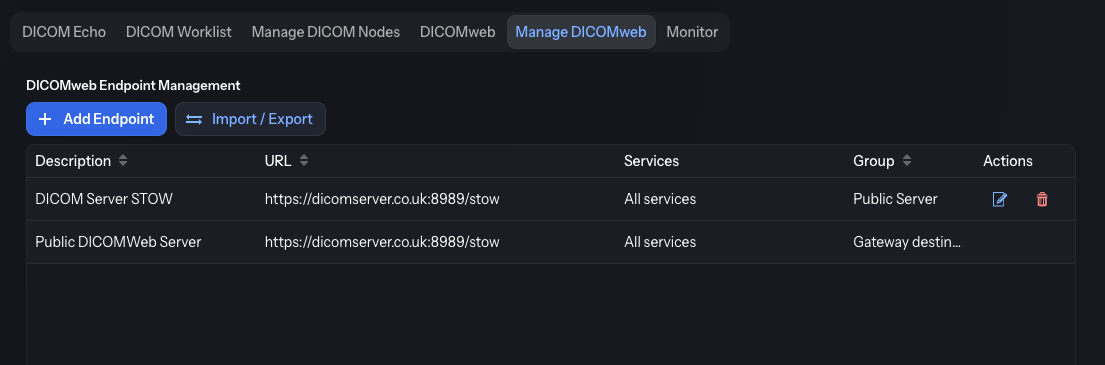
The grid lists each endpoint with its Description, URL, Services and
Group, plus per-row Edit and Delete actions. As with DICOM nodes, the
gateway STOW-RS destinations appear as read-only rows and belong to the group Gateway destinations.
Adding and editing an endpoint
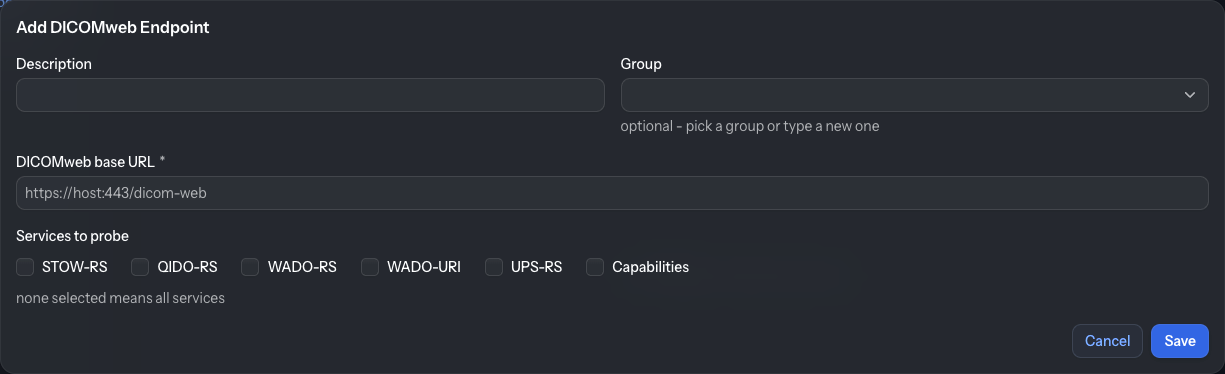
Click Add Endpoint (or the edit action on a row) to open the editor:
Field
Description
Description
A human-readable name for the endpoint
DICOMweb base URL
The base URL of the service
Services to probe
Which services to check (none selected means all)
Group
Optional — pick an existing group or type a new one
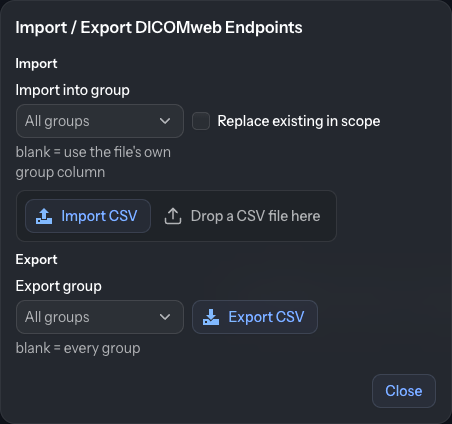
Import / Export
The Import / Export button behaves like the DICOM nodes one: import endpoints from
a CSV (optionally into a chosen group, optionally replacing the existing endpoints in
scope), or export the current endpoints to dicomweb-endpoints.csv.
Monitor
The Monitor tab runs the same checks as the Echo and DICOMweb tools, but against a
whole group at once — ideal for regular health checks of your DICOM infrastructure.
A second row of tabs switches between DICOM Nodes and DICOMweb.
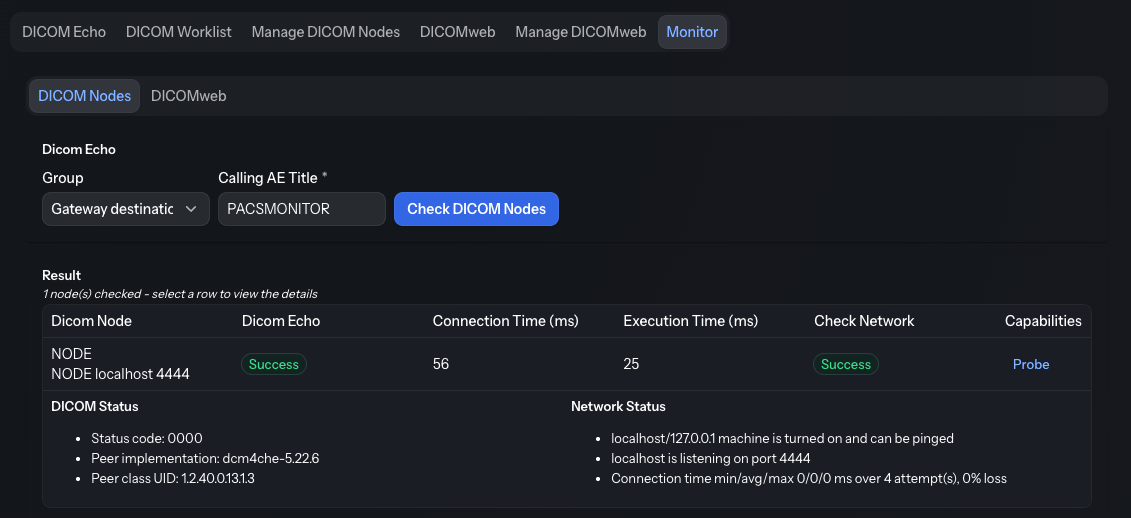
DICOM Nodes
Pick a Group of nodes to check.
Enter the Calling AE Title (defaults to PACSMONITOR).
Click Check DICOM Nodes.
The result grid shows one row per node with its DICOM Echo status, connection and
execution times, and network reachability. The Probe button (in the Capabilities
column) is available on each row to probe a node’s accepted SOP classes.
DICOMweb
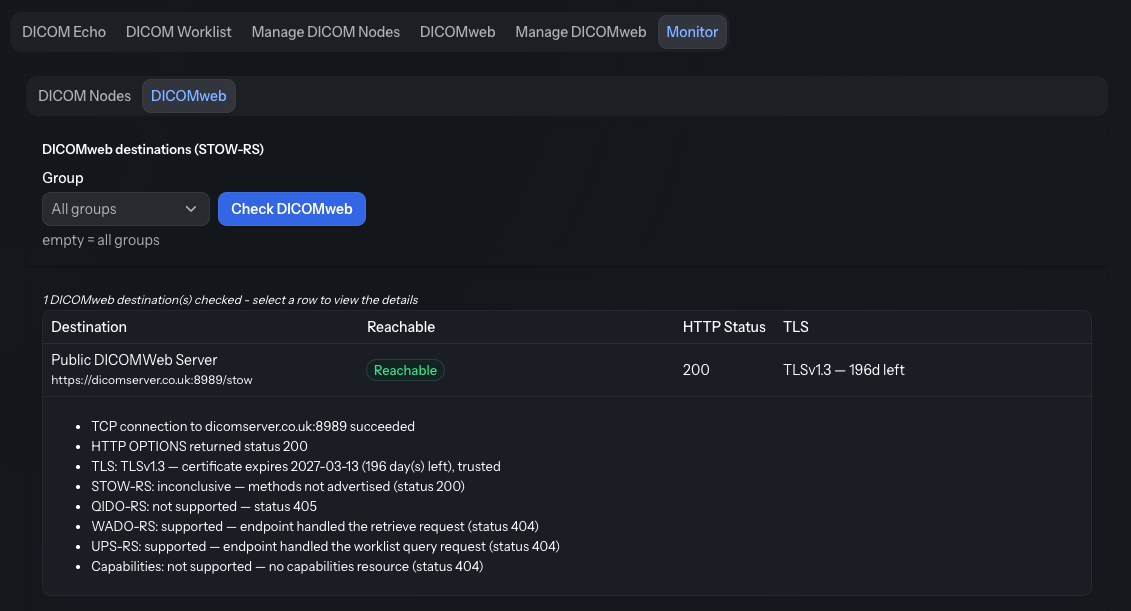
Optionally pick a Group of DICOMweb destinations (leave blank to check all).
Click Check DICOMweb.
The result grid shows one row per destination with its reachability, HTTP status and
TLS certificate state. The gateway STOW-RS destinations are included unless a specific
managed group is selected.
Info
The Monitor tool helps you spot connectivity, certificate or capability issues
before they affect production transfers.
Administrator settings
The timeouts used by the Echo, Monitor and DICOMweb checks can be tuned with the following
application properties (milliseconds):
Setting
Default
Description
dicom-tools.echo.connect-timeout-ms
3000
TCP connection timeout of the C-ECHO and capabilities probe.
dicom-tools.echo.accept-timeout-ms
5000
Association acceptance timeout of the C-ECHO and capabilities probe.
dicom-tools.network.ping-timeout-ms
3000
Per-reply timeout of the ping in the network check.
dicom-tools.network.port-timeout-ms
3000
TCP timeout of the DICOM port reachability probe.
dicom-tools.web.timeout-ms
5000
Connect / TLS / HTTP timeout of the DICOMweb probe.
DICOM Conformance Reports by Email
Karnak can validate every study sent to a destination against the DICOM standard and
email an HTML conformance report. This helps detect silent conformance problems —
unsupported SOP classes, malformed values, inconsistent attributes across a study —
before or while data is forwarded.
The feature is configured per destination. It can be combined with normal forwarding
(validate and send), or used on its own with a
virtual destination that validates and
reports only, without sending anything.
Enabling the report
Conformance reporting is enabled in the destination editor. See the
Destinations page for the exact
location of the settings.
Setting
Description
Build DICOM conformance report
Turns the feature on for the destination.
Conformance report: list of emails
Comma-separated recipients. Leave empty to reuse the destination’s notification email list.
Check value content conformity (VR rules)
Also report values that violate their VR length or format rules (PS3.5) — e.g. an over-long string or a malformed date.
Deep sequence validation (SR, functional groups)
Recurse the checks through every sequence level (e.g. the SR content tree or enhanced multiframe functional groups) instead of only the first one. The recursion is bounded by a defined depth limit (conformance-report.max-sequence-depth, 8 by default). Off by default, as deeper recursion increases memory use.
Check for identifying data burned into the image
Run OCR on each forwarded image through the external de-identification image service and list, in the report, which patient-identifying DICOM tag values are still visible in the pixel data. The OCR runs on the image actually sent (after any masking), so it verifies that no identifying text leaves Karnak; to audit the incoming image instead, enable it on a virtual destination. Off by default. Requires the service to be reachable at OCR_URL (default http://localhost:8000); when it is not, the images are reported as not analyzed and the rest of the report is unaffected.
The report is delivered by email, so Karnak’s outgoing mail server must be configured, as
for the destination notifications.
Info
A virtual destination is report-only:
it always builds a conformance report — that is its only output — so the report cannot
be turned off while the destination is virtual.
When the report is sent
Reports are generated per study. Karnak accumulates the validation results of every
instance of a study as they are processed, and emails one report once the study’s
transfer goes idle — i.e. no new instance has arrived for that study within the idle
timeout (5 minutes by default). A study is also flushed if it exceeds a maximum lifetime
(4 hours by default), to guard against studies that never complete, and pending reports
are flushed when Karnak shuts down. Studies are grouped per source forward node,
destination and Study Instance UID — independently of the DICOM associations used — so a
source sending to several destinations gets one report per destination, and instances
arriving after a study’s report was sent produce a small follow-up report.
Info
If a study has no recipient email — neither a conformance report list nor a fallback
notification list — its report is dropped (and the event is logged). Make sure at least
one email address is configured.
These timings are tunable by the administrator with the following settings:
Setting
Default
Description
conformance-report.idle-timeout-seconds
300
Idle delay after the last instance of a study before the report is sent.
conformance-report.max-study-lifetime-seconds
14400
Maximum lifetime of a study batch before it is flushed regardless of idleness.
conformance-report.max-sequence-depth
8
Maximum sequence recursion depth used when Deep sequence validation is enabled.
How the report is built
Each instance is validated against the IOD of its SOP Class. An Information Object
Definition (IOD) is the part of the DICOM standard that specifies, for a given object
type (e.g. an MR Image, a CT Image, a Structured Report), which modules and
attributes the object must contain and how strict each one is.
The checks use a bundled, machine-readable copy of the DICOM standard extracted by the
Innolitics dicom-standard project
(the list of SOP Classes, their modules, and every attribute with its VR, value
multiplicity and Type), complemented by a curated rule set maintained in Karnak for the
parts the standard only expresses as prose (enumerated values and a subset of
machine-evaluable conditions).
IOD structure (modules, tags, VR, Type)
For the instance’s SOP Class, Karnak resolves the applicable modules and checks:
Module presence — a mandatory (usage M) module whose required attributes are all
absent is reported as missing.
Attribute Type — each attribute’s requirement is enforced:
Type 1 — must be present and carry a value (present-but-empty is an error).
Type 2 — must be present, but may be empty.
Type 3 — optional.
VR (Value Representation) — the encoded VR must match the one the standard defines
for the attribute.
VM (Value Multiplicity) — the number of values must fall within the range the
standard allows.
Conditional requirements (Type 1C / 2C)
Some attributes are conditionally required (Type 1C / 2C, or attributes inside a
usage-C module) — mandatory only when a condition holds (for example, “required if the
image is a localizer”). Karnak evaluates these when possible: when a curated,
machine-evaluable condition resolves to true for the instance, the attribute is treated
as mandatory (1C is checked like Type 1, 2C like Type 2).
Info
Limitation. In the standard, these conditions are free text and many are clinical
in nature, so they cannot all be evaluated automatically. When a condition has no curated
machine-evaluable rule — or it evaluates to false/unknown — the attribute is only
validated if it is actually present; its conditional requirement is not enforced. Karnak
therefore never raises a false conformance error on a condition it cannot reliably
evaluate.
Private tags
Private data elements are checked for block structure only (PS3.5 §7.8): every private
data element must belong to a block reserved by a non-empty Private Creator element. A
private element with no reserving creator, or an empty Private Creator, is reported.
Info
Limitation. Private values are not interpreted or validated — Karnak does not carry
vendor-specific private dictionaries, so only the standard-defined block structure is
verified.
Other checks
Beyond the IOD structure, Karnak runs a set of value-level and cross-attribute checks
modeled on those of David Clunie’s dciodvfy
verifier. The table lists what each one verifies and the severity it raises; a few are
optional (value-conformity option) or deep (deep-sequence option), as noted.
Check
What it verifies
Severity
Enumerated values / Defined Terms
Value lies within a closed Enumerated Values set; an unexpected Defined Term is a softer signal.
Error / Warning
Plausible values
No value of zero where it is physically impossible — structural counts & geometry vs. acquisition/physics parameters¹ — and no negative Spacing Between Slices (Nuclear Medicine excepted).
Error / Warning
Pixel geometry
Pixel Aspect Ratio of 1:1 is omitted; Pixel Spacing matches Imager / Nominal Scanned Pixel Spacing unless a Pixel Spacing Calibration Type explains the difference.
Error / Warning
Image & patient orientation
Image Orientation (Patient) is two unit, orthogonal direction-cosine vectors; Patient Orientation uses valid biped codes, with no opposing directions in one value and distinct row/column directions.
Error
Laterality
A paired (non-midline) Body Part Examined carries a Laterality, unless one is already conveyed or the object type makes it inapplicable.
Warning
Coded entries
A Code Value uses only the characters its Coding Scheme Designator allows (SNOMED / DICOM) and does not denote the “Unknown” concept.
Warning
Identifier reuse
The SOP Instance, Series, Study and Frame of Reference UIDs all differ from one another.
Error
Residual identifiers
No direct identifier remains after de-identification (telephone, address, other names, institution / physician names, occupation, comments…).²
Warning
Standard Extended SOP Class
A standard attribute present but not part of the object’s IOD.
Info
Retired constructs
Attributes (Info), SOP Classes or transfer syntaxes (Warning) retired in the current standard.
Info / Warning
Value content conformity(optional)
String values obey their VR length and format rules (PS3.5 §6.2).
Error / Warning
Enhanced multi-frame & segmentation
Per-frame Functional Groups item count equals Number of Frames; Segment Numbers increase monotonically from one (LABELMAP excepted). (deep)Dimension Index Values match the Dimension Index Sequence, and no functional group appears in both the Shared and a Per-frame group.
Error
Study-level consistency
Across the closed study: one Study Instance UID, one Patient ID & Name, consistent Frame of Reference, and Modality ↔ SOP Class coherence.
Error / Warning
Info
¹ Zero is an error for structural counts and geometry (Rows, Columns, Bits
Allocated/Stored, Samples per Pixel, Number of Frames, Pixel/Imager Spacing, Slice
Thickness, Rescale Slope) and a warning for acquisition/physics parameters where it is
merely implausible (KVP, X-Ray Tube Current, Exposure, source distances, Echo/Repetition
Time, Magnetic Field Strength, Flip Angle, Patient Weight/Size…).
² The residual-identifier check is specific to the de-identification use case (it goes
beyond dciodvfy); its attribute list mirrors the identifiers removed by dciodvfy’s
companion de-identifier, dcanon, and it is most useful on a de-identifying destination.
Scope notes
VR is not checked for Implicit VR Little Endian datasets, where the VR comes from
the dictionary (the check would be circular).
By default only the top level and the first sequence level are validated; enabling
Deep sequence validation walks deeper, bounded by the
conformance-report.max-sequence-depth limit. Two enhanced multi-frame checks
(Dimension Index Values count, and a functional group present in both the Shared and a
Per-frame group) require this option, because they read per-frame functional groups.
Deep validation checks the encoding and the structural rules of nested attributes;
it does not verify SR-specific semantics (template/TID conformance, content-item
value-type rules, parent/child relationships) or whole-slide tile relationships.
SOP Classes the bundled standard does not define (unknown or retired) are flagged, and
their IOD module checks are skipped.
What the report contains
The HTML email summarizes, for the study:
Study and patient context — patient ID and name, study date, description and
accession number, source AE Title, and whether the data was de-identified.
Counts — number of series, instances, and failed instances, plus the totals of
errors, warnings and informational findings, and an overall pass/fail.
Composition — the modalities, SOP Class UIDs and transfer syntaxes encountered.
Per-series summary — each series with its modality, SOP classes and instance count.
Findings — conformance findings grouped by SOP class (with an example instance and
a count), and study-level consistency findings for attributes that should be
identical across the study but are not.
Identifying data on image — only when Check for identifying data burned into the
image is enabled: the patient-identifying tags whose value was found burned into the
pixel data, with the number of images affected; otherwise how many images were
analyzed, or could not be analyzed because the de-identification image service was
unreachable.
Examples
The reports below are real, de-identified examples — three studies that fail conformance
and one that passes — that illustrate the kinds of findings the validator produces. Each
opens in a new tab as the actual HTML email.
Info
In every example the patient name shows as (hidden — destination not de-identified).
The report only redacts the name when the destination’s data is not de-identified, to
avoid emailing identifying information in clear text; the patient ID and other attributes
are still shown.
Example 1 — missing module, pixel geometry and private-block issues
Ultrasound study · 6 series · 6 instances · FAILED — 3 errors, 6 warnings, 4 info
A multi-frame ultrasound study that trips several unrelated rules at once. The errors are a
missing mandatory module (the required Cine attributes are all absent) and two
pixel-geometry violations (a Pixel Aspect Ratio of 1:1 is encoded when the standard says
to omit it). The warnings cover three private blocks used without a Private Creator, a
missing Type 2 Image Type, a retired SOP Class, and a mis-formatted date; the
informational findings flag retired and non-standard (standard-extended) attributes. A spread
like this usually reflects the acquisition device’s encoding conventions.
Example 2 — a passing study
Computed Radiography (CR) study · 1 series · 1 instance · PASSED — 0 errors, 8 warnings, 17 info
This is what a study that meets the standard looks like: with no errors the overall result is
PASSED, even though the report still lists warnings and informational findings. The warnings
are implausible zero values — physics parameters such as KVP, Exposure and Patient’s
Weight recorded as 0 — and a missing Laterality on a paired body part; none of these
breaks the standard, so none fails the study. The informational findings are mostly
standard-extended attributes (present but not part of this object’s IOD) plus one retired
attribute. A “passed with warnings and info” result like this is normal and usually needs no
action, though the warnings can be worth a look.
Example 3 — empty Type 1/1C, a VM violation and UID-format problems
Digital X-Ray (DX) study · 1 series · 1 instance · FAILED — 7 errors, 4 warnings, 1 info
A good illustration that a single instance can surface several unrelated rule categories at
once. The errors span presence (a missing mandatory module and four Type 1 / 1C
attributes present but empty), value multiplicity (Patient Orientation carrying the wrong
number of values) and an image-orientation rule. The warnings add a missing recommended
attribute and three UID-format problems (identifiers that don’t follow the DICOM UID
syntax). When one object trips this many distinct rules, the cause is usually upstream encoding
rather than the individual values.
Example 4 — missing Type 1 attributes inside SR sequences
SR + CR study · 2 series · 2 instances · FAILED — 16 errors, 4 warnings, 3 info
A mixed-modality study — a Basic Text Structured Report sent alongside a Computed Radiography
image — whose SR is missing many mandatory elements. Fifteen of the sixteen errors are Type 1
attributes missing inside the SR content sequences (Graphic Data, Concept Code Sequence,
Temporal Range Type…); the remaining error is an empty Type 1 LUT Data in the CR image. The
warnings note two missing Type 2 attributes, a value-format issue and a missing Laterality, and
the informational findings list retired and non-standard attributes. A deeply incomplete SR like
this points to the application that generated it.
Relation to other DICOM validators
Karnak’s conformance report is not meant to replace the established standalone validators —
it serves a different purpose. It validates automatically, inside the forwarding pipeline,
and per study, so conformance is checked continuously without a separate tool or manual
step. Because it sees the whole study batch, it can also run cross-instance consistency
checks (single Study Instance UID, consistent Patient ID / Name, Modality ↔ SOP Class
coherence, Frame of Reference) that single-file tools cannot.
For the per-object checks, Karnak builds on the same approach as the
pydicom/dicom-validator: both derive the IOD
requirements from a machine-readable copy of the DICOM standard (Karnak uses the
Innolitics dicom-standard extraction) and
both evaluate conditional (Type 1C/2C) requirements only when the condition can be
evaluated, treating them as optional otherwise — so neither raises false errors on
clinical, free-text conditions.
For the value-level and cross-attribute checks, Karnak additionally mirrors a
substantial subset of dciodvfy: zero/
implausible values, pixel and image geometry, patient orientation, laterality, coded-entry
validity, UID reuse and enhanced multi-frame / segmentation consistency (see
Other checks). dciodvfy nonetheless remains the more exhaustive
single-object reference — notably for byte-level encoding and full SR content-tree
semantics, which Karnak does not attempt.
For an exhaustive, authoritative check of an individual object, or for interactive/standalone
validation, the well-known dedicated tools remain the reference and complement Karnak well:
dciodvfy (David Clunie’s
dicom3tools) — the long-standing reference single-object validator, with the most
thorough encoding and value-level checks.
DVTk — a toolkit that validates against editable DICOM
definition files.
IHE Gazelle — the IHE testing
platform, whose validation services can run several DICOM validators so their results can
be compared.
Store Credentials for Karnak API Calls
This page allows you to configure authentication credentials for API calls. Since this information is sensitive, it is stored in an encrypted database table.
1. Create an Authentication Configuration
To create a new authentication configuration:
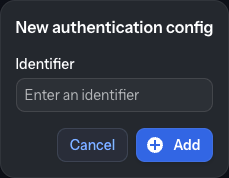
Click the New authentication config button to open the creation popup.
Enter a unique identifier.
Click Add.
Requirements:
The identifier must be unique (an error will appear if a duplicate exists)
We recommend avoiding spaces in the identifier for easier reference in profiles
Click Add to proceed. The popup closes and an empty, editable configuration form
appears in the right panel. The configuration is not saved yet — fill in the OAuth 2.0
fields described below and click Save to create it. Only then is it persisted and added
to the list on the left. Click Cancel to discard it.
OAuth 2.0
Currently, OAuth 2.0 is the only supported authentication type.
Required fields:
Field
Description
Access Token URL
The OAuth 2.0 token endpoint
Scope
Required scopes (separate multiple scopes with whitespace)
Client Secret
OAuth 2.0 client secret
Client ID
OAuth 2.0 client identifier
Once all required fields are filled, click Save to create the configuration and add it
to the list; click Cancel to discard it.
How it works:
When an API call references this configuration (via the authConfig parameter):
Karnak checks if a valid access token is available
If yes, the token is added to the request for authentication
If no, a new token is requested using the configuration details
The API call proceeds with the authenticated token
Warning
Authentication configurations cannot be modified after creation. To make changes, you must delete and recreate the configuration.
The fields Client Secret and Client ID are masked in the interface for security purposes.
2. Authentication Configuration List
All available authentication configurations are displayed in the left panel. Select a configuration to view its details on the right.
3. Delete Configuration
To delete a configuration:
Select it from the list
Click the red trash bin icon next to its identifier
Confirm the deletion in the popup
Info
Deleting a configuration in use may cause errors in your workflows. Karnak does not verify whether a configuration is referenced by profiles or de-identification processes before deletion. Ensure the configuration is not in use before deleting it, or transfers will fail.
4. Configuration Details
The details view displays all configuration information in read-only mode. The fields Client Secret and Client ID are masked for security purposes.
To modify a configuration, you must delete it and create a new one.
Send De-identified Studies to a Kheops Album
Create a destination album
To create a Kheops album as a destination, configure the following values:
Once the album is created, follow these steps to configure it as a destination in Karnak:
1. Create a new token
2. Configure token permissions
Give WRITE permission to the token and set the expiration date.
3. Copy the authentication token
Copy the authentication token value to use in the header of your Karnak destination.
For complete instructions on creating and configuring a STOW destination in Karnak, see Destinations.
Switching to different Kheops albums
When a destination points to a Kheops album, data can be propagated to underlying albums within the same Kheops instance.
This feature is useful for sharing specific studies with research groups without exposing the entire album. For example, you can send a cohort of studies to collaborators while maintaining data isolation.
Info
Studies cannot be shared between different Kheops instances. You must configure a separate destination in Karnak for each Kheops instance.
This functionality leverages the Kheops API to distribute data to multiple locations without creating additional destinations in Karnak. Data is automatically split according to rules defined in Kheops, ensuring that authorized users access only relevant data.
The following diagram illustrates how data flows through Karnak and is distributed to multiple Kheops albums:
graph LR;
  A(DICOM Data) --> B[Karnak]

  subgraph Kheops
    D[Main Album] --> E[Album X]
    D --> F[Album Y]
  end

  B --> D
First, a DICOM instance is received by Karnak. After processing it, it sends the instance to the main Kheops album. Depending on existing rules and conditions, the instance will also be shared to the album X and Y. Sharing is done per series once the instance has been transferred; when the destination de-identifies, the series is shared with the de-identified Study and Series Instance UIDs.
Create a switching Kheops album
This feature is configured inside a STOW destination, not on a separate page. Open the
STOW destination in Karnak and tick the Switching in different KHEOPS albums checkbox
to reveal the entry form and the table of configured albums.
To share a DICOM instance in different Kheops albums, the following fields must be filled and validated by clicking on Add button.
Fields
Description
Url API
The url of the Kheops API
Valid token of destination
The token to write to the album destination. Need WRITE permission
Valid token of source
The token to shared from the album source. Need READ, SEND (Sharing in the Kheops UI) permission
When Url API is filled, both tokens are checked against the Kheops API when you click Add: the destination token must have at least the write scope and the source token the read and send scopes, otherwise the album is not added. Configured albums are listed in a table where each row can be modified (Edit, then Validate or Cancel) or deleted (Remove).
The condition field defines a condition to enable sharing an instance to a specific album if it is evaluated to true.
The condition syntax and usage are detailed in the Conditions page.
Karnak Version and Runtime Information
The Help page is the last entry in the left-hand menu. It gathers quick links to
this documentation and shows the version and runtime information of the running Karnak
instance — useful when reporting an issue or checking what a deployment is running.
Documentation links
The top of the page links back to the online documentation, each opening in a new tab:
General documentation — the documentation home page.
User guide: configuration and administration — this User guide.
Build your own profile for de-identification or for tag morphing — the
Profiles reference.
About
The About section lists the versions of Karnak and of its main runtime components,
read from the running application:
Karnak — the application version (shows Development when run from a
non-packaged build).
Vaadin, Spring, Spring Boot — the framework versions in use.
Java — the JVM version and vendor.
System — the operating system name, version and architecture.
Info
When opening a support request, copy the values from this section so the exact build
and runtime can be identified.
Run Karnak Without Installing It
Karnak Gateway can be distributed as a portable application, allowing you to run it without installing it on your system.
The purpose of this distribution is to provide an easy way to use Karnak Gateway for de-identification tasks on a local machine. It is typically used by researchers in collaborative projects that require a consistent method for de-identifying DICOM data with a shared de-identification profile.
Warning
The portable distribution is intended for personal use only on a single machine. For multiple gateway configurations, when using Karnak as a production service, please use the standard installation method on a server and adapt the resource allocation accordingly.
No installation is needed: extract the downloaded archive anywhere (for example in your Documents folder) and launch Karnak from the extracted folder.
Double-click on run.bat. A console window opens and shows the startup messages.
Open a Terminal in the extracted folder (in the Finder, right-click on the folder and choose Services → New Terminal at Folder, or drag the folder onto the Terminal icon in the Dock) and run ./run.sh. There is no double-clickable launcher on macOS: Gatekeeper refuses to open a script downloaded from the Internet, whereas running it from the Terminal works without any warning.
Double-click on run.sh (choose Run in Terminal if your desktop asks) or run ./run.sh in a terminal opened in the folder.
What happens at launch:
First launch only: the launcher asks whether to download the optional OCR service used by the automatic pixel de-identification. Answer Y to download it (an Internet connection is required), or n to skip it. Karnak works without it; only the automatic masking of text burned into the images is unavailable.
Karnak starts, and after a few seconds the web portal opens in your default browser at http://localhost:8081. If it does not, open this address yourself.
Log in with the default credentials:
Username: admin
Password: karnak
To stop Karnak, close the launcher window (or press Ctrl+C in the terminal).
Info
This web portal is accessible only from the local machine where it is running.
If the system already uses port 8081, you can change it by modifying the KARNAK_WEB_PORT value in the run.cfg file located in the extracted directory. Set KARNAK_OPEN_BROWSER=false in the same file if you do not want the browser to open automatically.
For advanced configuration options, you can edit the run.cfg file to adjust other settings (see below).
Specific folders in the extracted directory
logs: Contains the log files generated by Karnak Gateway during its execution (karnak.log, rotated by size). dicom: Default folder where DICOM instances are stored when using the “LOCAL” destination. data: Contains the embedded H2 database files used by Karnak Gateway to store its configurations. The database file is encrypted with a key generated on first launch and stored in the hidden .db_pwd file next to run.sh / run.bat. If you download a new version of the portable distribution, copy both the data folder and the .db_pwd file to retain your existing configurations.
Configuration (run.cfg)
The run.cfg file is read by run.sh / run.bat at startup; every uncommented NAME=value line is exported to Karnak. The main settings are:
Variable
Default
Description
KARNAK_WEB_PORT
8081
Port of the web portal (bound to localhost only).
KARNAK_OPEN_BROWSER
true
Open the web portal in the default browser once Karnak is started.
DICOM_LISTENER_AET / DICOM_LISTENER_PORT
KARNAK-GATEWAY / 11112
AE Title and port of the gateway DICOM listener that receives the studies to forward.
DICOM_LISTENER_TLS
false
Listen in DICOM TLS; requires TLS_KEYSTORE_PATH, TLS_KEYSTORE_SECRET, TLS_TRUSTSTORE_PATH and TLS_TRUSTSTORE_SECRET (JKS files).
LOCAL_NODE_STORAGE_PATH
./dicom
Folder of the local DICOM storage node used by the LOCAL destination. The local node is started only when both LOCAL_NODE_STORAGE_PATH and LOCAL_NODE_PORT are set.
LOCAL_NODE_AE_TITLE / LOCAL_NODE_PORT
KARNAK-LOCAL / 11115
AE Title and port of the local storage node.
LOCAL_NODE_FILEPATH_PATTERN
{00100010}/{00080060}/{0020000E}/{00080018}.dcm
Path pattern of the stored files, built from DICOM tag values.
For detailed instructions on how to use Karnak Gateway, please refer to the Karnak Gateway User Guide. This distribution includes new features in the Forward Node view that are not covered in the main user guide:
Add a local destination
Click the LOCAL button A to add a destination that saves DICOM instances to the dicom folder in the portable distribution’s extracted directory.
This button automatically configures a DICOM destination for local storage. For other options related to de-identification and forwarding rules, refer to the main user guide.
Upload local folder
Click the Upload local folder button B to send DICOM instances from a local folder through the forward node’s active destinations. The forward node must already have at least one active destination — otherwise a notification is shown and nothing happens. The button opens a dialog titled Upload DICOM files from a local folder where you type the absolute path to the folder in the Folder Path field.
Automatic pixel de-identification service
The portable distribution can run the automatic pixel data de-identification feature, which masks burned-in patient data detected by an external OCR service (image-ocr-identifier). This service is not included in the portable archive, because it is large and optional.
Install the service
The easiest way is to answer Y when the launcher asks for it on the first launch: the launcher downloads the release of the service that matches your Karnak version (pinned by OCR_VERSION in run.cfg) and installs it in the image-ocr-identifier folder next to run.sh / run.bat. Karnak then starts it automatically at every launch.
If you answered n, you can install it later by setting OCR_AUTO_INSTALL=always in run.cfg and restarting Karnak, or manually:
Open the releases page of the service and pick the release named in OCR_VERSION.
Download the archive for your system: image-ocr-identifier-<model>-windows-x86_64.zip, image-ocr-identifier-<model>-macos-arm64.tar.gz or image-ocr-identifier-<model>-linux-x86_64.tar.gz, where <model> is the value of OCR_MODEL (PP-OCRv5_mobile by default).
Extract it next to run.sh / run.bat. The archive contains a single image-ocr-identifier folder holding the service executable and its resources.
A prebuilt service is published for Windows (x86-64), macOS (Apple Silicon) and Linux (x86-64). On other systems the launcher skips the download and the automatic masking is unavailable.
Configure the service
The service is controlled in run.cfg:
OCR_ENABLED=true### What to do when the service is not installed: ask | always | neverOCR_AUTO_INSTALL=ask
### Release of the service compatible with this version of Karnak (do not change)OCR_VERSION=v0.1.0
### OCR model bundled in the downloaded serviceOCR_MODEL=PP-OCRv5_mobile
### Base URL Karnak uses to reach the serviceOCR_URL=http://localhost:8000
OCR_SERVICE_NAME=image-ocr-identifier
Variable
Default
Description
OCR_ENABLED
true
Start the de-identification service with Karnak. Set to false to disable it (and to stop being asked to download it).
OCR_AUTO_INSTALL
ask
When the service is missing: ask before downloading it, always download it without asking, never do nothing.
OCR_VERSION
(pinned)
Release of the service downloaded by the launcher. It is chosen to match the Karnak version; keep the value shipped in run.cfg.
OCR_MODEL
PP-OCRv5_mobile
OCR model bundled in the downloaded archive.
OCR_URL
http://localhost:8000
Base URL Karnak uses to reach the service.
OCR_SERVICE_NAME
image-ocr-identifier
Name of the service folder and executable. The service lives in <app>/<name>/ and its binary is named <name> (<name>.exe on Windows).
When enabled, run.sh / run.bat starts the service on launch; on Linux and macOS, run.sh also stops it when Karnak exits (on Windows the service runs in its own minimized window, to be closed with it). If the binary is missing and the download is declined, the step is skipped and a message is logged.
Info
For details about the feature itself — eligible images, sensitive tags, fail-closed behavior, and enabling it in a profile — see Automatic Pixel Data De-identification.