DICOM and DICOMweb Test Tools
The DICOM Web Tools module groups the utilities used to test connectivity, query servers, manage reusable endpoint configurations, and diagnose DICOM and DICOMweb nodes. The modules are accessed through tabs at the top of the page:
- DICOM Echo — test a single DICOM node and probe its capabilities
- DICOM Worklist — query a Modality Worklist server and display the results
- Manage DICOM Nodes — store, group and import/export DICOM node configurations
- DICOMweb — test a single DICOMweb (STOW-RS / QIDO-RS / WADO-RS …) endpoint
- Manage DICOMweb — store, group and import/export DICOMweb endpoints
- Monitor — run health checks against a whole group of DICOM nodes or DICOMweb destinations at once
Info
DICOM nodes and DICOMweb endpoints are persisted in the database and managed directly from the web interface (the Manage tabs). The active Gateway destinations are also exposed read-only in these tools, so you can echo or probe them without re-typing their connection details.
DICOM Echo
This tool tests DICOM communication with a single Application Entity (AE) and, on the same screen, lets you probe what the node accepts.
Configuration fields
| Field | Description | Required |
|---|---|---|
| Calling AE Title | Identity of the calling DICOM entity (Karnak) | Yes |
| Called AE Title | Identity of the DICOM entity to test | Yes |
| Called Hostname | Hostname or IP address of the DICOM node | Yes |
| Called Port | Port number of the DICOM node (1–65535) | Yes |
The Check DICOM Node button stays disabled until all fields are valid.
Use Select DICOM Node to pick from the stored DICOM nodes (and the gateway destinations) instead of typing the values; the Called AE Title, Hostname and Port fields are filled automatically.
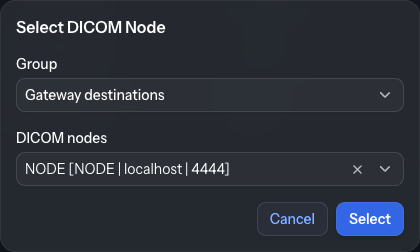
First select a Group to filter the nodes. All the defined groups are displayed as well as All Worklist nodes and All Workstation nodes, grouping the nodes by type. The group Gateway destinations contains all the nodes configured in the Forward Nodes destinations. Then select the node from the DICOM node dropdown.
Reset Form clears the form.
Running the test
Click Check DICOM Node to run the test. The result is shown in a grid; select the row to view the details. Each result combines two checks:
- DICOM Echo — the C-ECHO (verification) result, with the DICOM status, the connection time and the execution time (in milliseconds). A rejected association or a node that does not support verification is reported with the reason.
- Check Network — a low-level reachability check run alongside the echo: hostname (DNS) resolution, ping result, and whether the host is listening on the port.
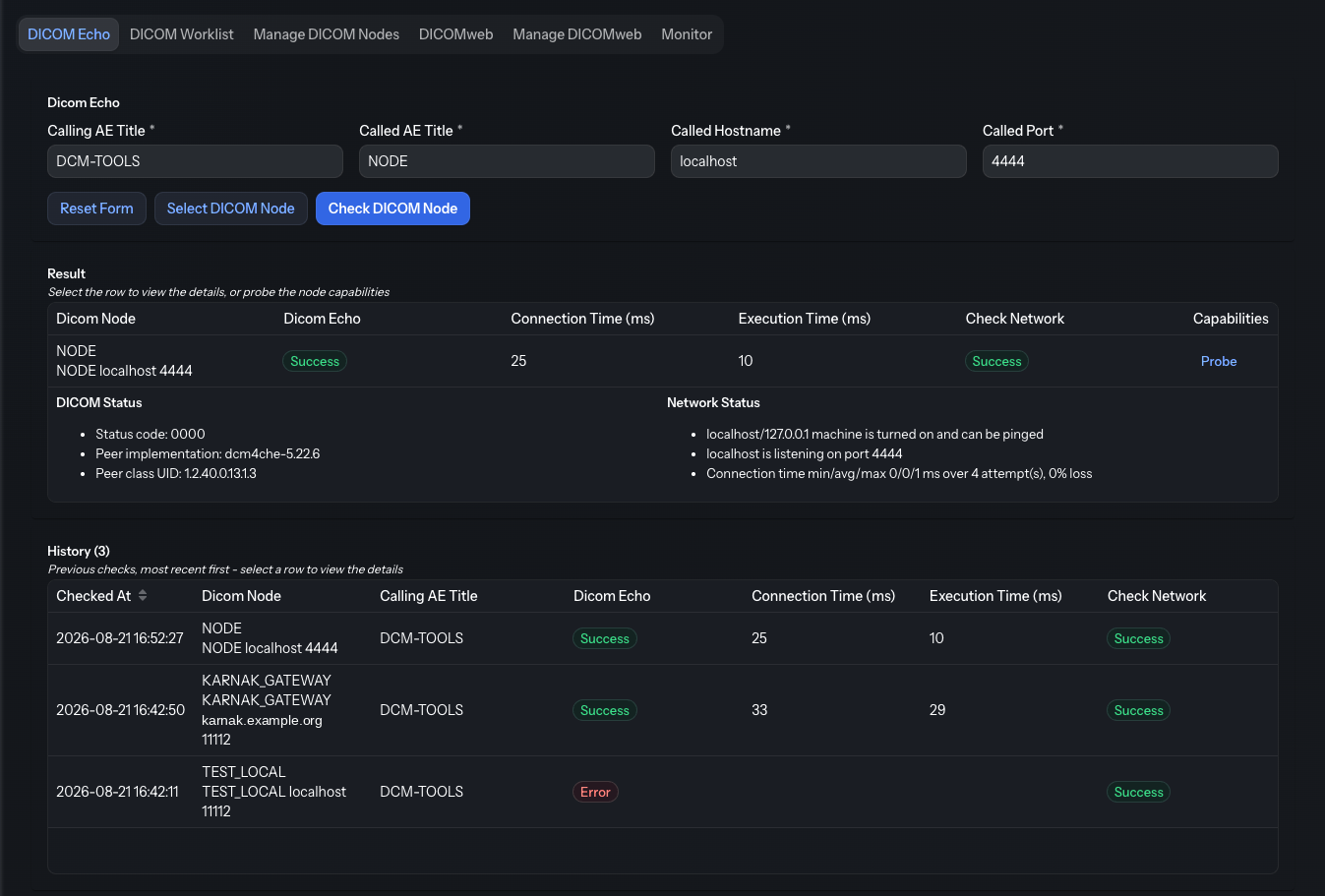
Below the current result, a History panel lists the previous checks (most recent
first, with a count in its title). It is stored server-side in the database, so checks run
earlier — or in another session — remain visible after a page reload; select a row to view
that check’s details. Only the most recent checks are kept (200 by default, tunable by the
administrator with application.echo.history.limit).
DICOM Capabilities
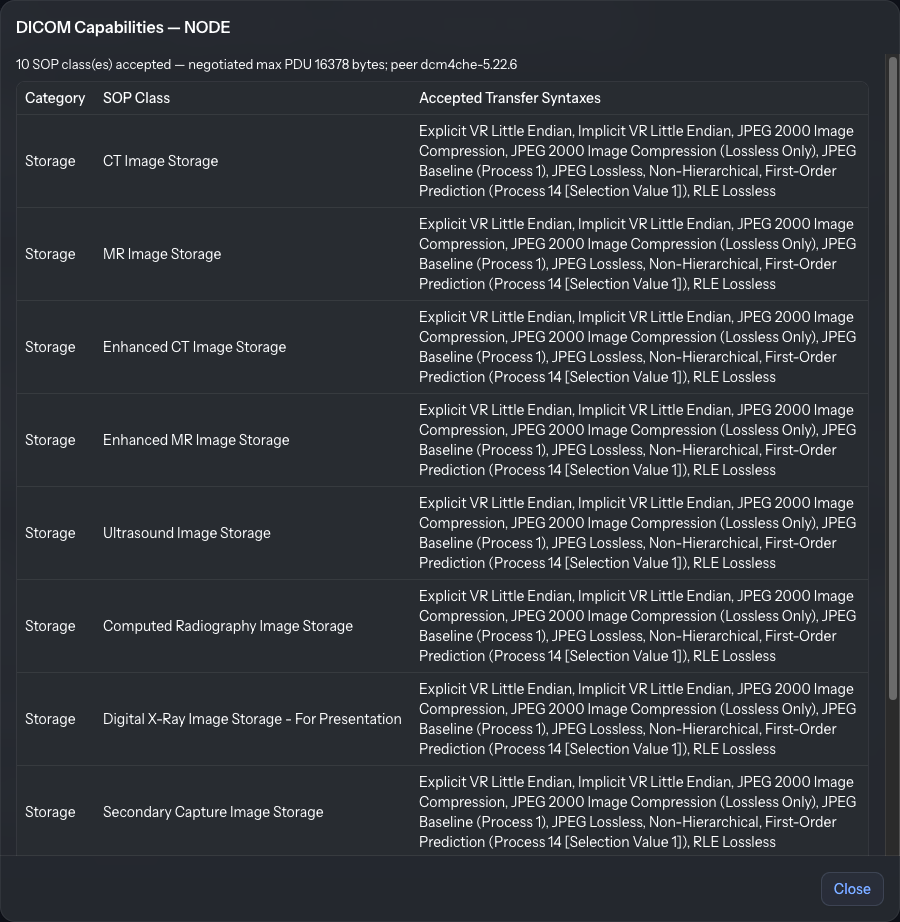
From the result grid, the Probe button (in the Capabilities column) runs a non-invasive probe that asks the node which SOP Classes and transfer syntaxes it accepts — no image data is exchanged. A dialog opens and lists the accepted SOP classes (grouped by category) with the negotiated transfer syntaxes, along with the maximum PDU length and the remote implementation (version name and class UID). This is useful to confirm a destination will accept the modalities you intend to send before configuring a forwarding pipeline.
DICOM Worklist
This tool retrieves and displays the content of a Modality Worklist (MWL) server to test connectivity and data retrieval.
Worklist configuration
| Field | Description | Required |
|---|---|---|
| Calling AE Title | Identity of the calling DICOM entity | Yes |
| Worklist AE Title | Identity of the worklist server to query | Yes |
| Worklist Hostname | Hostname or IP address of the worklist server | Yes |
| Worklist Port | Port number of the worklist server | Yes |
Optional filter fields narrow the returned entries; if no filter is specified, all worklist entries are retrieved. Use Select Worklist Node to fill the connection fields from a stored worklist node.
Click Run Query to execute the query. Results are displayed in a sortable table — click a column header to sort by that column.

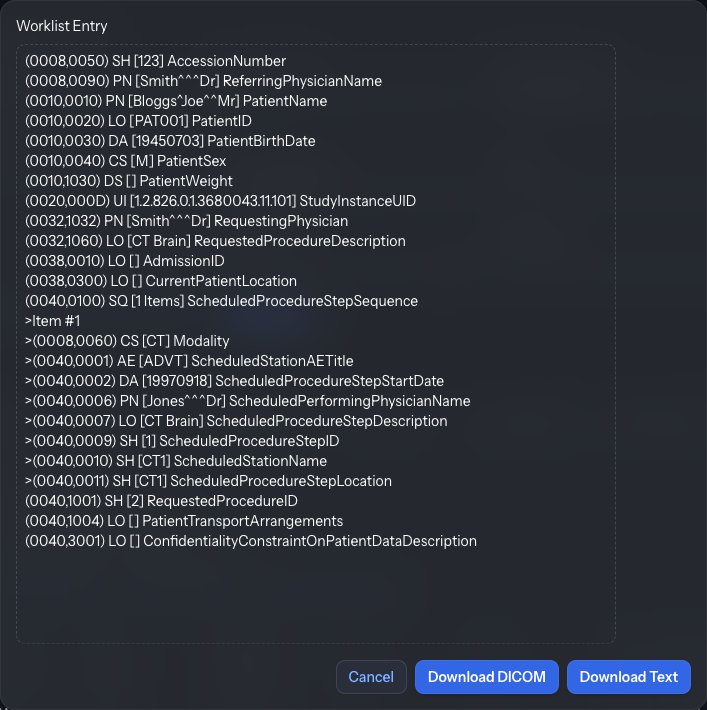
The details of a worklist entry can be displayed by clicking on that row.

The full DICOM attributes of the selected worklist entry can be displayed in a dialog by clicking the View DICOM Details button. It can also be downloaded as text (Download Text) or as a DICOM file (Download DICOM).
Manage DICOM Nodes
This tab is the central place to store the DICOM nodes you test or monitor regularly.
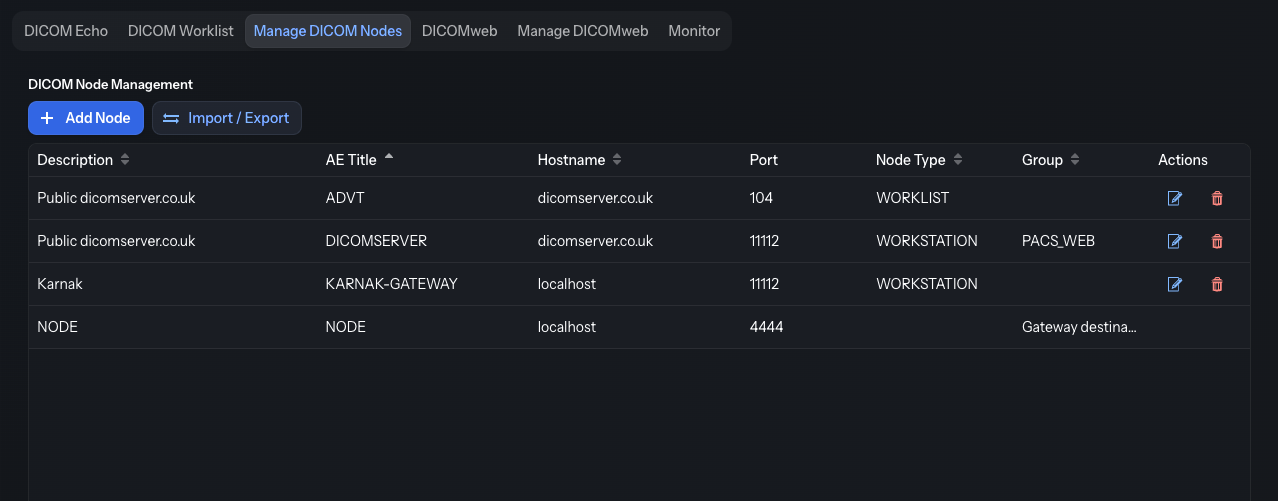
The grid lists each node with its Description, AE Title, Hostname, Port, Node Type and Group, plus per-row Edit and Delete actions.
Info
The active Gateway destinations appear in this grid as read-only rows. They reflect your forwarding configuration and cannot be edited, deleted, or replaced by an import.
Adding and editing a node
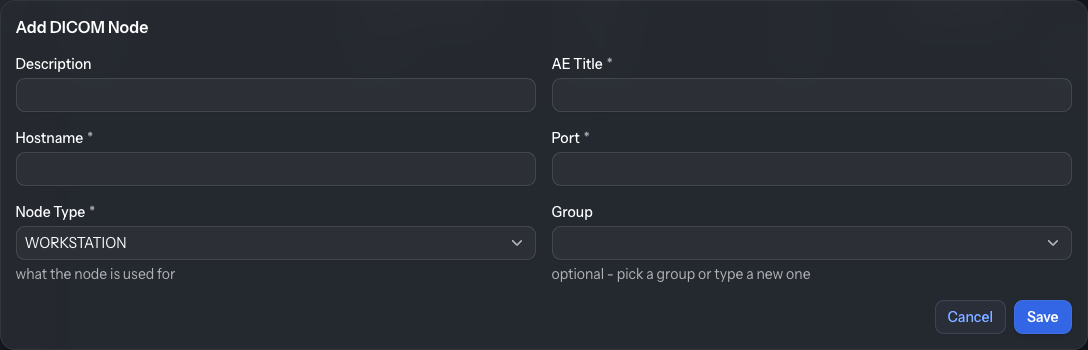
Click Add Node (or the edit action on a row) to open the editor:
| Field | Description |
|---|---|
| Description | A human-readable name for the node |
| AE Title | The node’s Application Entity Title |
| Hostname | Hostname or IP address |
| Port | DICOM port |
| Node Type | What the node is used for (e.g. workstation) |
| Group | Optional — pick an existing group or type a new one |
The Group is an organizational label: it lets you collect related nodes together and check them all at once from the Monitor tab.
Import / Export
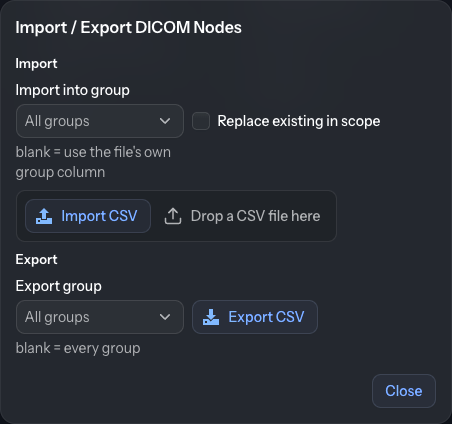
The Import / Export button opens a dialog to move node configurations in and out of Karnak as CSV:
- Import — upload a CSV file. Optionally choose an Import into group (leave blank to use the group column from the file). Tick Replace existing in scope to delete the nodes currently in the target group before importing. Replacing without a target group deletes every node (worklist nodes included) and asks for an explicit confirmation first. An import report summarizes how many nodes were imported or removed and lists any skipped rows.
- Export — download the current nodes as
dicom-nodes.csv. Choose an Export group to limit the file to one group, or leave it blank to export every group.
DICOMweb
This tool tests a single DICOMweb endpoint and reports its reachability, TLS certificate and per-service availability.
Configuration
| Field | Description |
|---|---|
| DICOMweb base URL | The base URL of the service, e.g. https://host:443/dicom-web |
| Services to probe | Which DICOMweb services to check; leaving all unchecked means all services |
| Saved endpoint | Optional — pick a stored endpoint to fill the form |
| Group | Optional filter shown when more than one endpoint group exists |
The probed services are the DICOMweb (PS3.18) RESTful services:
| Service | Role |
|---|---|
| STOW-RS | Store |
| QIDO-RS | Query |
| WADO-RS | Retrieve |
| WADO-URI | Retrieve (legacy) |
| UPS-RS | Worklist |
| Capabilities | Discovery |
Running the check
Click Check URL to probe the single endpoint, or Check group to probe a whole
group of managed endpoints (including the gateway STOW-RS destinations) at once.
An existing endpoint can be selected in the field Saved endpoint if a group (other than
Gateway destinations) is selected, to test a single endpoint rather than the entire group.
The result panel shows an overall Reachable / Unreachable badge followed by the details:
- TCP — whether a TCP connection to the host and port succeeded.
- HTTP — the status returned by the
OPTIONSrequest, or a note if the endpoint did not respond. - TLS (HTTPS only) — the negotiated protocol, the certificate subject/issuer, the expiry date and the number of days until expiry, and whether the certificate is trusted. An expired certificate makes the check fail.
- Services — one line per probed service indicating whether it is supported.
- Authentication — for endpoints with an authentication configuration, whether an OAuth 2.0 access token could be obtained.
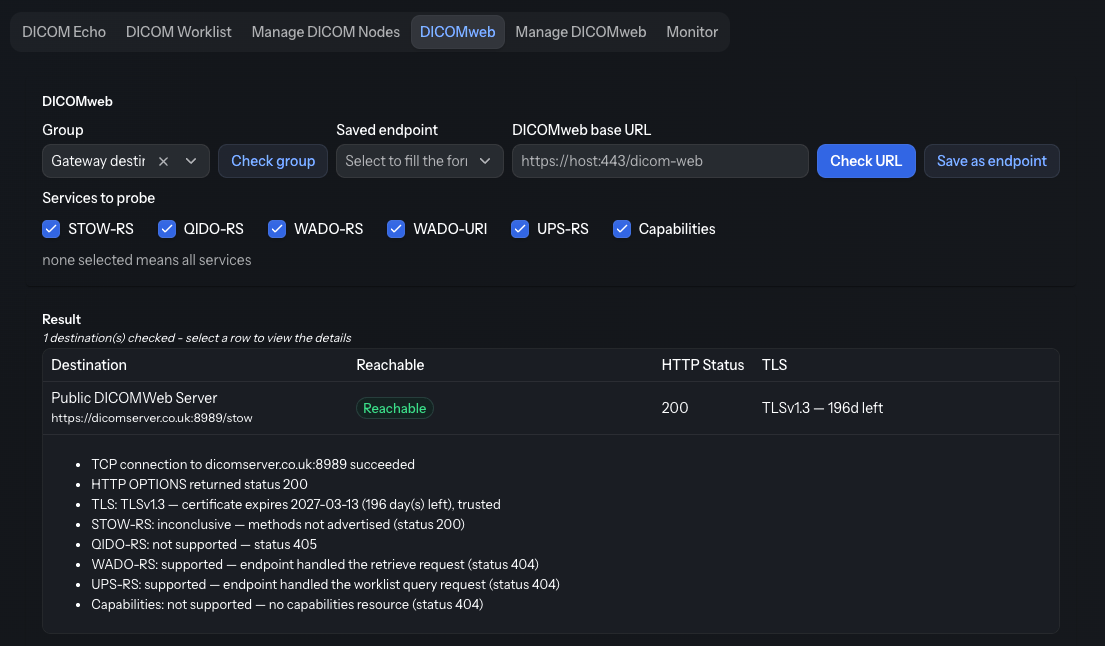
Click Save as endpoint to store the current URL and selected services as a reusable endpoint (see Manage DICOMweb).
Manage DICOMweb
This tab stores the DICOMweb endpoints you test or monitor regularly.
The grid lists each endpoint with its Description, URL, Services and Group, plus per-row Edit and Delete actions. As with DICOM nodes, the gateway STOW-RS destinations appear as read-only rows and belong to the group Gateway destinations.
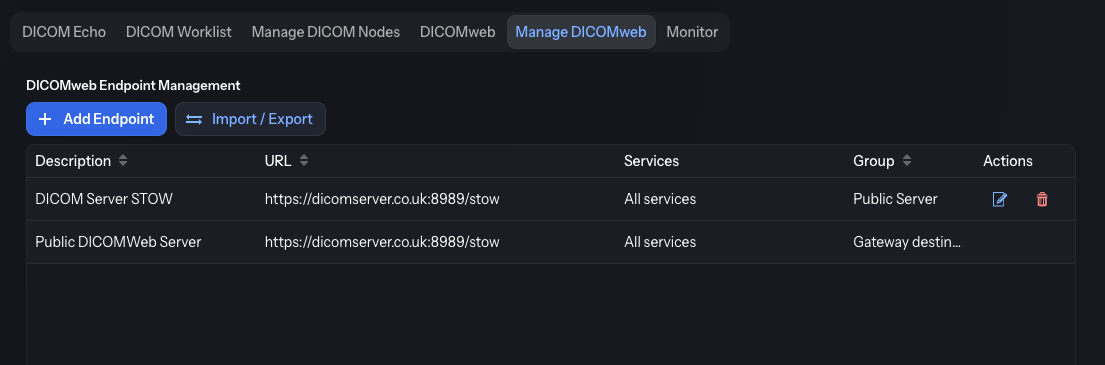
Adding and editing an endpoint
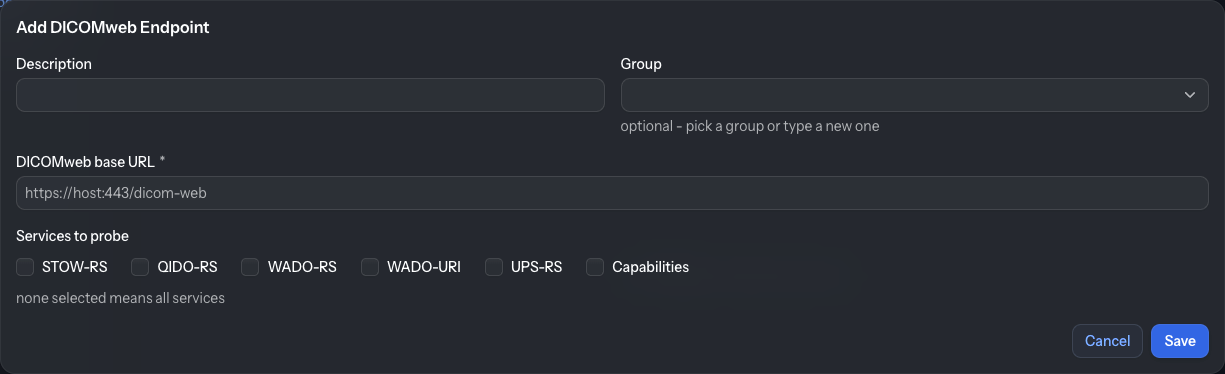
Click Add Endpoint (or the edit action on a row) to open the editor:
| Field | Description |
|---|---|
| Description | A human-readable name for the endpoint |
| DICOMweb base URL | The base URL of the service |
| Services to probe | Which services to check (none selected means all) |
| Group | Optional — pick an existing group or type a new one |
Import / Export
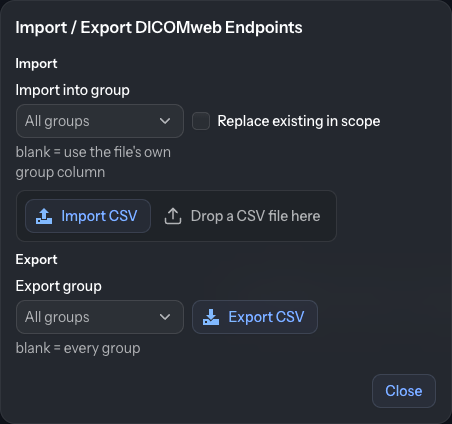
The Import / Export button behaves like the DICOM nodes one: import endpoints from
a CSV (optionally into a chosen group, optionally replacing the existing endpoints in
scope), or export the current endpoints to dicomweb-endpoints.csv.
Monitor
The Monitor tab runs the same checks as the Echo and DICOMweb tools, but against a whole group at once — ideal for regular health checks of your DICOM infrastructure. A second row of tabs switches between DICOM Nodes and DICOMweb.
DICOM Nodes
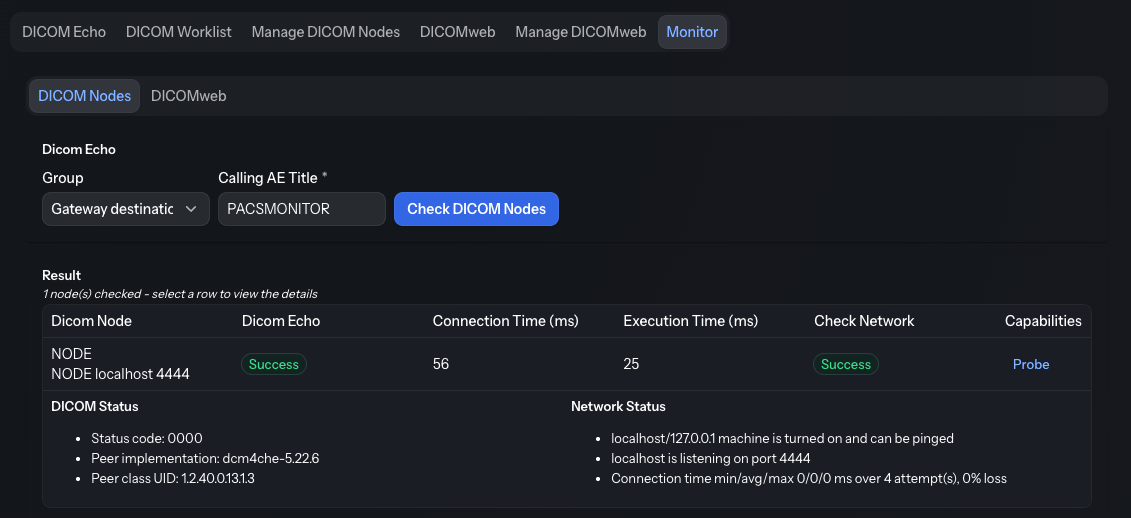
- Pick a Group of nodes to check.
- Enter the Calling AE Title (defaults to
PACSMONITOR). - Click Check DICOM Nodes.
The result grid shows one row per node with its DICOM Echo status, connection and execution times, and network reachability. The Probe button (in the Capabilities column) is available on each row to probe a node’s accepted SOP classes.
DICOMweb
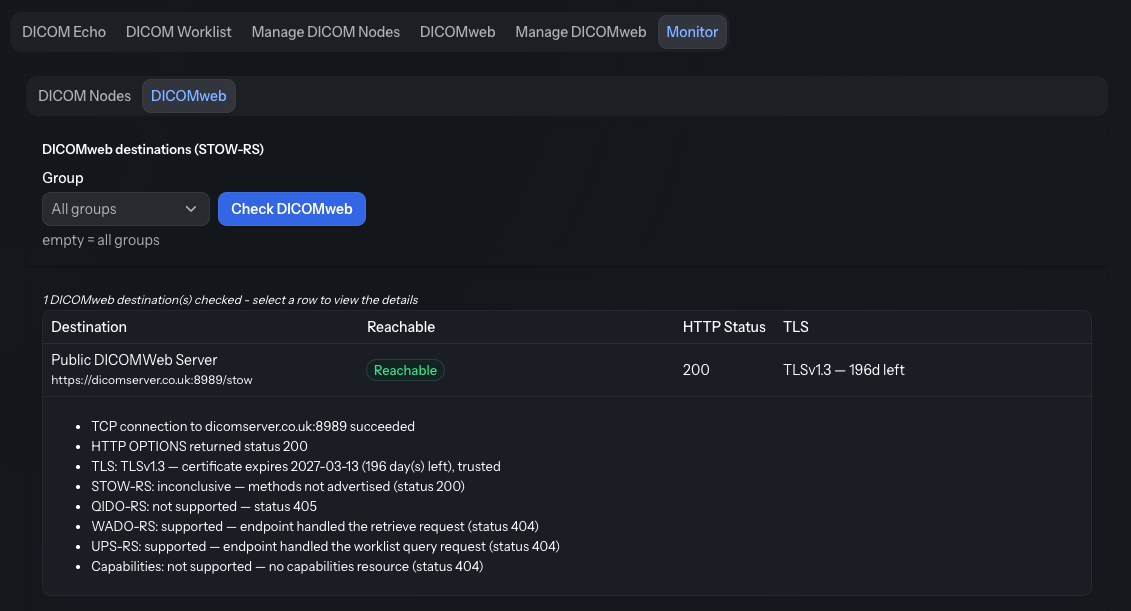
- Optionally pick a Group of DICOMweb destinations (leave blank to check all).
- Click Check DICOMweb.
The result grid shows one row per destination with its reachability, HTTP status and TLS certificate state. The gateway STOW-RS destinations are included unless a specific managed group is selected.
Info
The Monitor tool helps you spot connectivity, certificate or capability issues before they affect production transfers.
Administrator settings
The timeouts used by the Echo, Monitor and DICOMweb checks can be tuned with the following application properties (milliseconds):
| Setting | Default | Description |
|---|---|---|
dicom-tools.echo.connect-timeout-ms |
3000 |
TCP connection timeout of the C-ECHO and capabilities probe. |
dicom-tools.echo.accept-timeout-ms |
5000 |
Association acceptance timeout of the C-ECHO and capabilities probe. |
dicom-tools.network.ping-timeout-ms |
3000 |
Per-reply timeout of the ping in the network check. |
dicom-tools.network.port-timeout-ms |
3000 |
TCP timeout of the DICOM port reachability probe. |
dicom-tools.web.timeout-ms |
5000 |
Connect / TLS / HTTP timeout of the DICOMweb probe. |