Forward Nodes: DICOM Gateway Configuration
The Gateway page allows you to configure Forward Nodes in Karnak. A Forward Node represents a DICOM Application Entity (AE) that receives DICOM instances and routes them to one or more destinations. See How Karnak works for the deployment workflow and the pipeline each instance goes through.
Forward Node
This page lists all the forward nodes configured in Karnak and allows you to create, edit, and delete them.

1. Create a Forward Node
Click the New forward node button. A popup will appear:
- Enter a unique value in the Forward AETitle field. AE Titles must not exceed 16 characters and cannot contain control characters or a backslash.
- Click the Add button
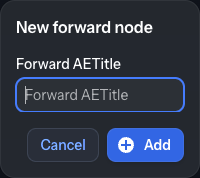
The new forward node appears in the list and is automatically selected. Optionally, add a description and save your changes.
Info
The Forward AETitle must be unique across all forward nodes in the Karnak instance.
2. Create a group
When the list grows, you can organize forward nodes into groups (a single level of folders) to keep related nodes together:
- Click Add group to create a new group and give it a name.
- Drag a forward node onto a group to assign it to that group.
- Right-click a group to Rename group or Delete group; deleting a group only removes the folder — the nodes it contained move back out, they are not deleted.
- Right-click a node and choose Remove from group to take it out of its group.
Groups are purely organizational; they do not change how forward nodes behave. The same grouping is available for Projects and Profiles.
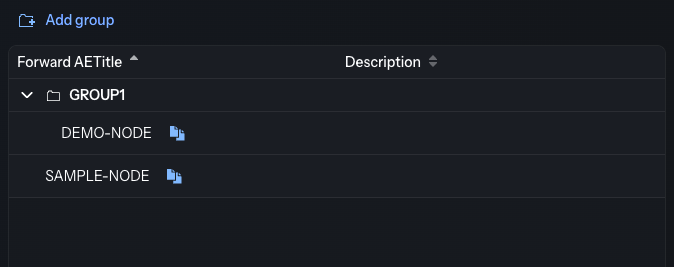
3. Forward Node List
All configured forward nodes and groups are displayed in the left panel.
Select a forward node from the list to view and manage its configuration in the right panel.
Info
The copy icon
next to each forward node allows you to quickly copy its DICOM configuration (AE Title, host and the listener port — DICOM_LISTENER_PORT, 11119 by default, see the installation page) to the clipboard for use in DICOM clients. Adapt the host if the sending node reaches Karnak through another address.
4. Forward Node Parameters
In the details view, you can modify:
- Forward AETitle: The Application Entity Title of the forward node
- Description: An optional description to help identify the node’s purpose
Click the Save button to apply your changes.
5. Sources and Destinations
Each forward node can be configured with:
- Sources: Control which DICOM nodes are authorized to send data to this forward node
- Destinations: Define where received DICOM instances should be forwarded

5.1 Navigation
Use the tabs to switch between the Destinations and Sources views for the selected forward node.
5.2 Filtering
Destinations tab: a free-text filter matching a destination’s description, AE Title, hostname, port, URL, headers and notification settings.
Sources tab: a free-text filter matching a source’s description, AE Title and hostname.
5.3 List
All destinations or sources associated with the forward node are displayed here.
Click any item in the list (or a New button) to open its configuration form. The form replaces the list panel in place; click Cancel to return to the list.
5.4 Actions
The available action buttons depend on the active tab.
Destinations tab:
Create a new destination using either the DICOM or DICOM WEB (STOW) protocol. See the Destinations page for detailed configuration instructions. The portable distribution shows an additional LOCAL button that creates a destination storing the instances in its local DICOM folder.
Sources tab:
Create a new source to control which DICOM nodes can send data to this forward node. See the Sources page for detailed configuration instructions.
6. Forward Node Actions
Three action buttons are available:
| Action | Description |
|---|---|
| Save | Saves changes made to the forward node parameters |
| Delete | Deletes the selected forward node and all associated configurations |
| Cancel | Reverts unsaved changes to the forward node parameters |
Info
While a transfer is running through the forward node, Save and Delete are disabled and read Transfer in progress; they become available again once the transfer is complete.
Warning
Deleting a forward node will also remove all associated sources and destinations, as well as the related entries in the Monitoring view. This action cannot be undone.