Run Karnak Without Installing It
Karnak Gateway can be distributed as a portable application, allowing you to run it without installing it on your system.
The purpose of this distribution is to provide an easy way to use Karnak Gateway for de-identification tasks on a local machine. It is typically used by researchers in collaborative projects that require a consistent method for de-identifying DICOM data with a shared de-identification profile.
Warning
The portable distribution is intended for personal use only on a single machine. For multiple gateway configurations, when using Karnak as a production service, please use the standard installation method on a server and adapt the resource allocation accordingly.
Download Karnak portable distribution
| System | Arch. | Size | Portable package | Comments |
|---|---|---|---|---|
| Linux | x86-64 | 194.7 MB | karnak-linux-x86-64-jdk25-2.0.0.zip | Requires GLIBC_2.17 |
| macOS | arm-64 | 169.5 MB | karnak-macosx-aarch64-jdk25-2.0.0.zip | Requires macOS 12 or higher (Apple Silicon) |
| Windows | x86-64 | 185.3 MB | karnak-windows-x86-64-jdk25-2.0.0.zip | Requires Windows 10 or higher |
Run Karnak Gateway portable
No installation is needed: extract the downloaded archive anywhere (for example in your Documents folder) and launch Karnak from the extracted folder.
Double-click on run.bat. A console window opens and shows the startup messages.
Open a Terminal in the extracted folder (in the Finder, right-click on the folder and choose Services → New Terminal at Folder, or drag the folder onto the Terminal icon in the Dock) and run ./run.sh. There is no double-clickable launcher on macOS: Gatekeeper refuses to open a script downloaded from the Internet, whereas running it from the Terminal works without any warning.
Double-click on run.sh (choose Run in Terminal if your desktop asks) or run ./run.sh in a terminal opened in the folder.
What happens at launch:
- First launch only: the launcher asks whether to download the optional OCR service used by the automatic pixel de-identification. Answer Y to download it (an Internet connection is required), or n to skip it. Karnak works without it; only the automatic masking of text burned into the images is unavailable.
- Karnak starts, and after a few seconds the web portal opens in your default browser at
http://localhost:8081. If it does not, open this address yourself. - Log in with the default credentials:
- Username:
admin - Password:
karnak
- Username:
To stop Karnak, close the launcher window (or press Ctrl+C in the terminal).
Info
This web portal is accessible only from the local machine where it is running.
If the system already uses port 8081, you can change it by modifying the KARNAK_WEB_PORT value in the run.cfg file located in the extracted directory. Set KARNAK_OPEN_BROWSER=false in the same file if you do not want the browser to open automatically.
For advanced configuration options, you can edit the run.cfg file to adjust other settings (see below).
Specific folders in the extracted directory
logs: Contains the log files generated by Karnak Gateway during its execution (karnak.log, rotated by size).
dicom: Default folder where DICOM instances are stored when using the “LOCAL” destination.
data: Contains the embedded H2 database files used by Karnak Gateway to store its configurations. The database file is encrypted with a key generated on first launch and stored in the hidden .db_pwd file next to run.sh / run.bat. If you download a new version of the portable distribution, copy both the data folder and the .db_pwd file to retain your existing configurations.
Configuration (run.cfg)
The run.cfg file is read by run.sh / run.bat at startup; every uncommented NAME=value line is exported to Karnak. The main settings are:
| Variable | Default | Description |
|---|---|---|
KARNAK_WEB_PORT |
8081 |
Port of the web portal (bound to localhost only). |
KARNAK_OPEN_BROWSER |
true |
Open the web portal in the default browser once Karnak is started. |
DICOM_LISTENER_AET / DICOM_LISTENER_PORT |
KARNAK-GATEWAY / 11112 |
AE Title and port of the gateway DICOM listener that receives the studies to forward. |
DICOM_LISTENER_TLS |
false |
Listen in DICOM TLS; requires TLS_KEYSTORE_PATH, TLS_KEYSTORE_SECRET, TLS_TRUSTSTORE_PATH and TLS_TRUSTSTORE_SECRET (JKS files). |
LOCAL_NODE_STORAGE_PATH |
./dicom |
Folder of the local DICOM storage node used by the LOCAL destination. The local node is started only when both LOCAL_NODE_STORAGE_PATH and LOCAL_NODE_PORT are set. |
LOCAL_NODE_AE_TITLE / LOCAL_NODE_PORT |
KARNAK-LOCAL / 11115 |
AE Title and port of the local storage node. |
LOCAL_NODE_FILEPATH_PATTERN |
{00100010}/{00080060}/{0020000E}/{00080018}.dcm |
Path pattern of the stored files, built from DICOM tag values. |
MAIL_SMTP_HOST, MAIL_SMTP_PORT, MAIL_SMTP_SENDER, MAIL_SMTP_TYPE, MAIL_SMTP_USER, MAIL_SMTP_SECRET |
(unset) | Outgoing mail server used by the destination notifications and the conformance report. MAIL_SMTP_TYPE is SSL or STARTTLS when authentication is used. |
DB_USER / DB_PASSWORD |
karnak / karnak |
User credentials of the embedded H2 database (the file encryption key is the generated .db_pwd). |
KARNAK_LOGS_MAX_FILE_SIZE, KARNAK_LOGS_MIN_INDEX, KARNAK_LOGS_MAX_INDEX |
50MB, 1, 10 |
Size and number of the rotated logs/karnak.log files. |
OCR_ENABLED, OCR_AUTO_INSTALL, OCR_VERSION, OCR_MODEL, OCR_URL, OCR_SERVICE_NAME |
see below | De-identification image (OCR) service. |
User guide
For detailed instructions on how to use Karnak Gateway, please refer to the Karnak Gateway User Guide. This distribution includes new features in the Forward Node view that are not covered in the main user guide:
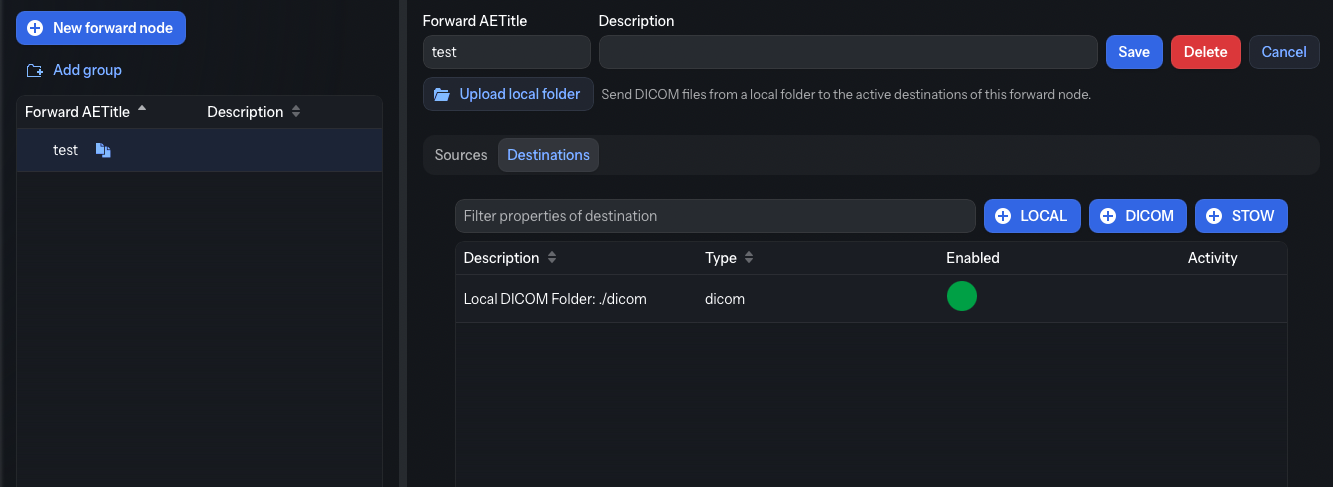
Add a local destination
Click the LOCAL button A to add a destination that saves DICOM instances to the dicom folder in the portable distribution’s extracted directory.
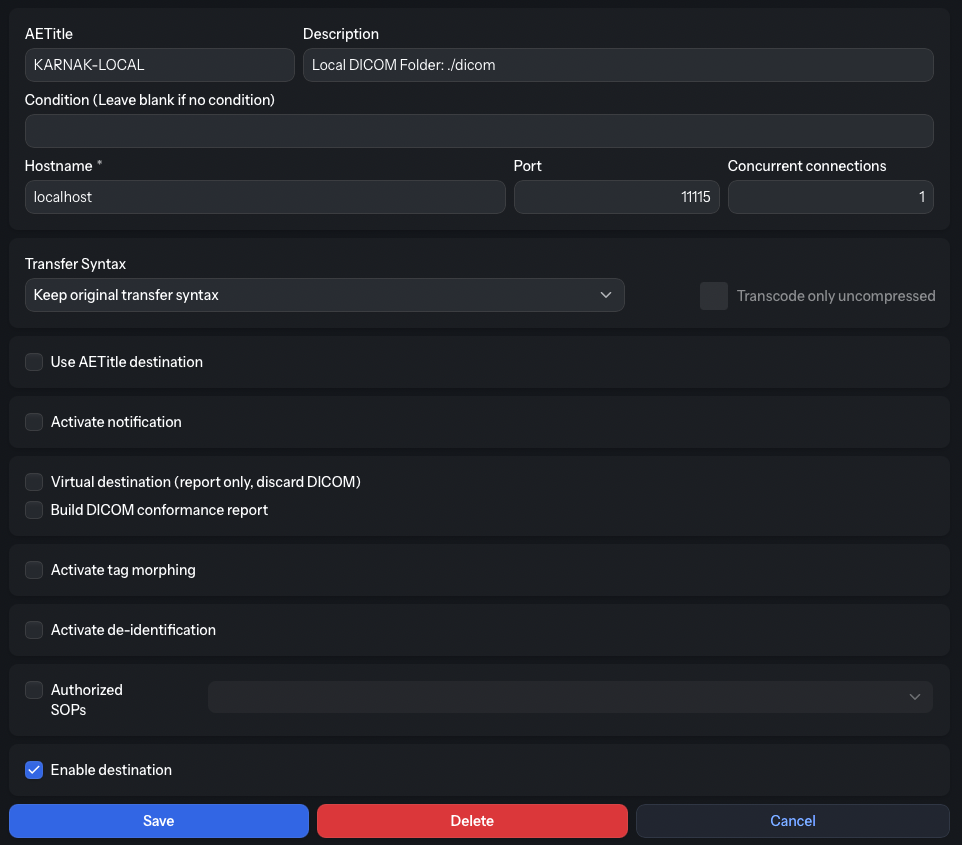
This button automatically configures a DICOM destination for local storage. For other options related to de-identification and forwarding rules, refer to the main user guide.
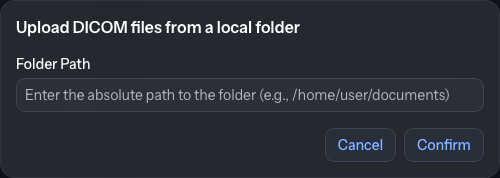
Upload local folder
Click the Upload local folder button B to send DICOM instances from a local folder through the forward node’s active destinations. The forward node must already have at least one active destination — otherwise a notification is shown and nothing happens. The button opens a dialog titled Upload DICOM files from a local folder where you type the absolute path to the folder in the Folder Path field.
Automatic pixel de-identification service
The portable distribution can run the automatic pixel data de-identification feature, which masks burned-in patient data detected by an external OCR service (image-ocr-identifier). This service is not included in the portable archive, because it is large and optional.
Install the service
The easiest way is to answer Y when the launcher asks for it on the first launch: the launcher downloads the release of the service that matches your Karnak version (pinned by OCR_VERSION in run.cfg) and installs it in the image-ocr-identifier folder next to run.sh / run.bat. Karnak then starts it automatically at every launch.
If you answered n, you can install it later by setting OCR_AUTO_INSTALL=always in run.cfg and restarting Karnak, or manually:
- Open the releases page of the service and pick the release named in
OCR_VERSION. - Download the archive for your system:
image-ocr-identifier-<model>-windows-x86_64.zip,image-ocr-identifier-<model>-macos-arm64.tar.gzorimage-ocr-identifier-<model>-linux-x86_64.tar.gz, where<model>is the value ofOCR_MODEL(PP-OCRv5_mobileby default). - Extract it next to
run.sh/run.bat. The archive contains a singleimage-ocr-identifierfolder holding the service executable and its resources.
After installation the layout looks like:
Info
A prebuilt service is published for Windows (x86-64), macOS (Apple Silicon) and Linux (x86-64). On other systems the launcher skips the download and the automatic masking is unavailable.
Configure the service
The service is controlled in run.cfg:
| Variable | Default | Description |
|---|---|---|
OCR_ENABLED |
true |
Start the de-identification service with Karnak. Set to false to disable it (and to stop being asked to download it). |
OCR_AUTO_INSTALL |
ask |
When the service is missing: ask before downloading it, always download it without asking, never do nothing. |
OCR_VERSION |
(pinned) | Release of the service downloaded by the launcher. It is chosen to match the Karnak version; keep the value shipped in run.cfg. |
OCR_MODEL |
PP-OCRv5_mobile |
OCR model bundled in the downloaded archive. |
OCR_URL |
http://localhost:8000 |
Base URL Karnak uses to reach the service. |
OCR_SERVICE_NAME |
image-ocr-identifier |
Name of the service folder and executable. The service lives in <app>/<name>/ and its binary is named <name> (<name>.exe on Windows). |
When enabled, run.sh / run.bat starts the service on launch; on Linux and macOS, run.sh also stops it when Karnak exits (on Windows the service runs in its own minimized window, to be closed with it). If the binary is missing and the download is declined, the step is skipped and a message is logged.
Info
For details about the feature itself — eligible images, sensitive tags, fail-closed behavior, and enabling it in a profile — see Automatic Pixel Data De-identification.