Monitor DICOM Transfers and Their Status

The Monitoring view tracks transfers in progress and the recent transfer history. Instead of a flat, paginated log of individual instances, activity is aggregated as a Destination → Study → Series hierarchy, so you can see at a glance how each study was forwarded and drill down only where there are problems.
Info
What changed in version 2.0. The Monitoring module was redesigned. The earlier flat, paginated log of individual instances is replaced by a tree down to the series level (Destination → Study → Series), with one error line per failing series. Transfers are now aggregated per series instead of stored one row per instance, which keeps the view compact and makes problems easier to locate. As a result, retention is now time-based (a number of days) rather than a fixed maximum number of transfers.
A shared filter bar at the top applies to two tabs:
- Activity — the Destination / Study / Series tree, with the details of any selected element shown on the right.
- Dashboard — per-forward-node activity totals.
Info
By default, monitoring records are kept for 30 days; an automatic cleanup runs
every hour to remove older entries. Because entries are now aggregated at the series
level (rather than one row per instance), this history can span much longer than before
for the same storage. The retention period is configurable by the administrator with the
monitoring.max-history-days setting.
Filters
The filter bar is shared by both tabs:
| Filter | Description |
|---|---|
| Range | A time range for the activity: Last 5 minutes, Last 15 minutes, Last hour, Last 24 hours, Today, Last 7 days, Last 15 days, All, or Custom (pick your own start/end). Last 24 hours is selected by default. |
| Status | The outcome to show: All, Sent, Not Sent, Excluded, or Error. |
| Study UID | Filter on a Study Instance UID (matches the original or de-identified value). |
| Series UID | Filter on a Series Instance UID (matches the original or de-identified value). |
Transfer statuses
The status of each element is color-coded:
- OK (green): the instances were successfully sent.
- Excluded (orange): some instances were not sent because of configuration rules —
the SOP Class filter, destination conditions, or
ExcludeInstance()in the profile. The badge shows the number of excluded instances; expand the series to see one line per reason. - Error (red): some instances were not sent because of an unexpected error. The badge shows the number of errors; expand the series to see one line per error reason.
Activity tab
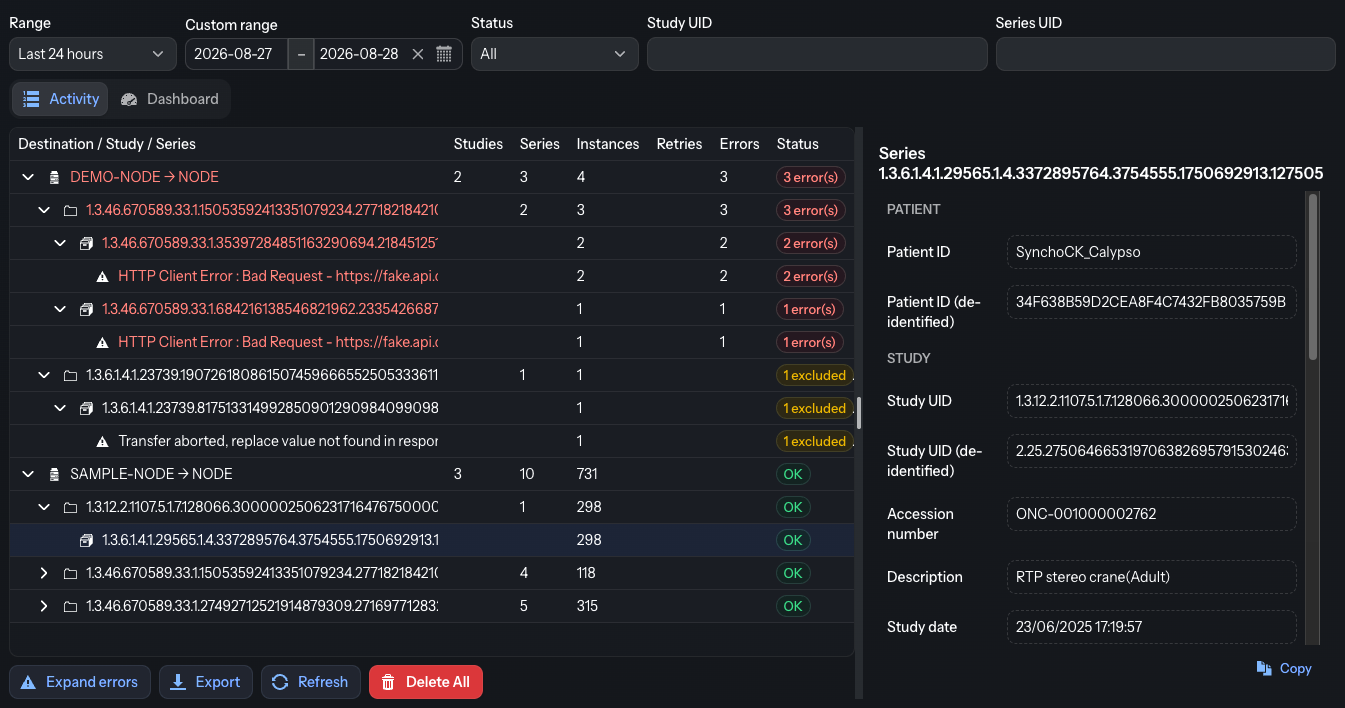
The Activity tab is split between the hierarchy tree (left) and the detail panel (right).
Hierarchy tree
Each row in the tree shows the Destination / Study / Series name and the counts of Studies, Series, Instances, Retries and Errors, plus an overall Status badge. Expand a destination to see its studies, and a study to see its series; failing series expose one line per error reason.
The outcomes are counted in separate buckets rather than a single error total:
- Instances — the number of instances received for that element.
- Retries — instances re-received after already being seen (duplicate re-sends); they are counted here instead of as new work.
- Errors — instances that could not be sent because of an unexpected error.
Instances excluded by configuration (filters or aborted transfers) are reflected in the Status badge and reported as a separate Excluded count in the detail panel and on the dashboard.
The toolbar below the tree provides, from left to right:
- Expand errors — expand the tree down to every failing series so problems are immediately visible (the button then becomes Collapse errors).
- Export — see Export below.
- Refresh — reload the tree with the latest data.
- Delete All — permanently remove every monitoring entry (a confirmation is required; this cannot be undone).
Info
Delete All also clears the per-series baseline used for notification reporting, which is stored alongside the monitoring history. Email reporting simply restarts from zero afterwards: no previously forwarded outcome is re-notified, but a new transfer to a series that existed before the deletion is reported as new. The automatic retention cleanup removes aged-out entries the same way.
Detail panel
Select any element in the tree to see its details on the right:
- For a destination: the forward AE Title, the destination label, and the Studies / Series / Instances / Retries / Sent / Errors / Excluded counts.
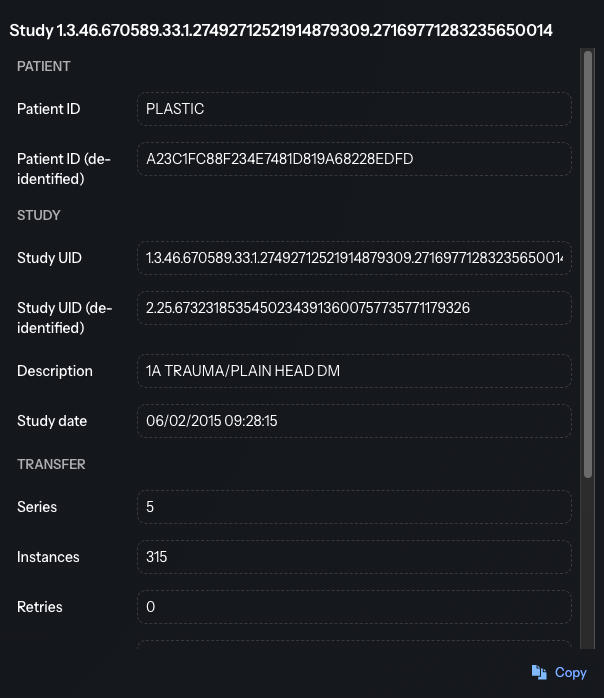
- For a study: patient and study attributes shown as original vs sent (de-identified) pairs — Patient ID, Study UID, Accession number, Description and Study date — followed by the same Series / Instances / Retries / Sent / Errors / Excluded counts.
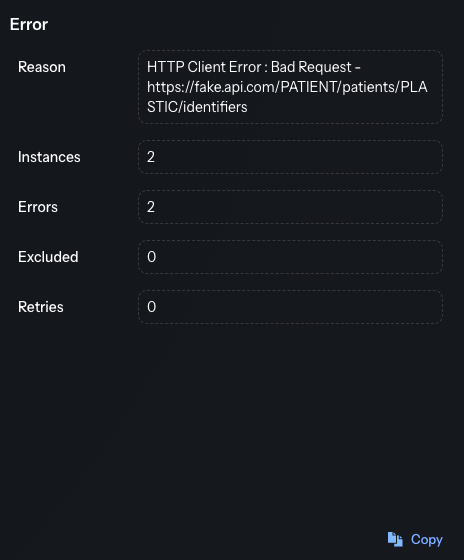
- For a series or an error: the corresponding identifiers, the per-outcome counts and the error reason.
A Copy button copies the whole detail block to the clipboard.
Below are two examples, the first one successfully de-identified and sent at the study level, and the second one, not sent because an error occurred.
Info
When a value was changed by de-identification, the panel shows the original value and a second (de-identified) line with the value that was actually sent, so you can compare the two.
Dashboard tab
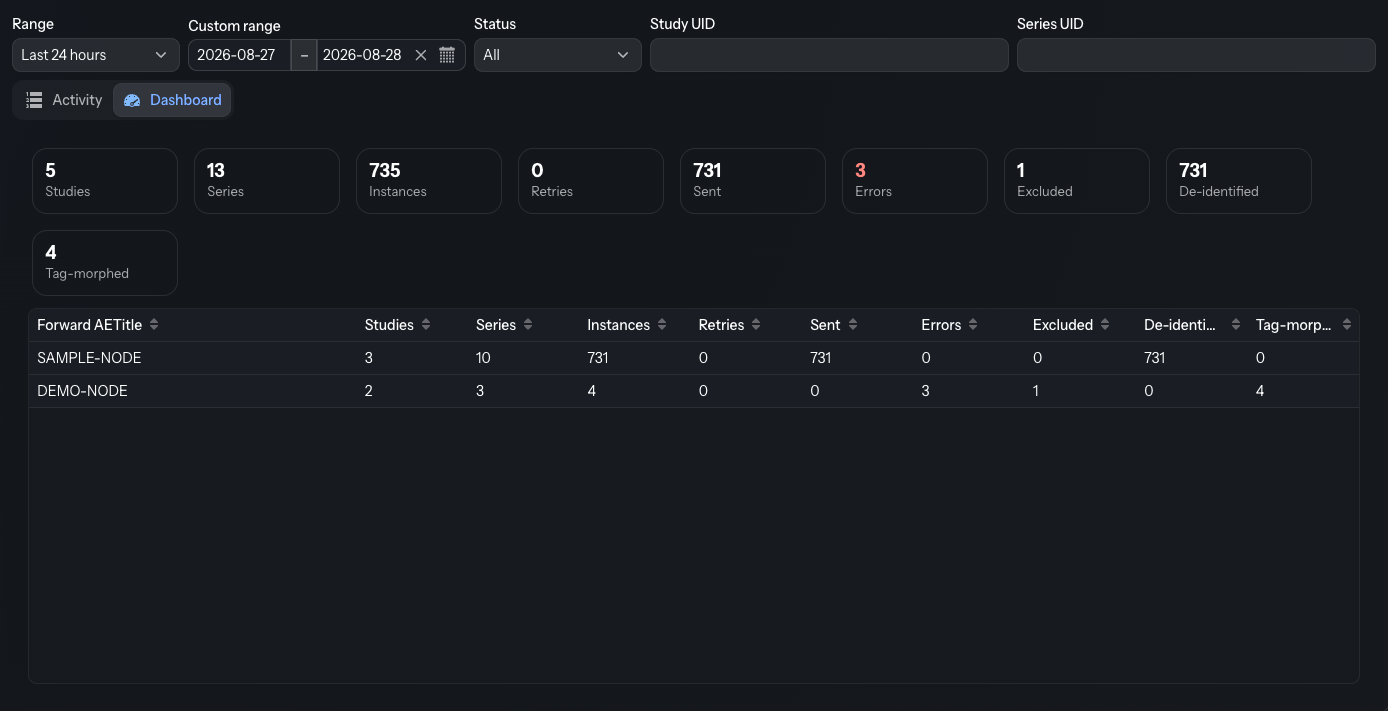
The Dashboard summarizes activity per forward node over the selected range. Summary cards at the top total the Studies, Series, Instances, Retries, Sent, Errors, Excluded, De-identified and Tag-morphed, and a grid breaks the same figures down by Forward AETitle.
Export
You can export the activity to a CSV file. The export respects the currently active filters, so only the matching transfers are included. One row is written per series, with the original and de-identified identifiers, the Instances / Retries / Sent / Errors / Excluded counts, the outcome reasons and the first/last-seen timestamps.
Click Export to open the Export CSV dialog. The only setting is:
- Separator: the single character used to separate fields (a comma by default).
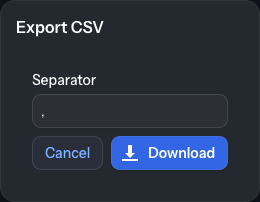
Then click Download to generate and download the CSV file.