Manage De-identification Profiles in Karnak
This page lists all profiles configured in Karnak and lets you create, import, edit and delete them. A profile defines the actions to apply to a DICOM instance before it is sent.
The Dicom Basic Profile is available by default and cannot be edited or deleted. It is
the reference de-identification profile based on the DICOM standard.
For more details, see De-identification Process

The page has two areas:
- a left panel that lists the profiles, with the buttons to create, import and group them;
- a right panel that opens when you select a profile, with two editing tabs — Profile elements (a visual editor for the most common actions) and YAML editor (the full profile as YAML).
Info
The Profile elements tab is a convenience editor that covers the major element types only — it does not expose every configuration option. For the full capabilities (for example pixel-data masks, API-based replacement, or any option the visual editor does not show), use the YAML editor or import a YAML file. Both tabs describe the same profile; the complete structure is in the Profiles reference.
Left panel: create, import and group profiles
New profile
Click New profile to open a popup. Provide a Name, a Version and the Min Karnak version (optional), then click Create. An empty, editable profile is created and opened so you can add its elements.
Import a profile
To reuse an existing profile, use the upload area below the buttons: click Upload File… or drag a YAML file onto Drag and drop your profile here. The file is loaded and analyzed; if it is valid, a new profile is created from it and added to the list. If it contains errors, the profile is not added and the errors are shown in the right panel (see Import errors).
Info
For how to write a valid profile YAML file, see the Profile Structure documentation.
Profile list and groups
All profiles are listed in the left panel. A profile can evolve over time and appear several times under the same name with different versions. Selecting a profile shows its details on the right.
Click Add group to organize the list into a single level of groups: create a group, drag a profile onto it to assign it, and right-click a group or a profile to Rename group, Delete group or Remove from group. Grouping is purely organizational and is described in more detail on the Gateway page.
Right panel: editing a profile
When you select a profile, the right panel shows its name in a header with the Edit metadata, download and delete actions, above the two tabs Profile elements and YAML editor.
Profile metadata
The header shows the profile name, with a secondary line recalling its Version and Min Karnak version. Click Edit metadata (edit icon) to change them: a popup titled Edit profile opens with the Name, Version and Min Karnak version fields; edit the values and click Save.
Download and delete
Two buttons next to the profile name apply to the whole profile and are available from either tab:
- the download button exports the profile as a YAML file (for backup or to share with another Karnak instance);
- the delete (trash) button removes the profile. If the profile is used by one or more projects, a warning is shown to prevent accidental deletion.

Profile elements tab
The Profile elements tab is a visual editor for the most common actions. It lists
the elements that make up the profile, in the order they are applied. Each row shows its
position (#), Name, Type (the element’s codename, e.g.
action.on.specific.tags) and a short Summary, with per-row up / down / edit /
delete actions.
Info
The order of the elements matters: they are applied from top to bottom. Use the up/down arrows on each row to reorder them.
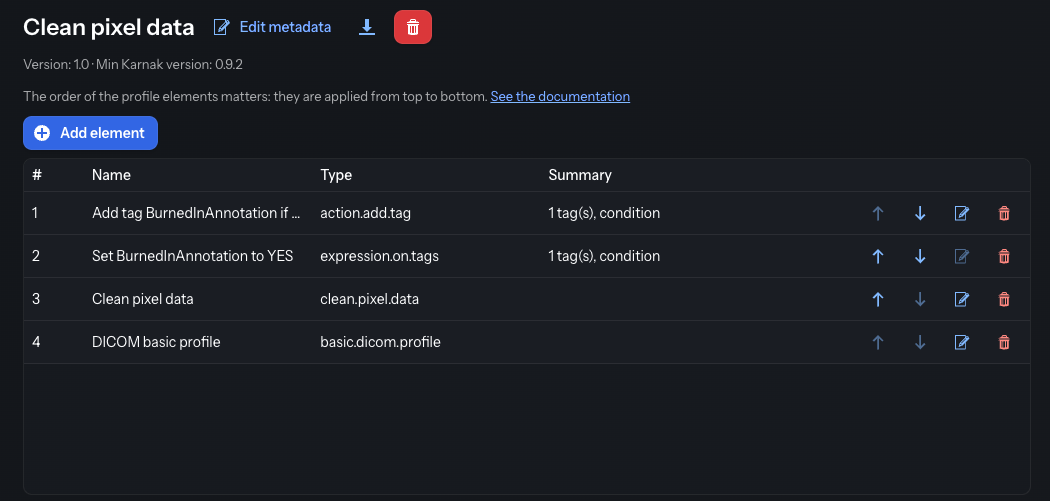
A profile should normally include the Basic DICOM confidentiality profile element; if it is missing, a warning is shown. This element is always applied last — it is pinned to the end of the list and cannot be reordered.
Info
This visual editor covers the major element types listed below. An element whose type it does not support (for example pixel-data masks or API-based replacement) still appears in the list and can be reordered or deleted, but its edit action is disabled — configure it from the YAML editor instead.
Adding and editing an element
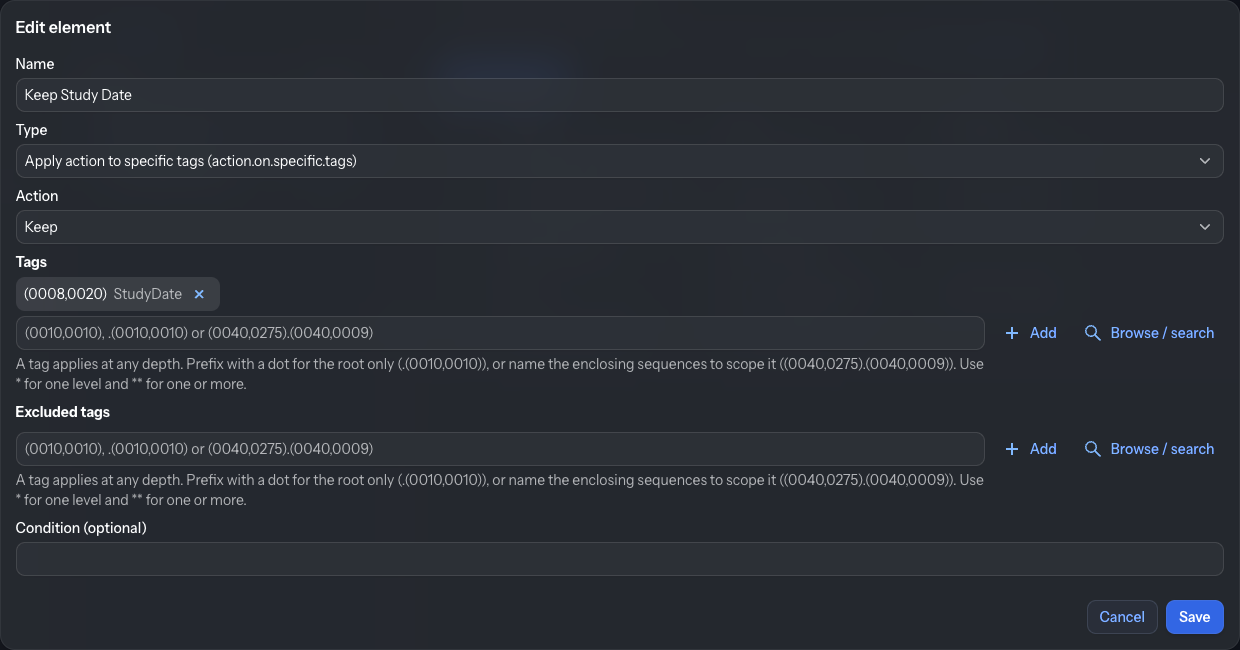
Click Add element (or the edit action on a row) to open the Add element / Edit element dialog. Fill in:
-
Name — a label for the element.
-
Type — the kind of action to perform (the dropdown shows each type followed by its codename in parentheses). The types are offered in this order:
- Apply action to specific tags
- Shift / format dates
- Replace UIDs
- Basic DICOM confidentiality profile
- Clean pixel data
- Defacing (clean recognizable visual features)
- Add a tag
- Apply action to private tags
The types that may appear only once in a profile (Basic DICOM confidentiality profile, Clean pixel data and Defacing) are no longer offered once the profile contains them.
-
Type-specific fields — the middle of the dialog adapts to the selected type:
- Apply action to specific tags / Apply action to private tags: an Action (see the table below), a Tags picker and an Excluded tags picker.
- Replace UIDs: an Action (Generate a new UID, Remove or Replace with null) and a Tags picker.
- Shift / format dates: an Option (shift, shift_range, shift_by_tag or date_format) that reveals its own fields, plus an optional Tags picker.
- Add a tag: a Tag picker and a Value.
- Basic DICOM confidentiality profile, Clean pixel data and Defacing need no extra fields. (To define the mask regions of Clean pixel data, use the YAML editor — see pixel-data masks.)
-
Condition (optional) — an expression that limits when the element is applied; see Conditions.
The Action (for the tag-based types) decides what to do with the matched tags:
| Action | Code | Meaning |
|---|---|---|
| Keep | K |
Keep the value unchanged |
| Remove | X |
Remove the tag |
| Replace with null | Z |
Replace with an empty value |
| Replace with a dummy value | D |
Replace with a dummy value consistent with the tag’s VR (see default values by VR) |
| Generate a new UID | U |
Generate a new, deterministic UID |
The tag fields use a tag picker that lets you search or browse the DICOM dictionary instead of typing tag numbers.
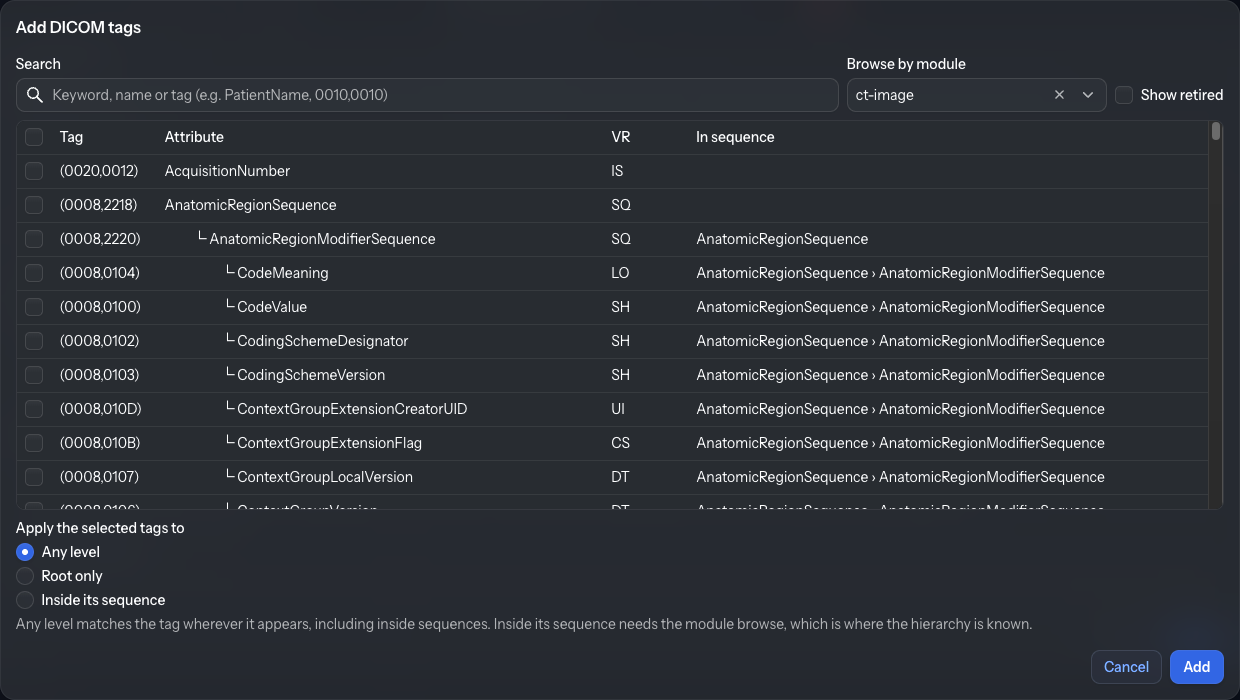
Click Save to validate and add the element, or Cancel to discard. The reference for every type, action and option — and the equivalent YAML — is in the Profiles reference section.
YAML editor tab
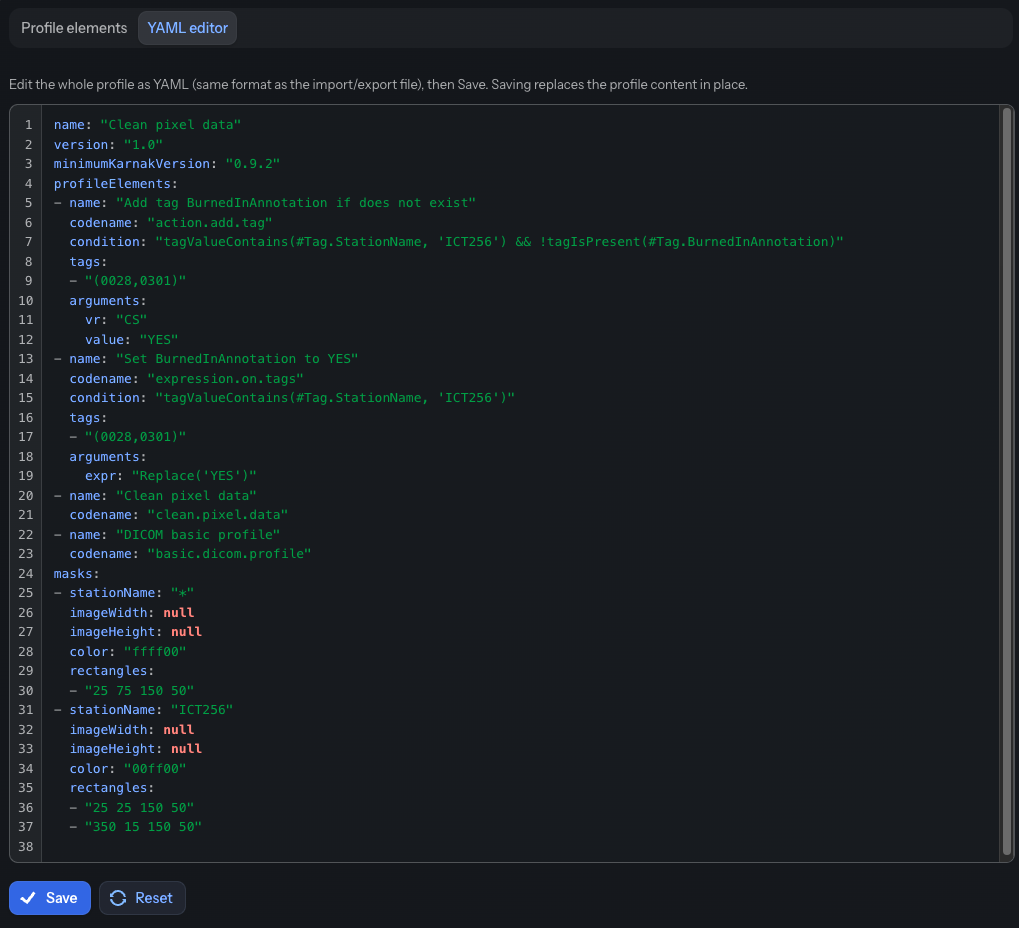
The YAML editor tab edits the entire profile as YAML — the same format as the import and export files. It gives access to the full set of profile capabilities, including options the visual editor does not expose, such as pixel-data masks and API-based replacement. It provides syntax highlighting and a line-number gutter, and adapts to the light or dark theme.
- Save parses and validates the YAML and applies it in place, keeping the profile so the projects that reference it are preserved. On success a Profile saved notification appears; if the YAML is invalid, the errors are listed in a red box and nothing changes.
- Reset discards your edits and reloads the last saved YAML.
The built-in Dicom Basic Profile is shown read-only and cannot be edited here.
Import errors
When a YAML file is imported successfully, the right panel shows the details of the newly created profile.
If errors occur during import, the profile is not added to the list. The errors are shown in the right panel with details about their cause, as illustrated below.
