Import Pseudonyms from a CSV File
This page allows you to create or import pseudonyms that Karnak will use during de-identification. The de-identification process and how pseudonyms are used is detailed in the Pseudonym chapter.
De-identification is activated in the Destination configuration.
Info
Pseudonyms created or imported on this page are stored in a cache with a maximum lifetime of 7 days.
With the portable version of Karnak, the cache is persistent only the time the application is running. Restarting the application will clear the cache.
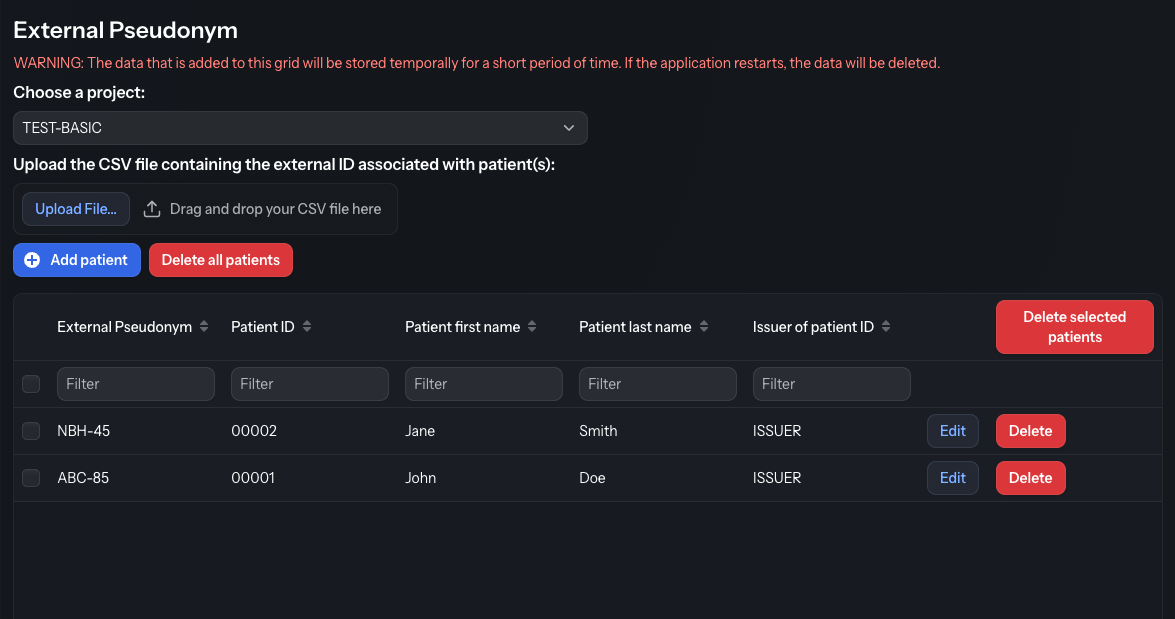
1. Choose a project
External pseudonyms are linked to a specific project. This allows Karnak to properly handle cases where:
- A patient participates in multiple clinical studies with different pseudonyms
- Potential pseudonym collisions occur between projects
2. Upload a CSV file
You can upload a CSV file containing external pseudonyms by:
- Clicking the Upload File… button
- Dragging and dropping a file onto the upload area
2.1 CSV separator configuration
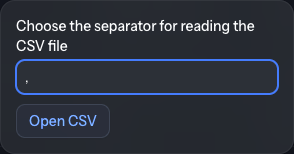
After selecting a file, a dialog appears asking for the CSV separator character. The default value is a comma (,).
Click Open CSV to proceed to the import configuration.
2.2 Preview and configuration
The CSV data is displayed in a grid for review and configuration.
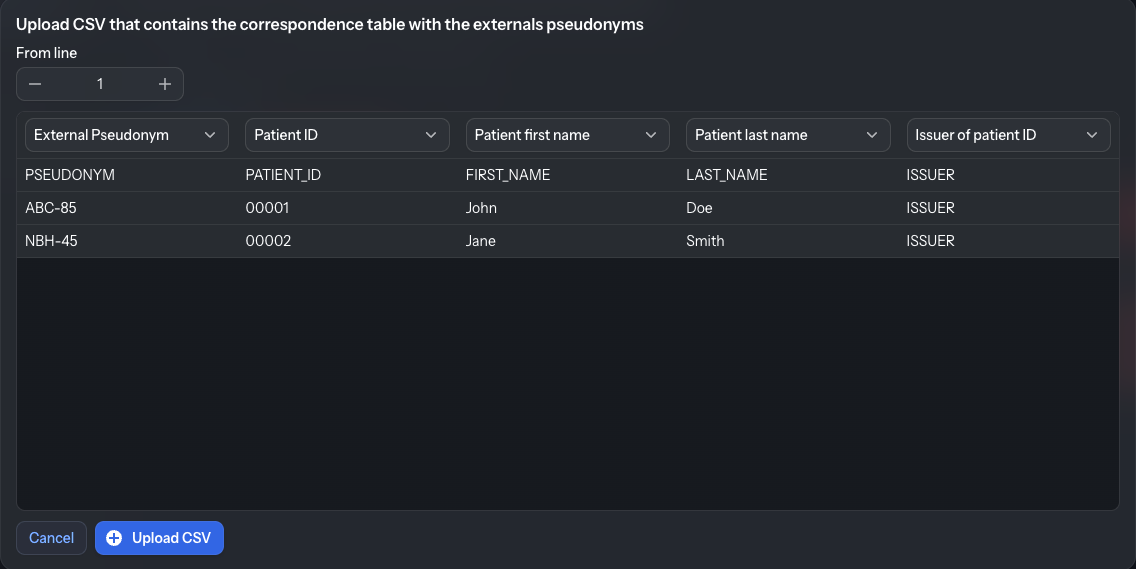
1. From line: This field defines the starting row for the import. Use this to skip header rows or other non-data lines at the beginning of the file.
2. Column assignments: Map each CSV column to the corresponding attribute to ensure that the data is properly imported.
These fields are initially empty. This mechanism allows flexibility on the content of the CSV file being imported.
Only the Patient ID and External Pseudonym fields are required. Other fields are optional.
3. Data preview: The data that will be imported as pseudonyms is displayed in the table.
2.3 Import validation
Click Upload CSV to import the data. The External Pseudonym and Patient ID columns must be assigned; otherwise an error lists the missing fields and nothing is imported.
Entries are identified by their Patient ID (and Issuer of patient ID) within the selected project. A row whose patient already exists is skipped and listed in a WARNING: Duplicate data dialog; the other rows are imported normally. The same check applies when a patient is added manually.
3. Pseudonym Actions
3.1 Add a new pseudonym
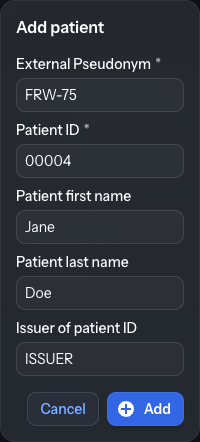
You can also add external pseudonyms manually. Click the Add patient button above the table to open a popup containing the following fields:
- External Pseudonym (required)
- Patient ID (required)
- Patient first name (optional)
- Patient last name (optional)
- Issuer of patient ID (optional)
Fill in the fields and click Add in the popup to add the entry to the external pseudonyms table.
3.2 Delete all patients
The Delete all patients button removes, after confirmation, all external pseudonyms for the selected project only. Pseudonyms linked to other projects are not affected.
4. Pseudonym management
4.1 Edit or delete individual entries
A filter row under the column headers narrows the table to the matching entries.
Each pseudonym row has action buttons:
- Edit: Modify the patient fields inline, then click Save or Cancel
- Delete: Remove the pseudonym from the cache

4.2 Bulk operations
Select multiple rows using the checkboxes on the left side of each row. Click Delete selected patients to remove all selected entries and confirm the action in the dialog.