Store Credentials for Karnak API Calls
This page allows you to configure authentication credentials for API calls. Since this information is sensitive, it is stored in an encrypted database table.

1. Create an Authentication Configuration
To create a new authentication configuration:
- Click the New authentication config button to open the creation popup.
- Enter a unique identifier.
- Click Add.
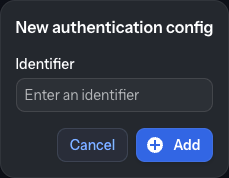
Requirements:
- The identifier must be unique (an error will appear if a duplicate exists)
- We recommend avoiding spaces in the identifier for easier reference in profiles
Click Add to proceed. The popup closes and an empty, editable configuration form appears in the right panel. The configuration is not saved yet — fill in the OAuth 2.0 fields described below and click Save to create it. Only then is it persisted and added to the list on the left. Click Cancel to discard it.
OAuth 2.0
Currently, OAuth 2.0 is the only supported authentication type.
Required fields:
| Field | Description |
|---|---|
| Access Token URL | The OAuth 2.0 token endpoint |
| Scope | Required scopes (separate multiple scopes with whitespace) |
| Client Secret | OAuth 2.0 client secret |
| Client ID | OAuth 2.0 client identifier |
Once all required fields are filled, click Save to create the configuration and add it to the list; click Cancel to discard it.
How it works:
When an API call references this configuration (via the authConfig parameter):
- Karnak checks if a valid access token is available
- If yes, the token is added to the request for authentication
- If no, a new token is requested using the configuration details
- The API call proceeds with the authenticated token
Warning
Authentication configurations cannot be modified after creation. To make changes, you must delete and recreate the configuration.
The fields Client Secret and Client ID are masked in the interface for security purposes.
2. Authentication Configuration List
All available authentication configurations are displayed in the left panel. Select a configuration to view its details on the right.
3. Delete Configuration
To delete a configuration:
- Select it from the list
- Click the red trash bin icon next to its identifier
- Confirm the deletion in the popup

Info
Deleting a configuration in use may cause errors in your workflows. Karnak does not verify whether a configuration is referenced by profiles or de-identification processes before deletion. Ensure the configuration is not in use before deleting it, or transfers will fail.
4. Configuration Details
The details view displays all configuration information in read-only mode. The fields Client Secret and Client ID are masked for security purposes.
To modify a configuration, you must delete it and create a new one.