Portable distribution
Karnak Gateway can be distributed as a portable application, allowing you to run it without installing it on your system.
The purpose of this distribution is to provide an easy way to use Karnak Gateway for deidentification tasks on a local machine. It is typically used by researchers in collaborative projects that require a consistent method for de-identifying DICOM data with a shared de-identification profile.
Warning
The portable distribution is intended for personal use only on a single machine. For multiple gateway configurations, when using Karnak as a production service, please use the standard installation method on a server and adapt the resource allocation accordingly.
Download Karnak portable distribution
| System | Arch. | Size | Portable package | Comments |
|---|---|---|---|---|
| Linux | x86-64 | 206.0 MB | karnak-linux-x86-64-jdk21-1.1.1.zip | Requires GLIBC_2.17 |
| Windows | x86-64 | 199.3 MB | karnak-windows-x86-64-jdk21-1.1.1.zip | Requires Windows 10 or higher |
Run Karnak Gateway portable
With the portable distribution, Karnak Gateway can be run directly from the extracted folder from the downloaded archive.
Once the application is running, you can access the Karnak Gateway web interface by opening your web browser and navigating to http://localhost:8081. The default login credentials are:
- Username:
admin - Password:
karnak
Info
This web portal is accessible only from the local machine where it is running.
If the system already uses port 8081, you can change it by modifying the KARNAK_WEB_PORT value in run.cfg file located in the extracted directory.
For advanced configuration options, you can edit the run.cfg file to adjust other settings.
Specific folders in the extracted directory
logs: Contains the log files generated by Karnak Gateway during its execution.
dicom: Default folder where DICOM instances are stored when using the “LOCAL” destination.
data: Contains the embedded H2 database files used by Karnak Gateway to store its configurations. If you download a new version of the portable distribution, you can copy this folder to retain your existing configurations.
User guide
For detailed instructions on how to use Karnak Gateway, please refer to the Karnak Gateway User Guide. This distribution includes new features in the Forward Node view that are not covered in the main user guide:
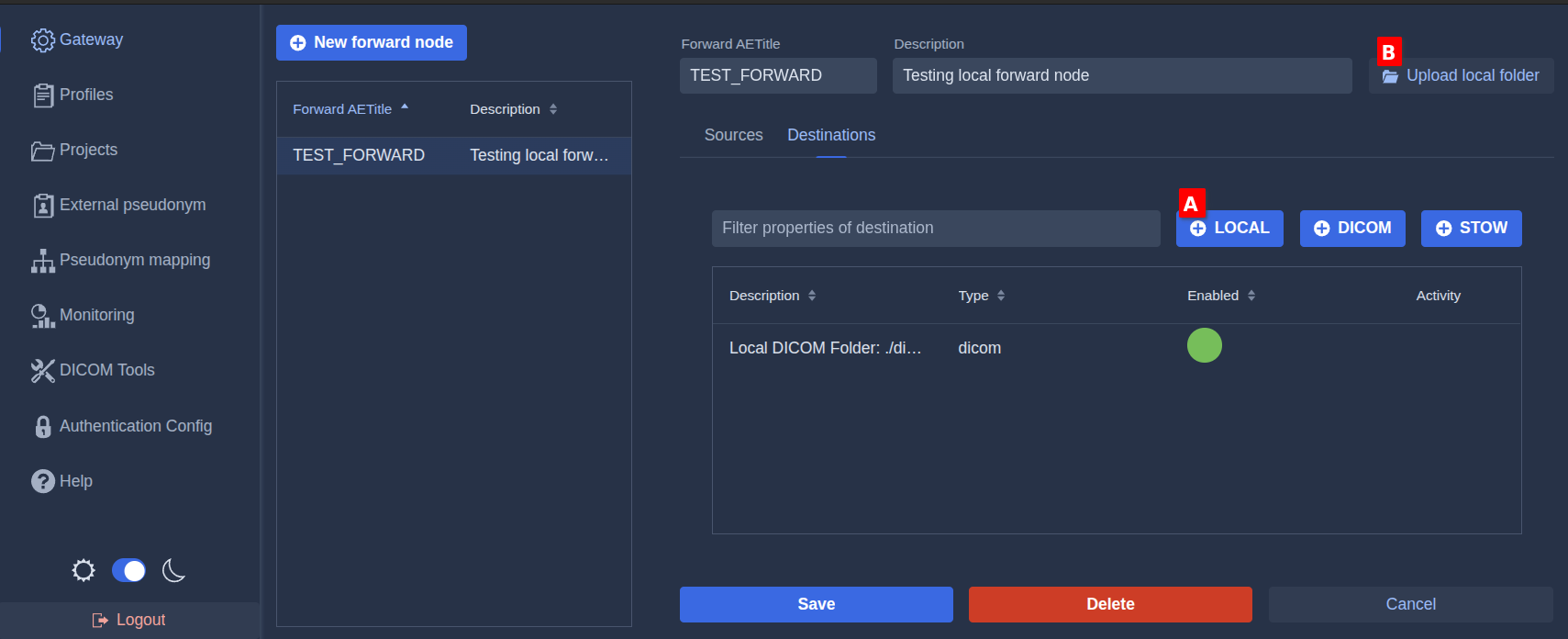
Add a local destination
Click the LOCAL button A to add a destination that saves DICOM instances to the dicom folder in the portable distribution’s extracted directory.
This button automatically configures a DICOM destination for local storage. For other options related to de-identification and forwarding rules, refer to the main user guide.
Upload local folder
Click the Upload Local Folder button B to select a local folder containing DICOM instances that you want to forward through the selected forward node destinations.
Automatic pixel de-identification plugin
The portable distribution can run the automatic pixel data de-identification feature, which masks burned-in patient data detected by an external OCR service. This service ships as a separate plugin; it is not included in the base portable archive.
Install the plugin
- Download the de-identification plugin archive from the same download page as the portable build.
- Extract its contents into your already-extracted
karnak-portablefolder. The archive contains a single service folder (named afterDEIDENTIFY_IMAGE_SERVICE_NAME,image-ocr-identifierby default) that holds a sub-folder and the service executable. Copy that folder as-is to the root ofkarnak-portable, next torun.sh/run.bat.
After extraction the layout looks like:
Configure and run the plugin
Once the plugin folder is in place, the bundled service is managed as a sidecar. It is controlled in run.cfg:
| Variable | Default | Description |
|---|---|---|
DEIDENTIFY_IMAGE_ENABLED |
true |
Start the bundled de-identification sidecar with the portable package. Set to false to manage the service yourself. |
DEIDENTIFY_IMAGE_URL |
http://localhost:8000 |
Base URL Karnak uses to reach the service. |
DEIDENTIFY_IMAGE_SERVICE_NAME |
image-ocr-identifier |
Name of the bundled service folder and executable. The sidecar lives in <app>/<name>/ and its binary is named <name> (<name>.exe on Windows). |
When enabled, run.sh / run.bat starts the bundled binary (image-ocr-identifier/image-ocr-identifier, .exe on Windows) on launch and stops it on shutdown. If the binary is missing, the step is skipped and a message is logged.
Info
For details about the feature itself — eligible images, sensitive tags, fail-closed behavior, and enabling it in a profile — see Automatic Pixel Data De-identification.