Image modifications
This page describes the profile elements available in Karnak for modifying DICOM image data to remove identifying information.
Overview
Karnak provides two main approaches to protect patient identity in DICOM images:
- Defacing: Automated removal of facial features from CT images
- Pixel Data Cleaning: User-defined masks to remove burned-in annotations and identifying information
Both methods ensure that visual identifying information is removed from images while preserving the diagnostic value of the data.
Defacing
Defacing automatically removes facial features from CT images to protect patient identity.
Supported Images
This profile can only be applied to images with Axial orientation in the following SOP Classes:
1.2.840.10008.5.1.4.1.1.2- CT Image Storage1.2.840.10008.5.1.4.1.1.2.1- Enhanced CT Image Storage
Info
Images with non-axial orientation will be skipped. Currently, the CT images that do not represent the head are not automatically excluded. It is recommended to use conditions to restrict defacing to head CT images only.
Configuration
This profile element requires the following parameters:
| Parameter | Description | Required |
|---|---|---|
name |
Description of the action applied | Yes |
codename |
Must be clean.recognizable.visual.features |
Yes |
condition |
Condition to evaluate if this profile element should be applied | No |
Pixel Data Cleaning
Pixel data cleaning applies masks to DICOM images to remove identifying information burned into the pixels, such as patient or institution information. Masks can be defined manually per station name (see Masks Definition) or generated automatically by an external OCR service (see Automatic Pixel Data De-identification).
Condition for Automatic Application
This profile is automatically applied to the following SOP Classes:
1.2.840.10008.5.1.4.1.1.6.1- Ultrasound Image Storage1.2.840.10008.5.1.4.1.1.7.1- Multiframe Single Bit Secondary Capture Image Storage1.2.840.10008.5.1.4.1.1.7.2- Multiframe Grayscale Byte Secondary Capture Image Storage1.2.840.10008.5.1.4.1.1.7.3- Multiframe Grayscale Word Secondary Capture Image Storage1.2.840.10008.5.1.4.1.1.7.4- Multiframe True Color Secondary Capture Image Storage1.2.840.10008.5.1.4.1.1.3.1- Ultrasound Multiframe Image Storage1.2.840.10008.5.1.4.1.1.77.1.1- VL Endoscopic Image Storage
Or if the tag Burned In Annotation (0028,0301) is set to "YES"
Configuration
This profile element requires the following parameters:
| Parameter | Description | Required |
|---|---|---|
name |
Description of the action applied | Yes |
codename |
Must be clean.pixel.data |
Yes |
condition |
Condition to evaluate if this profile element should be applied | No |
Using Conditions
The condition parameter allows you to apply cleaning selectively. For example, to exclude images from a specific machine that does not add burned-in annotations, you can use the following configuration:
Masks Definition
Masks define rectangular regions to be filled with a solid color, removing any identifying information in those areas.
Mask Parameters
| Parameter | Description | Required |
|---|---|---|
stationName |
Station name to match against DICOM tag (0008,1010). Use * to match any station |
Yes |
color |
Fill color in hexadecimal format (e.g., ffff00 for yellow) |
Yes |
rectangles |
List of rectangles defining the areas to mask | Yes |
Optional Parameters
| Parameter | Description |
|---|---|
imageWidth |
Apply mask only to images with this width in pixels (matches Columns tag 0028,0011) |
imageHeight |
Apply mask only to images with this height in pixels (matches Rows tag 0028,0010) |
Info
When specifying image dimensions, both imageWidth and imageHeight must be set. Defining only one parameter is not supported.
Rectangle Definition
Each rectangle is defined by four values:
| Parameter | Description |
|---|---|
x |
X coordinate of the upper-left corner |
y |
Y coordinate of the upper-left corner |
width |
Width of the rectangle in pixels |
height |
Height of the rectangle in pixels |
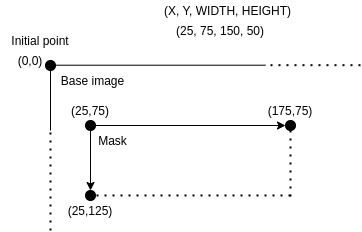
The coordinate system starts at (0, 0) in the upper-left corner of the image.
The diagram below illustrates a rectangle with parameters (25, 75, 150, 50):
Mask Selection Process
When processing a DICOM instance, Karnak selects the appropriate mask using the following algorithm:
- Extract image attributes: Retrieve the Rows (0028,0010), Columns (0028,0011), and Station Name (0008,1010) values from the instance
- Exact match: Search for a mask matching all three values (width, height, and station name)
- Station match: If no exact match is found, ignore image dimensions and match only on station name
- Default mask: If no station match is found, use the mask with
stationName: "*"
Example Configuration
Complete Example: Equipment-Specific Cleaning
This example demonstrates a profile that handles specific pixel data cleaning for equipment that burns patient information into the images and does not match the conditions for automatic application.
This profile below performs the following actions for images from a machine with Station Name containing “ICT256”:
- Ensures the Burned In Annotation tag is present and set to “YES”
- Applies pixel data cleaning with a station-specific mask
- Applies the basic DICOM de-identification profile
Automatic Pixel Data De-identification
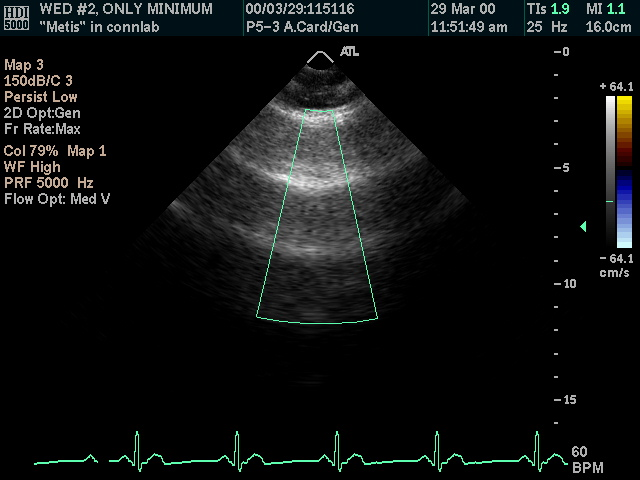
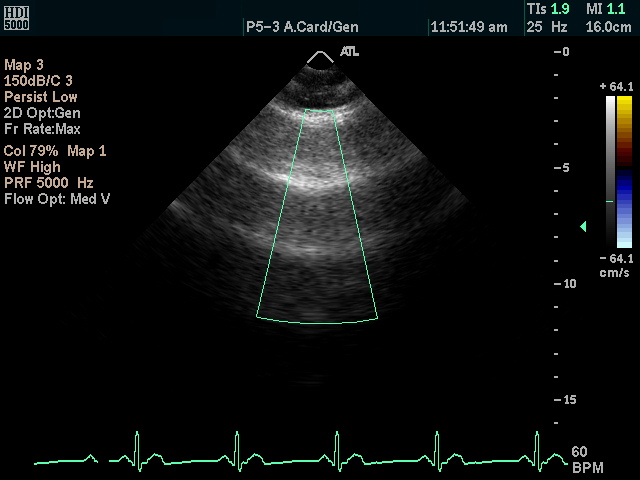
Instead of defining mask rectangles by hand for each station name, Karnak can automatically detect and mask sensitive patient data that are burned into the DICOM pixel data (text overlays such as patient name, accession number, or dates). When this option is enabled, Karnak sends each eligible image to an external de-identification image API that runs OCR, detects sensitive text, and returns the mask areas to apply.
Automatic mask generation is an option of the Clean Pixel Data profile element.
How It Works
- A destination uses a de-identification profile that contains a Clean Pixel Data element with automatic mask generation enabled.
- For every eligible instance (the SOP Classes eligible for pixel data cleaning, or any image flagged with Burned In Annotation (0028,0301)), Karnak extracts the pixel data and a set of sensitive tag values and sends them to the external API.
- The API returns one or more mask areas (rectangles, each with a color). Karnak draws them on the image before forwarding it to the destination.
- If the API returns no mask area (no sensitive data detected, or the call failed), no mask is applied. For eligible image types (US, Secondary Capture, XC, or Burned In Annotation), the instance is then not forwarded; other image types are forwarded unchanged.
The example below shows an ultrasound frame before and after automatic pixel de-identification: the burned-in patient identifiers are detected and masked while the diagnostic image content is preserved.
| Before de-identification | After de-identification |
|---|---|
|
|
Info
When automatic mask generation is enabled, the statically configured station-name masks are not used. Manual masks (see Masks Definition) only apply when automatic generation is disabled.
Sensitive Tags Sent to the API
The values of the following tags are sent so the API can detect them in the image. No pixel data leaves Karnak beyond the single frame being analyzed.
AccessionNumber, InstitutionName, OperatorsName, PatientAge, PatientBirthDate, PatientID, PatientName, PatientSex, PerformingPhysicianName, PerformedProcedureStepID, ReferringPhysicianName, StudyDate.
Fail-closed Behavior
When automatic mask generation is enabled and the API is unreachable or returns an error, Karnak produces no mask and the instance is not forwarded. This prevents un-masked PHI from leaking to the destination if the service is down.
Warning
A missing or failing de-identification image API stops eligible instances from being forwarded. Check the Karnak logs for the cause (client error, server error, or unreachable service).
Enabling the Option in a Profile
Via the UI
- Open the profile editor and add (or edit) a Clean Pixel Data element.
- Enable Automatic masks generation.
- Make sure the profile also contains the DICOM basic profile element.
- Save and assign the profile to the destination’s de-identification project.
Via a YAML Profile
Set the automaticMasksGeneration argument to "true" on the clean.pixel.data element:
Configuring the External API Endpoint
Karnak calls the de-identification image API at the URL configured by the DEIDENTIFY_IMAGE_URL environment variable (default http://localhost:8000). It maps to the karnak.deidentify-image.url property in application.yml:
| Variable | Default | Description |
|---|---|---|
DEIDENTIFY_IMAGE_URL |
http://localhost:8000 |
Base URL of the de-identification image API. |
The API contract is documented in the deidentification-api.yaml specification.
Deploying the External De-identification Service
The de-identification image API is a separate service. Deploy and run it so that it is reachable from Karnak at DEIDENTIFY_IMAGE_URL.
To deploy it alongside the standard installation:
- Deploy the de-identification image API following its deployment guide.
- Point Karnak to it by setting
DEIDENTIFY_IMAGE_URLto the service base URL. - Restart Karnak so the new configuration is picked up.
Info
For the portable distribution, the de-identification service ships as a separate plugin that is started automatically as a sidecar. See the portable distribution page for the installation steps.
Troubleshooting
| Symptom | Likely cause | Action |
|---|---|---|
| Images with automatic masking are not forwarded | API unreachable, returning errors, or returning no mask area | Check the API is running and reachable at DEIDENTIFY_IMAGE_URL; inspect the Karnak logs. |
Cannot reach de-identification image API ... in the logs |
Wrong URL or service down | Verify DEIDENTIFY_IMAGE_URL and the service health. |
Client error ... / Server error ... from de-identification image API in the logs |
Malformed request (4xx) or API failure (5xx) | Verify the API version and health; check the request format against deidentification-api.yaml. |
The SOP Instance UID in the API response ... does not match ... in the logs |
API returned a response for a different instance | Verify the API version and that it echoes back the request sop_instance_uid. |
The SOP Instance UID in the API response is null in the logs |
API response omitted sop_instance_uid |
Verify the API version returns sop_instance_uid in its JSON response. |
| Eligible image forwarded without a mask although PHI is visible | The instance is not an eligible image type (not US, Secondary Capture, XC, or BurnedInAnnotation), so a missing mask does not abort the transfer |
Confirm the image type; automatic masking only guards eligible SOP classes. |